

Reviewing Attempts
View learner attempts, grade long-answer questions, review proctoring events, and release grades.
Reviewing Attempts
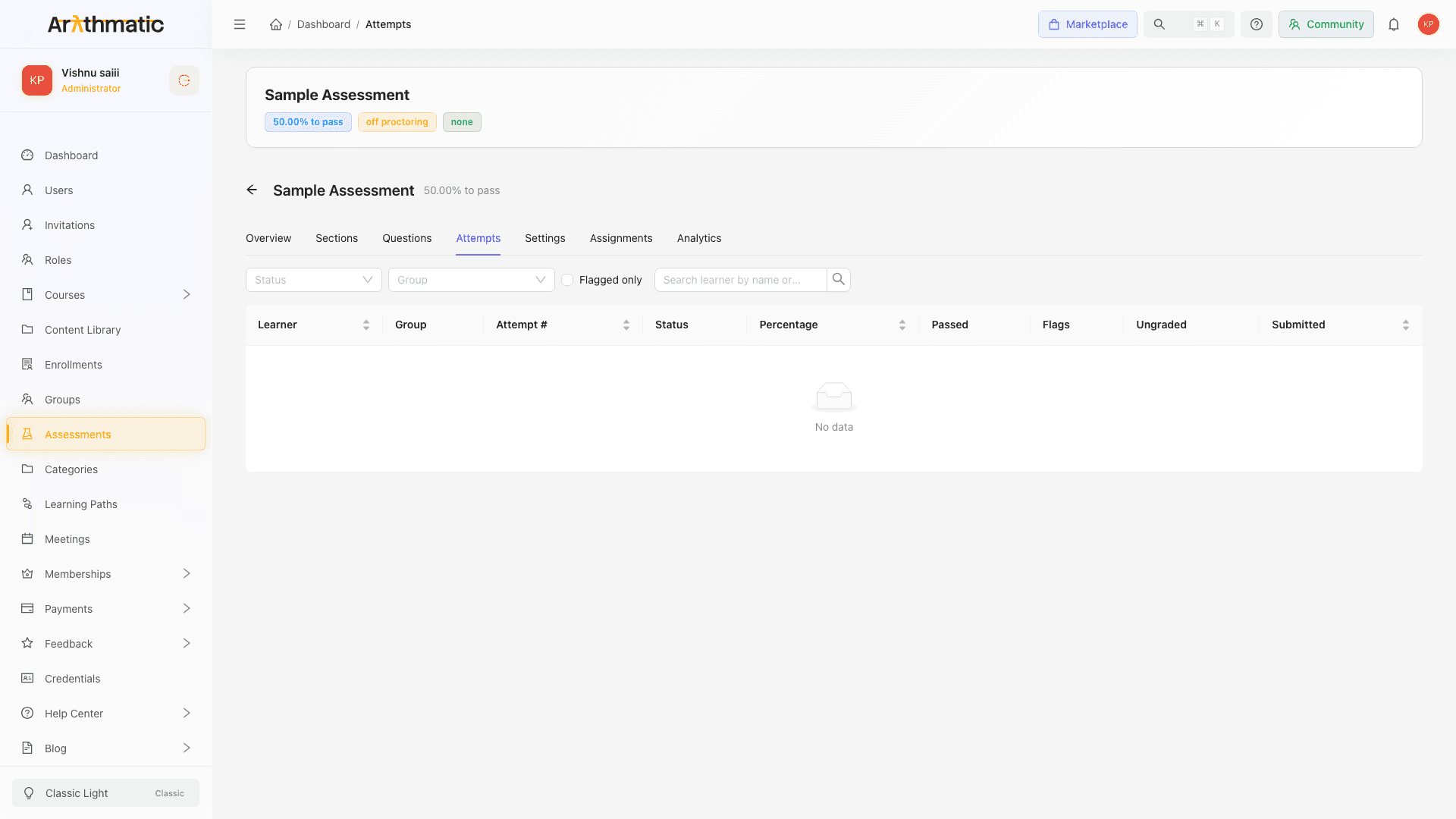
The Attempts tab shows every attempt a learner has made on an assessment. From here you can inspect individual responses, grade manual questions, check proctoring events, and release results to learners.
Before you start
- You need the Admin or GroupAdmin role. GroupAdmins can review, grade, release, and view analytics for attempts within their own groups.
- Results visibility must allow you to act: if set to After admin release, you must release before learners can see their scores.
The Attempts tab
Navigate to an assessment and click the Attempts tab. The table shows:
| Column | Description |
|---|---|
| Learner | Name and email of the learner |
| Started | When the attempt began |
| Submitted | When the learner submitted (blank if still in progress) |
| Score | Points earned / total points, and percentage |
| Result | Passed or Failed (based on passing score) |
| Status | In Progress, Submitted, Flagged, Expired, or Released |
| Duration | Time taken to complete the attempt |
| Actions | Review, Grade, Release buttons |
Two statuses are produced automatically rather than by learner action:
- Flagged — Soft proctoring detected enough integrity events to trip a threshold (see Assessment Settings — Soft proctoring events and thresholds). Flagged attempts have auto-on-pass certificates withheld.
- Expired — the learner was still mid-attempt when the assignment's end time passed. A nightly job moves any such in-progress attempt to Expired and marks it integrity-flagged. Learners also cannot start an attempt before the assignment's start time or after its end time.
Filtering attempts
Use the filter bar above the table to narrow by:
- Learner — search by name or email
- Status — In progress, Submitted, Expired, or Released
- Group — filter to a specific group
- Flagged only — show only attempts flagged by proctoring
Reviewing an individual attempt
Click Review (or the attempt row) to open the attempt detail page.
The detail page shows:
- Attempt header — learner name, score, result, start/end time, duration
- Answer review — each question, the learner's answer, and whether it was correct or incorrect
- Integrity timeline — if Soft proctoring is enabled, a timestamped timeline of integrity events. This covers eight event types (tab switch, window blur, copy, paste, DevTools open, idle period, network gap, full-screen exit), not just focus loss. When any type crosses its per-section threshold the attempt is auto-flagged — see Assessment Settings for the threshold table that explains what triggered a Flagged attempt.
Grading manual questions
Long Answer questions appear with a Grade button next to them on the attempt detail page. So do Short Answer questions that were saved without accepted answers — those auto-score 0 and count as ungraded until you grade them, so watch for Short Answer responses marked wrong that actually deserve credit.
The Grade action works on any question type, not just Long/Short Answer: the score you enter is clamped to the question's point range and blended back in. Because grading recomputes the attempt total, a manual grade can move an attempt from Failed to Passed (and fire the pass side effects, such as an auto-on-pass certificate).
- Click Grade next to a long answer response.
- Read the learner's answer.
- Enter a point value (0 up to the question's max points).
- Optionally add a feedback comment.
- Click Save grade.
The attempt score is recalculated once all long answer questions are graded.
Releasing grades
If Results visibility is set to After admin release, learners cannot see their scores until you explicitly release them.
Release a single attempt
- Find the attempt in the Attempts table.
- Click Release in the Actions column.
- Confirm.
The learner receives a notification (if enabled) and can now see their score.
Release all attempts at once
- Click Release All at the top of the Attempts tab.
- A confirmation modal lists how many unreleased attempts will be released.
- Click Release All to confirm.
All completed attempts become visible to learners simultaneously.
Certificate actions
You can manage an attempt's certificate directly from the Attempts tab, independent of the assessment's Certificate mode:
- Issue a certificate manually for any finalised attempt — this works even when the mode is None or Manual, or when Auto on pass withheld the certificate because the attempt was integrity-flagged.
- Revoke an issued certificate. Revoking marks the credential revoked with a reason and purges its stored PDF, PNG, and web-page artifacts, so the shared certificate link stops resolving. Use this to correct a certificate issued in error.
Section Scores panel
The attempt detail page shows a Section scores card (always visible — there is no tab to click) with a breakdown of the learner's performance per section — useful for multi-section assessments where you want to identify which topic areas a learner struggled with.
AI Report Card
If AI report enabled is on in Settings, an AI Report Card panel appears on the attempt detail page (shown as a card alongside the section scores, answers, and integrity-events cards — not a separate tab). This shows a personalised AI-generated summary of the learner's performance, including:
- Strengths identified
- Topics where the learner needs improvement
- Suggested resources or areas to study
The report is generated automatically. Generation moves through pending → generating → ready, but it can also end in failed or skipped (quota). When a report fails, click Regenerate on the attempt to reset it and retry — the retry is idempotent, so it is safely ignored if a report is already ready or still generating.
Analytics tab
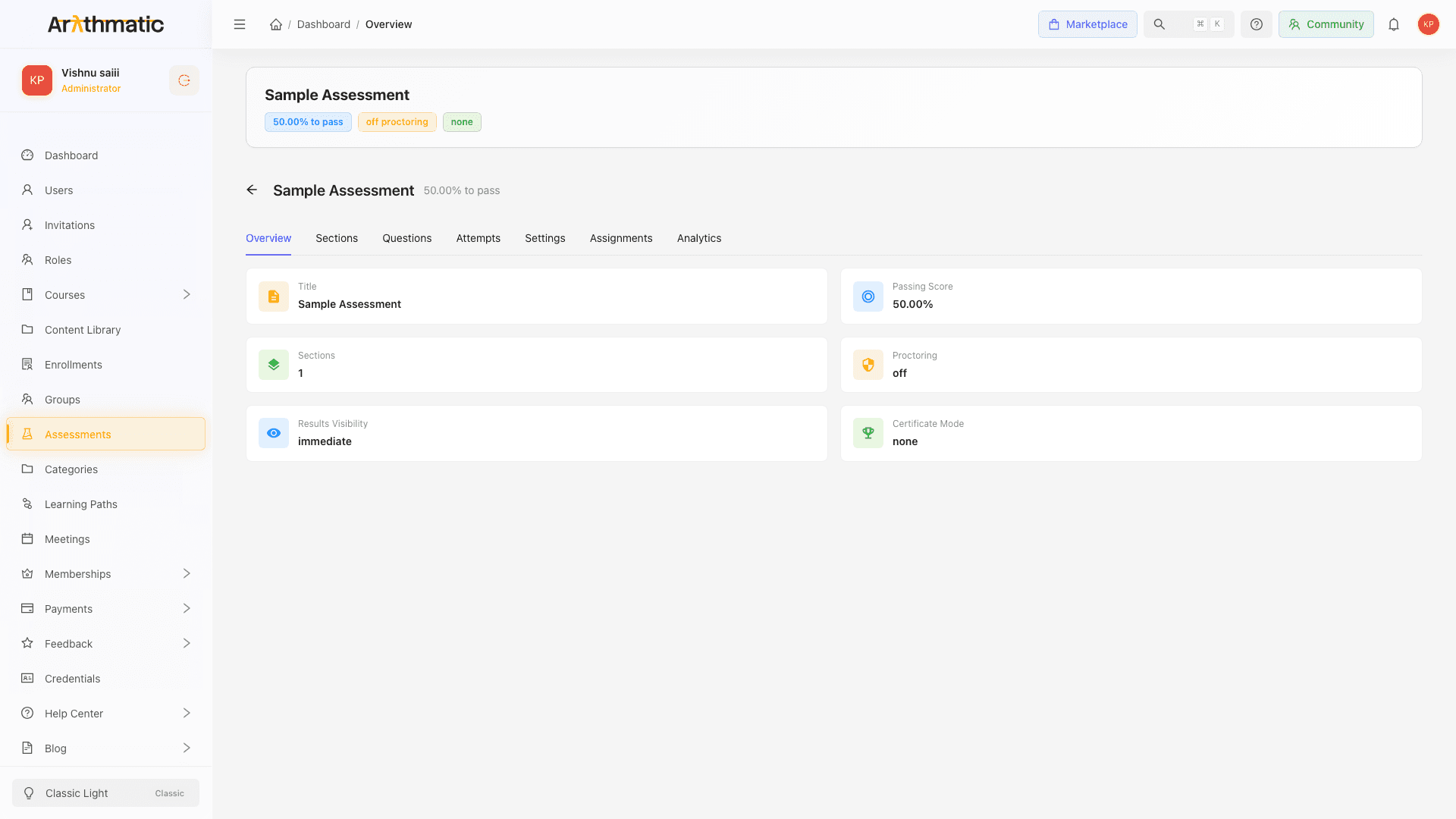
The Analytics tab on the assessment detail page provides aggregate statistics across all attempts:
- Total attempts and unique learners
- Average score and pass rate
- Score distribution chart
- Per-question analytics — which questions had the highest/lowest correct rate
Use this data to identify questions that are too easy, too hard, or ambiguous (many learners choosing the same wrong answer may indicate a poorly worded question).
Related
- Assessment Settings — configure results visibility and certificate mode
- Create an Assessment — set up the assessment
- Question Types — Long Answer grading in context
Assessment Settings
Configure attempts, cool-down periods, proctoring, results visibility, certificates, negative marking, AI reports, and explanation display for an assessment.
Content Library
Upload and manage reusable media assets — videos, documents, audio files, and images — that can be attached to lessons across multiple courses.
