

Assessments — Overview
Understand standalone Assessments in Arythmatic — how they differ from course quizzes, what they support, and when to use each.
Assessments — Overview
Assessments are standalone, high-stakes quizzes that exist outside the course curriculum. Use them for entrance exams, certification tests, compliance checks, or any scenario where you need a dedicated quiz experience with proctoring, sectioned question sets, time limits, and full grading workflows.
In this section
Authoring an assessment runs from creation through grading:
- Create an Assessment — the four-step creation wizard
- Question Types — MCQ, True/False, Short/Long Answer, Fill-in-Blank, and Matching
- Assessment Settings — attempts, cool-down, proctoring, results visibility, and certificates
- Reviewing Attempts — grade responses and release results
Assessments vs. course quizzes
| Feature | Assessment | Course Quiz (lesson) |
|---|---|---|
| Lives inside a course | No — standalone | Yes |
| Supports sections | Yes | No |
| Per-section time limits | Yes | No |
| Proctoring | Soft proctoring | No |
| Learner assignment | Explicit assign | Automatic on enrollment |
| Grading workflow | Admin releases grades | Immediate / auto |
| AI report card | Yes | No |
| Negative marking | Yes | No |
Use course quizzes for knowledge checks within a lesson. Use Assessments when the quiz is the main event.
Roles
- Admin — full access: create, edit, assign, review attempts, release grades, delete. Authoring assessments, sections, and questions is Admin-only.
- GroupAdmin — read-only access to the assessment catalog, plus group-scoped attempt review, grading, grade release, and certificates. GroupAdmins cannot author (create, edit, or delete) assessments, sections, or questions.
- Learner — takes assigned assessments; cannot access the admin dashboard.
Assessment lifecycle
Create → Add Sections → Add Questions → Assign to a group
                                              ↓
                                        Learners attempt
                                              ↓
                                        Review attempts
                                              ↓
                                        Release grades
Assessments do not have a Draft/Published toggle like courses. They become available to a learner once you assign them.
How learners take an assessment
Understanding the delivery model helps you structure sections and set expectations:
- One section at a time, in order. Learners are served the sections in their sort order, one at a time — the next section only appears after the current one is submitted.
- Section submission is final. Once a learner submits a section, they cannot go back to it or change their answers. There is no "return to previous section" step.
- Independent per-section timers. Each section's countdown starts the first time the learner opens that section (start time + the section's time limit). Timers are separate — time left in one section has no bearing on the next.
- Assignment window gates when learners may start. A learner cannot open an attempt before the assignment's start time (
assessment_not_open) or after its end time (assessment_window_closed). This is distinct from Results visibility, which only controls when scores appear. - The attempt finalises after the last section. Scoring, the AI report, and any auto-on-pass certificate fire only once the final section is submitted.
An attempt that is still in progress when the assignment window closes is automatically moved to Expired and flagged for integrity (see Reviewing Attempts).
Key concepts
| Concept | Description |
|---|---|
| Section | A named group of questions within an assessment. Each section can have its own time limit and question count (quota). |
| Question | A single question item belonging to a section. Seven question types are supported. |
| Passing score | The percentage a learner must achieve to pass. Default is 50%. |
| Max attempts | How many times a learner can attempt the assessment. 0 means unlimited. |
| Cool-down | Minutes a learner must wait between attempts. |
| Proctoring mode | Off (no restrictions) or Soft (detects tab switches and suspicious behavior, logs events). |
| Results visibility | When learners can see their score: Immediate, After window closes, or After admin release. |
| Certificate mode | Whether a certificate is issued: None, Auto on pass, or Manual. |
| Assignment | Linking an assessment to a group, with an optional start/end window. Every learner in that group then sees the assessment. Assignment is group-only — there is no per-learner or per-enrollment target. |
The Assessments list page
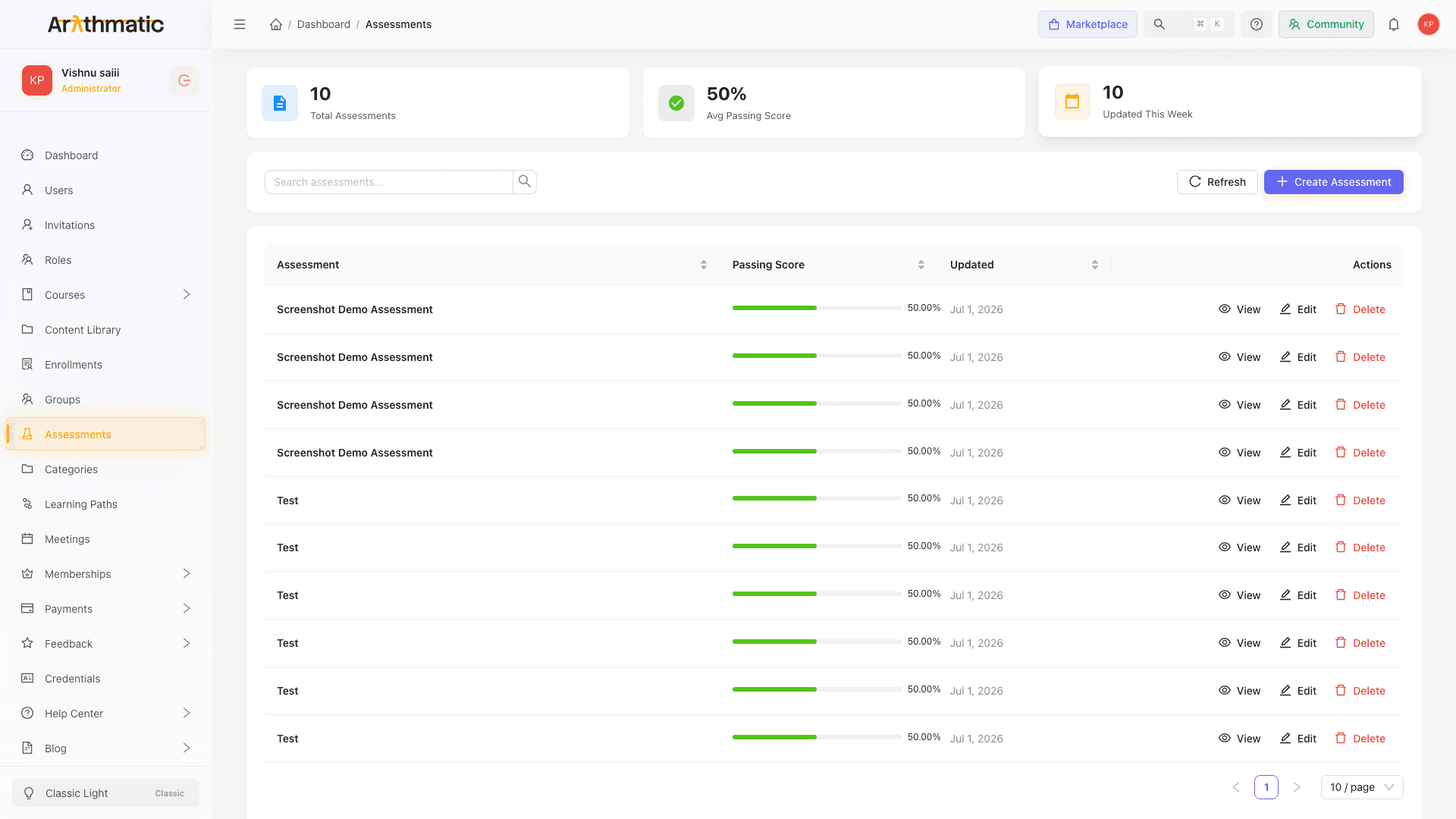
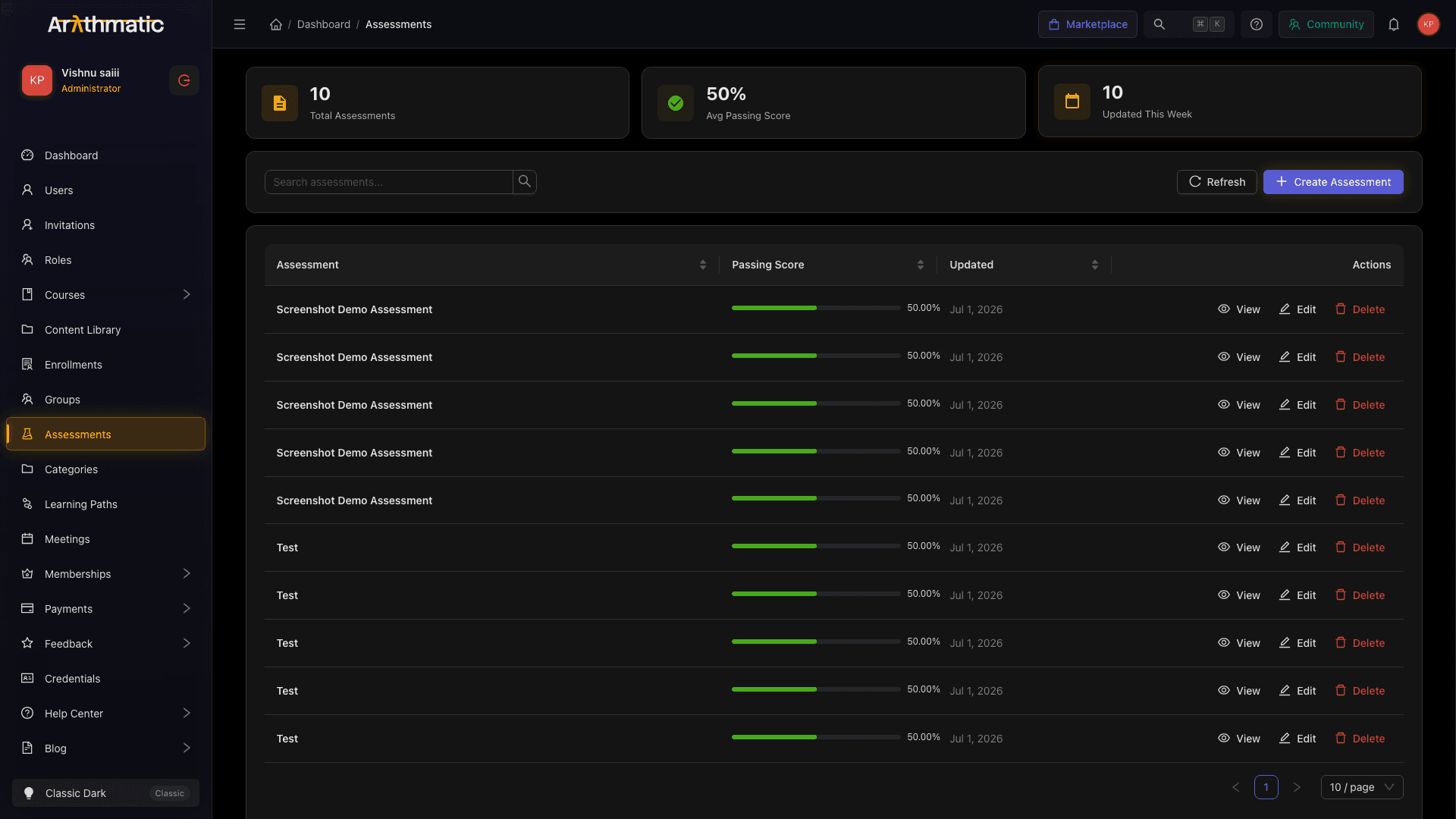
The list shows all assessments in a table with:
- Title — click to open the assessment detail page
- Status / attempt counts
- Action menu (⋯) — Edit, Delete
Use the search box to filter by title. Click + New Assessment to start the creation wizard.
Next steps
- Create an Assessment — step-by-step creation wizard
- Question Types — all seven question types explained
- Assessment Settings — attempts, proctoring, certificates, and more
- Reviewing Attempts — grade and release results
