

Courses Overview
A complete reference for the Courses list — filters, search, sort, grid and list views, the statistics sidebar, course cards, and every per-course action.
Courses Overview
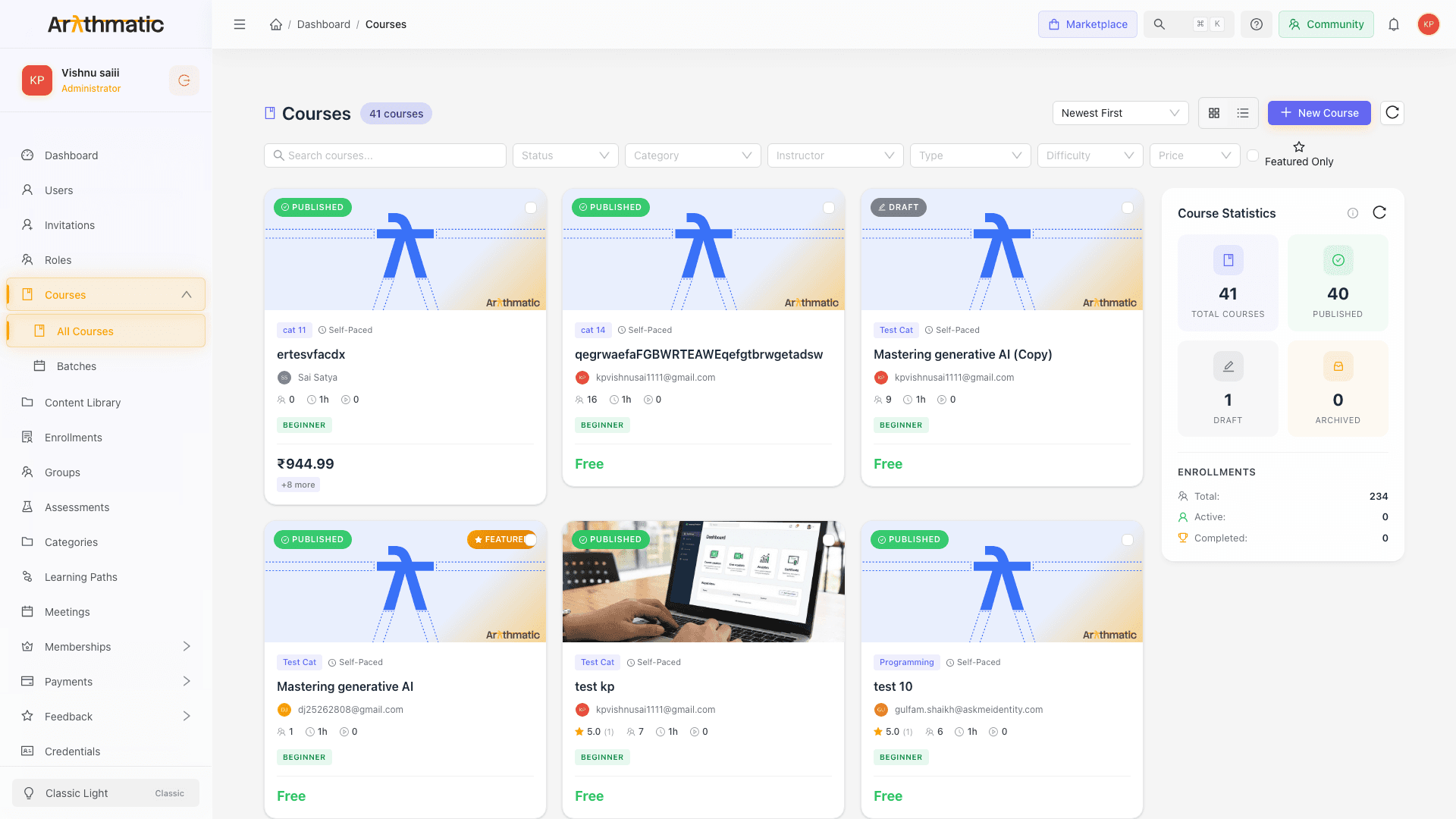
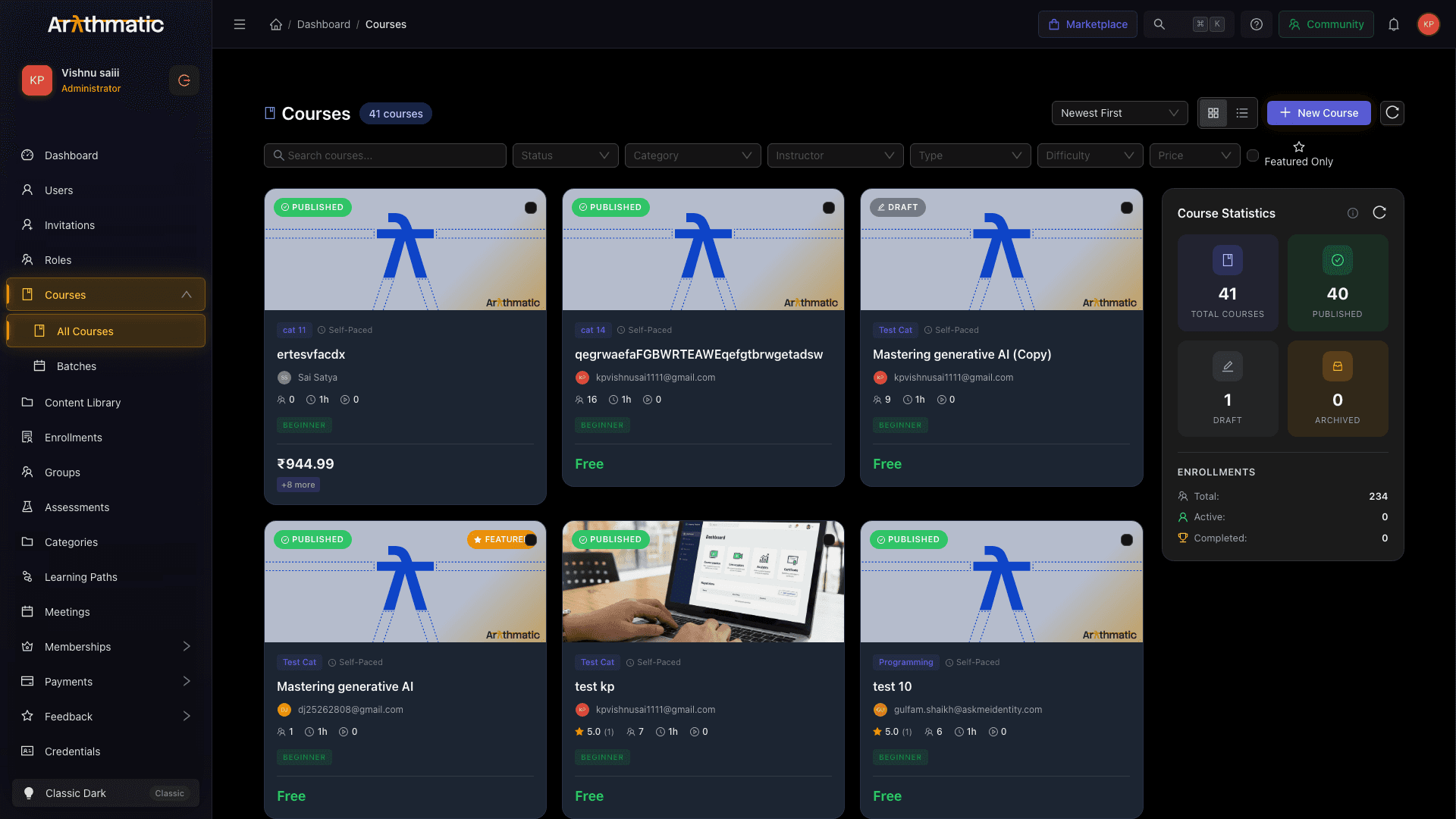
The Courses page is your workspace's control room for every course you offer. It lists all courses you can manage, gives you a filter bar and search to narrow the list, a statistics sidebar that summarizes your catalog at a glance, and per-course cards with inline actions for publishing, featuring, duplicating, archiving, and deleting.
A course is the primary learning unit in Arythmatic. It packages your content into a structured, enrollable experience that learners complete at their own pace or as part of an instructor-led cohort. Each course carries a status, a type, a difficulty level, a category, pricing, an instructor, and rollup stats (enrollments, rating, duration, content count) — and every one of those fields is surfaced and filterable on this page.
Who sees what
Users with the Admin or Instructor role can open the Courses page. Instructors see and edit their own courses; Admins see every course across the workspace. Pricing is hidden from users who are Instructors only — the price on each card and the Price column render for Admins.
Co-instructors
A course is not limited to a single instructor. An Admin or the course's primary instructor can add co-instructors to a course. A co-instructor gains edit access to the course and its curriculum, and can view the course's enrollment roster — so adding one is an authorization decision, not just a credit line.
By default a co-instructor is attached to the parent course and sees all of its batches. When you add them scoped to specific batches instead, they are attached only to those batch cohorts and see just those. Only an Admin or the primary instructor can add or remove co-instructors.
Adding a co-instructor silently grants course-edit rights and learner-roster visibility. Only add instructors you intend to give that access to.
The filter bar
The filter bar sits directly under the header. Every control is independent, and they combine (AND) to narrow the list. Whenever one or more filters are active, an Active: row of removable tags appears below the controls, plus a Clear link that resets all of them at once. Each tag has an ✕ to drop just that one filter.
| Filter | Control | Values | Default |
|---|---|---|---|
| Search | Text input | Free text, matched against course title/content | Empty |
| Status | Dropdown | Draft, Published, Archived | Any (unset) |
| Category | Tree select | Any category in your category tree (searchable, nestable) | Any |
| Instructor | Searchable dropdown | Admin + Instructor users in your workspace | Any |
| Type | Dropdown | Self-Paced, Instructor Led, Hybrid | Any |
| Difficulty | Dropdown | Beginner, Intermediate, Advanced, Expert | Any |
| Price | Dropdown | Free, Paid | Any |
| Featured Only | Checkbox | On / off | Off |
Search is debounced by ~300ms, so results update shortly after you stop typing rather than on every keystroke. Clear it with the input's built-in ✕.
Category is a tree picker — parent categories expand to their children, and you can type to search within the tree. Selecting a parent filters to that category.
Instructor options load lazily the first time you focus the dropdown. Behind the scenes it fetches active users with the admin and instructor roles, deduplicates them, and shows each with an avatar and name. Type to filter by name.
Difficulty values are color-coded throughout the UI: Beginner (green), Intermediate (blue), Advanced (orange), Expert (red).
Price is a two-way toggle — Free limits the list to free courses, Paid limits it to priced courses. Clearing it shows both.
Combine filters to answer real questions fast — for example, Status = Draft + Instructor = you surfaces exactly the courses you still need to finish, while Status = Published + Featured Only shows what's currently promoted in your catalog.
Sorting
The sort dropdown lives in the page header (top-right). It controls the order of the whole list:
| Sort option | Orders by |
|---|---|
| Newest First (default) | Creation date, newest to oldest |
| Oldest First | Creation date, oldest to newest |
| Title (A-Z) | Title, ascending |
| Title (Z-A) | Title, descending |
| Most Enrolled | Enrollment count, high to low |
| Highest Rated | Average rating, high to low |
| Price (Low-High) | Price, ascending |
| Price (High-Low) | Price, descending |
In list (table) view only the Course (title) and Price column headers are clickable sorters today — Status, Instructor, Enrollments, and Rating headers are not sortable from the table yet. To order by enrollments or rating, use the header sort dropdown (Most Enrolled / Highest Rated) instead.
Grid view vs list view
A view toggle in the header switches between two layouts. Your choice persists as you filter and sort.
- Grid view renders each course as a card (see below) in a responsive grid — the richest, most visual layout, and the default.
- List view renders a compact table with columns: Course (title + category • duration), Status (colored tag), Instructor, Enrollments, Price (Free tag or formatted amount), Rating (average and count), and a trailing ⋯ actions menu. Rows are selectable via checkboxes and paginated with a page size that does not change.
Clicking a card or a table row opens that course's detail page.
The Course Statistics sidebar
A sticky Course Statistics panel sits to the right of the list (it moves above the list on narrower screens). A ↻ refresh button re-pulls the numbers. It shows:
| Section | What it reports |
|---|---|
| Total Courses | Count of all courses |
| Published | Count of published courses |
| Draft | Count of draft courses |
| Archived | Count of archived courses |
| Enrollments → Total | All enrollments across courses |
| Enrollments → Active | Currently active enrollments |
| Enrollments → Completed | Completed enrollments |
| Average Completion Rate | A progress bar (shown when available) |
| Total Revenue | Formatted revenue total (shown when available) |
| Top Courses | Up to 5 courses ranked by enrollment |
| By Type | Course counts split into Self-Paced, Instructor Led, Hybrid |
Large enrollment numbers are abbreviated (for example 1,200 → 1.2K, 3,400,000 → 3.4M). Revenue and completion-rate rows appear only when the backend returns those figures.
The sidebar totals reflect your entire catalog, not the currently filtered list — treat it as the workspace-wide snapshot while the cards/table below react to your filters.
Anatomy of a course card
Each card packs the course's key facts into a compact tile:
- Thumbnail — the course image, with a skeleton while it loads. If there's no image (or it fails to load) a default placeholder is shown.
- Status badge (top-left) — Draft (grey), Published (green), or Archived (amber), each with an icon.
- Featured badge (top-right) — a gold "Featured" ribbon when the course is featured.
- Batch badge (bottom-left) — a "Batch" tag when the course runs as instructor-led batches.
- Selection checkbox (top-right) — for bulk actions.
- Category + Type — the category chip and a type label (Self-Paced / Instructor Led / Hybrid) with an icon.
- Title — clamped to two lines.
- Instructor — avatar plus name, when set.
- Stats row — ★ rating (average and count, when rated), 👥 enrollment count, ⏱ estimated duration (minutes under an hour, otherwise hours), and ▶ total content-item count.
- Difficulty badge — Beginner / Intermediate / Advanced / Expert, color-coded.
- Price — Free in green, or the formatted amount in the course's own currency. If a course has multiple regional prices, the first is shown with a +N more chip. Pricing is hidden entirely from Instructor-only users.
Per-course actions
On a card, hover to reveal two controls in the footer: a ★ feature toggle (fills gold when featured; click to add/remove from featured) and a ⋯ menu. The ⋯ menu is status-aware:
| Action | When it appears | What it does |
|---|---|---|
| Edit | Always | Opens the course editor |
| Publish | Draft only | Publishes the course |
| Quick Publish (Everyone) | Draft only | Assigns the course to the built-in Everyone group, then publishes — one click to make it live for all learners |
| Unpublish | Published only | Returns the course to Draft |
| Duplicate | Always | Opens the create wizard pre-filled from this course |
| Archive | Not already archived | Archives the course (confirmation prompt) |
| Delete | Always | Permanently deletes the course (confirmation prompt) |
The list-view ⋯ menu offers the same intent with a slightly different set: Edit, Duplicate, a Feature / Remove from featured toggle, then Publish or Unpublish (by status), Archive, and Delete.
Create Self-Paced (from a finished batch)
After an instructor-led batch has run, an Admin can convert that batch's course copy into a brand-new, independent self-paced course with the Create Self-Paced action. This is a distinct feature from Duplicate and behaves very differently:
- The clone is created as a self-paced course in Draft (you can choose to publish it instead), with all date and enrollment fields cleared, and no link back to the source batch or parent.
- It inherits the source's taxonomy, instructor, and pricing, and duplicates the sections, content, and assignments — but live-session and meeting lessons are dropped (they have no place in a self-paced course), and duplicated assignments have their due dates cleared.
- Media is not re-uploaded: the new lessons reference the same stored files as the source, so editing or replacing a shared media file affects both.
Create Self-Paced is not the same as Duplicate. Duplicate opens the create wizard pre-filled from a course; Create Self-Paced is an Admin-only action that clones a finished batch into a standalone self-paced course, dropping live/meeting lessons and reusing (not copying) the media files.
Publishing a paid course requires an active payment gateway. If none is configured, publishing is blocked with a prompt to set one up under Settings → Payment Gateways. Free courses publish without a gateway.
Delete is permanent and cannot be undone. A published course with active enrollments cannot be deleted — archive or unpublish it instead. Unpublishing keeps enrolled learners' progress intact.
Course statuses
Every course sits in exactly one status, reflected by its badge and by the Status filter:
| Status | Meaning | Learner visibility |
|---|---|---|
| Draft | Being built or edited | Hidden from learners |
| Published | Live | Visible to enrolled learners and in the catalog |
| Archived | Retired from active use | Hidden; retained for records |
You can move a published course back to Draft at any time to make changes, then re-publish. Archiving is the safe alternative to deletion for courses you no longer offer but want to keep.
Header actions: New Course, Refresh, and bulk operations
The header holds the primary buttons:
- New Course — opens the course-creation wizard to build a course from scratch.
- ↻ Refresh — re-fetches the current list.
- Bulk actions — when you select one or more courses (via card or row checkboxes), a Bulk Actions menu and a live "N selected" counter appear. You can Publish, Archive, Feature, Unfeature, or Delete the whole selection (each with a confirmation), or Clear Selection.
How Load More works
The list loads a page of courses at a time. In grid view, when more results exist a Load More Courses button appears at the bottom — clicking it appends the next page beneath the current cards (infinite-scroll style) while a spinner shows during the fetch. In list view, the table uses standard numbered pagination instead. The header's course count always reflects the total matching your active filters.
Next steps
- Create a Course — open the creation wizard and configure your first course
- Curriculum Builder — add sections and content items
- Content Types — choose the right format for each lesson
- Preview and Publish — review your course and make it live
