

Assessment Settings
Configure attempts, cool-down periods, proctoring, results visibility, certificates, negative marking, AI reports, and explanation display for an assessment.
Assessment Settings
The Settings tab on an assessment detail page lets you fine-tune how the assessment behaves — how many times learners can try it, how long they must wait between attempts, and what they see after submitting.
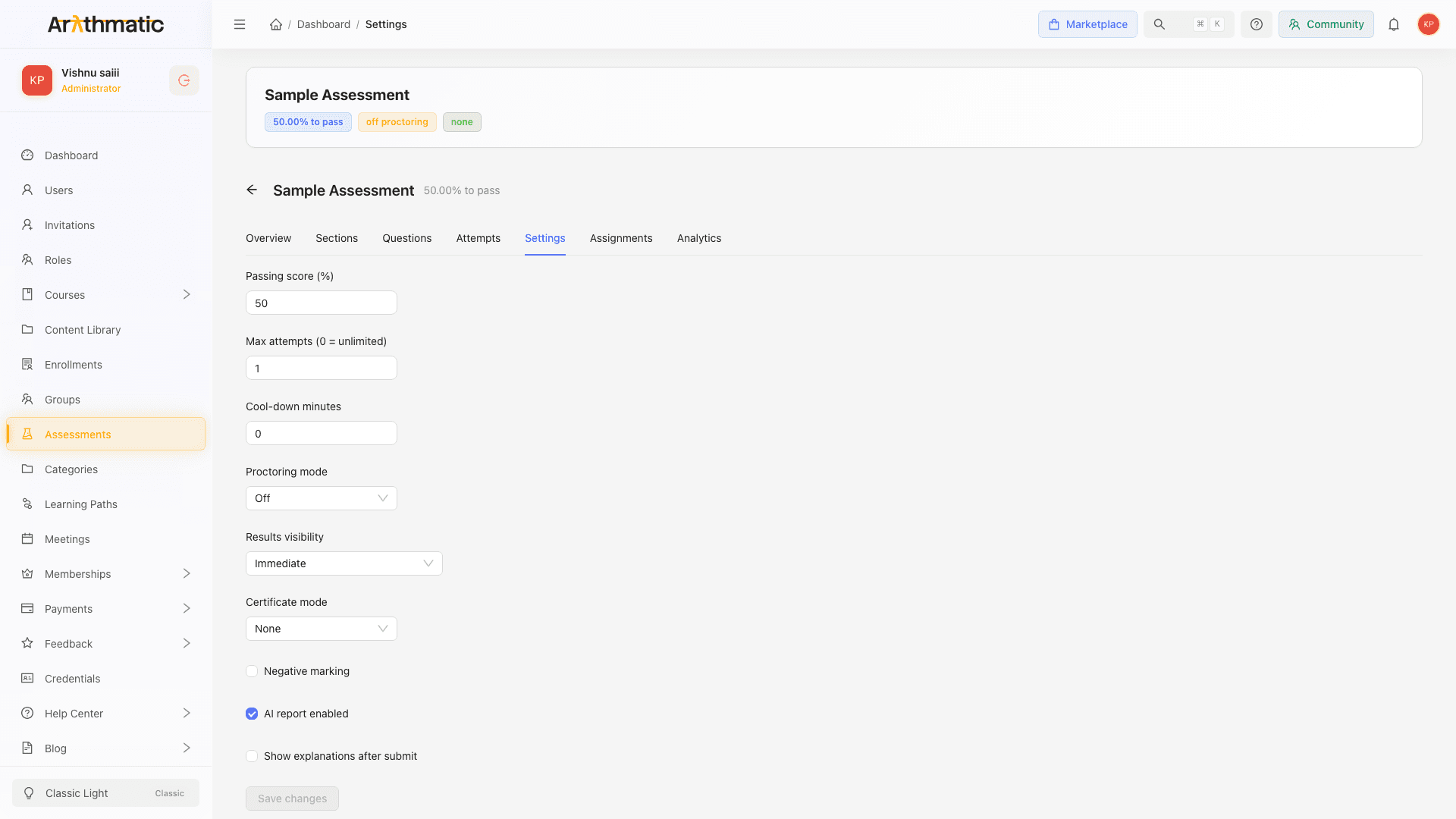
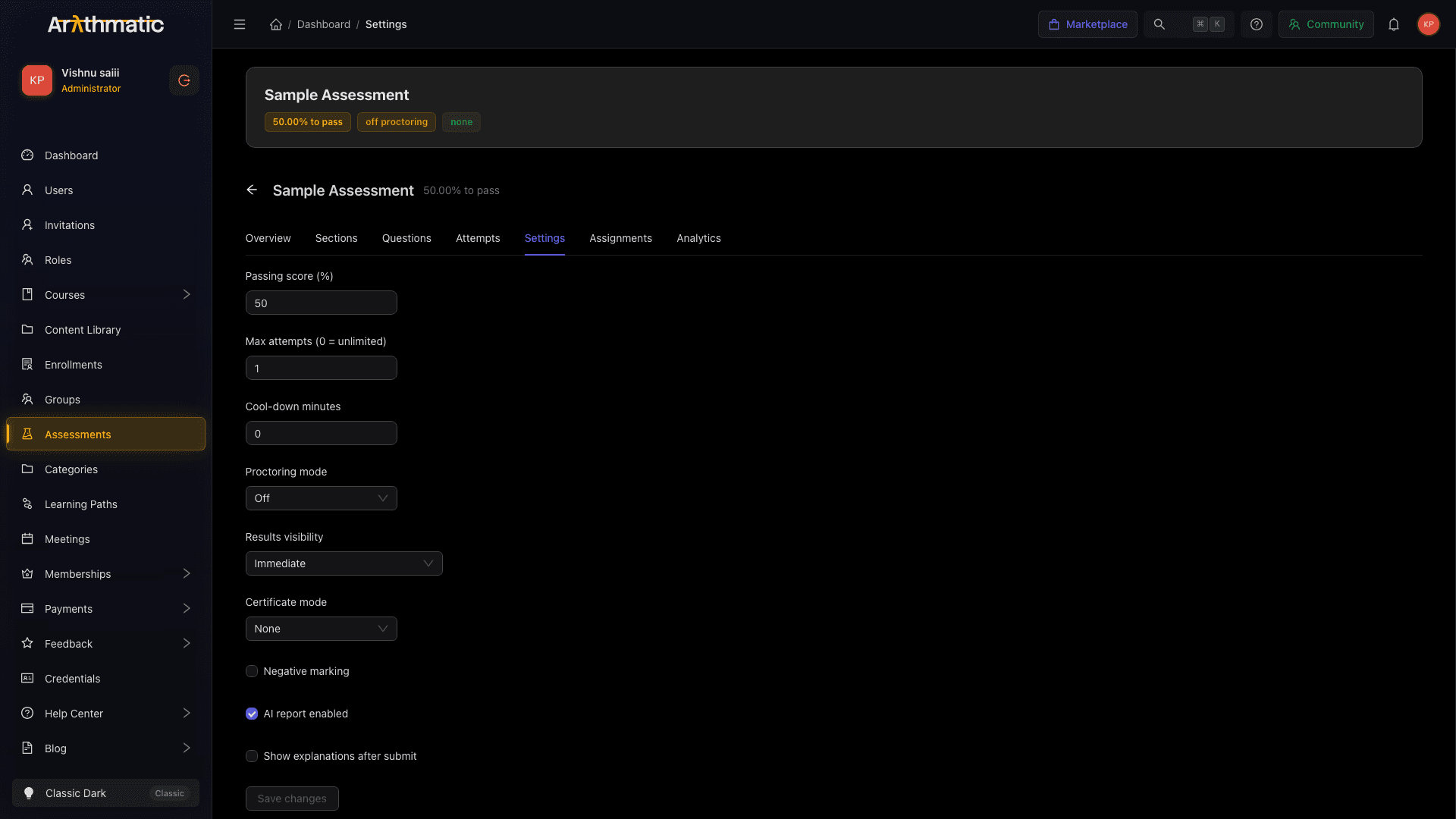
Opening Settings
- Navigate to Assessments in the sidebar.
- Click the assessment title to open the detail page.
- Click the Settings tab.
Available settings
Passing score (%)
The minimum percentage score required to pass the assessment. Range: 0–100. Default: 50.
A learner's score is calculated as (points earned / total points) × 100. If the score equals or exceeds the passing score, the attempt is marked Passed.
Max attempts (0 = unlimited)
How many times a learner can attempt the assessment. Set to 0 for unlimited attempts.
After reaching the max attempts, learners see a message explaining they have used all their attempts.
Cool-down minutes
How many minutes a learner must wait before starting a new attempt after completing one. Set to 0 to allow immediate retakes (subject to max attempts).
Example: cool_down_minutes = 60 means the learner must wait one hour between attempts.
Proctoring mode
| Option | Behavior |
|---|---|
| Off | No monitoring. |
| Soft | Detects eight event types (see below), timestamps them in the Integrity Timeline on the attempt detail page, and auto-flags the attempt when any event type crosses its threshold. The attempt is never blocked or ended — but a flagged attempt shows status Flagged and has any auto-on-pass certificate withheld. |
Soft proctoring events and thresholds
Soft proctoring tracks far more than focus loss. When the count of any event type in the learner's current section reaches its threshold, the whole attempt is set to Flagged (this cannot be undone from the UI):
| Event | Threshold (flags at) |
|---|---|
| Tab switch | 3 |
| Window blur (minimise / focus loss) | 3 |
| Copy | 1 |
| Paste | 1 |
| DevTools open | 1 |
| Idle period | 2 |
| Network gap | 2 |
| Full-screen exit | 1 |
A single copy, paste, DevTools-open, or full-screen-exit event flags the attempt immediately. Because flagged attempts have auto-on-pass certificates withheld, review any Flagged attempt against this table before issuing a certificate manually.
Results visibility
Controls when learners can see their score and correct answers:
| Option | When the learner sees results |
|---|---|
| Immediate | Score appears the moment the learner submits. |
| After window closes | Score is hidden until the end of the defined attempt window. |
| After admin release | Score is hidden until an Admin or GroupAdmin clicks Release for that attempt or clicks Release All for the assessment. |
Certificate mode
| Option | When a certificate is issued |
|---|---|
| None | No certificate. |
| Auto on pass | A certificate is automatically generated and sent to the learner when they achieve a passing score. |
| Manual | You issue certificates manually from the Attempts tab for specific learners. |
Even with Auto on pass, certificates are withheld for integrity-flagged attempts. Review those attempts and issue the certificate manually if the flag is cleared.
The certificate mode only governs automatic issuance. Regardless of the mode, an Admin or GroupAdmin can, from the Attempts tab:
- Force-issue a certificate for any finalised attempt — even when the mode is None or Manual, or when Auto on pass withheld it for a flag.
- Revoke an already-issued certificate. Revoking sets the credential to revoked with a reason and purges its stored PDF, PNG, and web artifacts.
See Reviewing Attempts for these actions.
Negative marking
When enabled, an incorrect answer deducts points from the learner's score. Each question has an author-set Negative weight — a fixed number of points, entered in the question form — and a wrong answer subtracts exactly that value. There is no automatic 1/N formula based on the option count; the deduction is whatever negative weight you set on the question (default 0).
Inform learners in the assessment description or instructions that negative marking is enabled so they can decide whether to guess on uncertain answers.
AI report enabled
When enabled, after a learner submits an attempt, Arythmatic generates an AI Report Card — a personalised summary of the learner's strengths, weak areas, and recommended topics to review. The report appears on the attempt detail page.
Enabling this setting may slightly increase the time taken to display results after submission. AI report generation may be skipped if your tenant's AI quota is exhausted.
Each report moves through observable states — pending → generating → ready, or failed / skipped (quota). Generation can fail; when it does, an Admin or GroupAdmin can retry it with the Regenerate action on the attempt detail page (see Reviewing Attempts).
Show explanations after submit
When enabled, correct explanations (entered when creating each question) are shown to the learner immediately after they submit. If Results visibility is not set to Immediate, explanations are shown when results become visible.
Saving changes
Click Save changes to apply all settings. The button is disabled until you change at least one value. A success toast confirms the update.
Tips
- For a high-stakes certification exam, use Results visibility: After admin release + Certificate mode: Manual so you can review borderline cases before issuing certificates.
- For practice assessments, use Max attempts: 0 (unlimited) + Results visibility: Immediate + Show explanations after submit: on so learners can learn from each attempt.
- If using Soft proctoring, mention it in the assessment description so learners are not surprised by the monitoring.
Related
- Create an Assessment — initial settings in the wizard
- Reviewing Attempts — release grades, grade long answers
- Question Types — question-level explanations
