

Coupons & Discount Codes
Create and manage percentage or fixed-amount discount codes with validity windows, usage limits, and course or learning path targeting.
Coupons & Discount Codes
Coupons let you offer discount codes that learners enter at checkout to reduce the price of a course or learning path. As an Admin, you create coupons on the Coupons page, choose a percentage or fixed-amount discount, set a validity window and usage limits, and optionally restrict which courses or learning paths a code applies to. Coupons are the flexible complement to standing course prices — use them for promotions, launch offers, and first-purchase incentives without permanently changing your list prices.
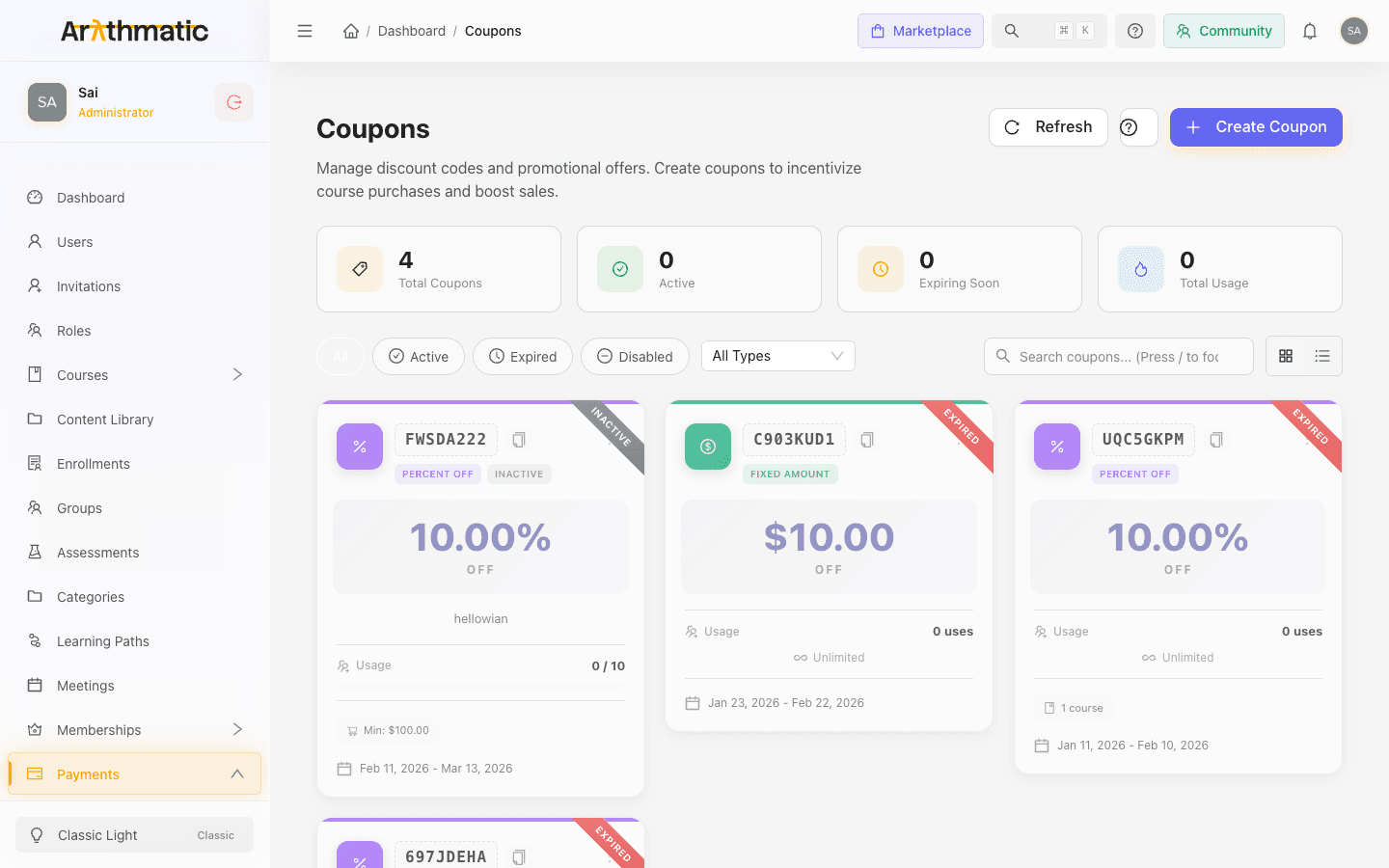
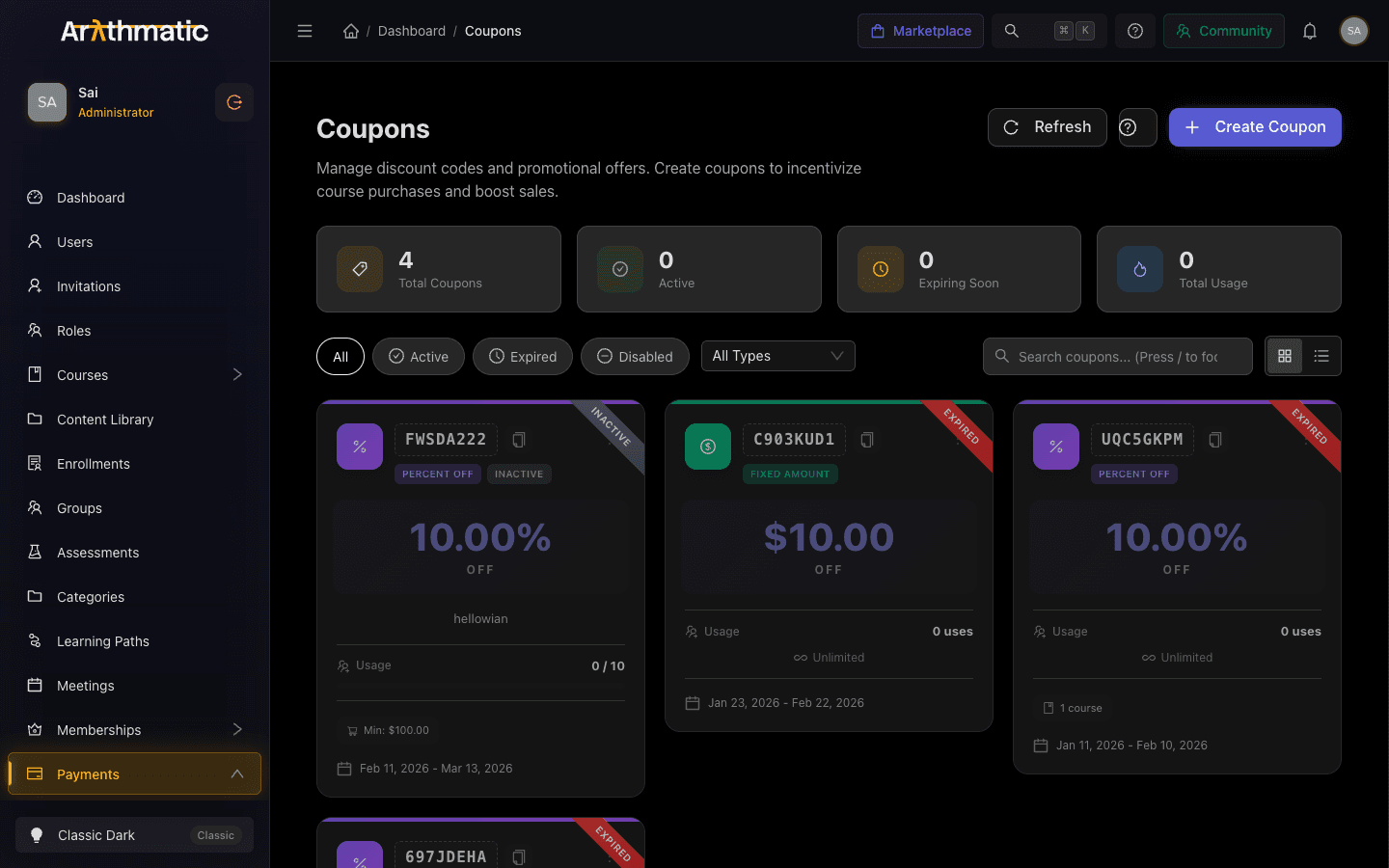
The Coupons page
Open Coupons from the sidebar to see every code in your workspace. Along the top, four summary cards show Total Coupons, Active, Expiring Soon, and Total Usage. Below them you can:
- Filter by status pill: All, Active, Expired, or Disabled.
- Filter by type: All Types, Percentage, or Fixed Amount.
- Search codes with the search box (press
/to jump to it). - Switch between the card grid and the table view.
Each coupon shows its Code, Discount, Usage (used count against the limit, or ∞ for unlimited), a Status tag, and its Validity date range. From the row or card actions you can edit, activate/deactivate, duplicate, reset usage, or delete a coupon.
Creating a coupon
Click Create Coupon to open the builder. It walks through four steps — Basics, Discount, Limits, and Review — and shows a live preview card as you go. You can move forward only when the current step is valid.
Step 1 — Basics
| Field | Notes |
|---|---|
| Coupon Code | The code learners type at checkout. 4–20 characters, letters/numbers/underscores/hyphens only, and automatically uppercased. Click Generate for a random code. |
| Title | Optional display title (defaults to the code). |
| Description | Optional internal note, up to 500 characters. |
Step 2 — Discount
Choose the Discount Type:
| Type | Behavior |
|---|---|
| Percentage | Takes a percentage off the price (for example, 20% off). The value cannot exceed 100. |
| Fixed Amount | Takes a set amount off the price (for example, $15 off). |
| Field | Notes |
|---|---|
| Percentage Off / Amount Off | The discount value. Must be greater than 0. |
| Maximum Discount | Percentage coupons only. Caps the discount amount (for example, "20% off, up to $50"). |
| Minimum Purchase | Optional order value a learner must reach before the code applies. |
Fixed-amount discounts, the minimum purchase, and the maximum-discount cap are all denominated in USD — the coupon does not store a per-currency amount, so a fixed-amount code applies the same USD figure regardless of the currency a learner checks out in. For broad, multi-currency promotions, a percentage coupon avoids any currency mismatch entirely.
Step 3 — Limits
| Field | Notes |
|---|---|
| Total Usage Limit | Maximum number of times the code can be redeemed across all learners. Leave empty for unlimited. |
| Per User Limit | How many times each individual learner can use the code. Leave empty for unlimited. |
| Valid From | Start date and time. The coupon is inactive before this moment (shown as Scheduled). |
| Valid Until | End date and time. Must be after the start date. After it passes the coupon shows as Expired. |
| Applicable Courses | Restrict the code to specific courses. Leave empty to apply to all courses. |
| Applicable Learning Paths | Restrict the code to specific learning paths. Leave empty to apply to all learning paths. |
Three switches finish the step:
- First Purchase Only — the code is valid only on a learner's first purchase.
- Stackable — the code can be combined with other coupons.
- Active — the coupon is immediately available for use when saved.
Step 4 — Review
The final step summarizes the basics, discount, validity, and any restrictions. Click Create Coupon to save. A new code appears in the list right away.
Use Applicable Courses or Applicable Learning Paths to run a targeted promotion on a single offering while leaving the rest of your catalog at full price. Leaving both empty makes the code a store-wide discount.
Coupon status
A coupon's status tag is derived automatically from its settings:
| Status | Meaning |
|---|---|
| Active | Enabled and within its validity window. |
| Scheduled | Enabled but the Valid From date has not arrived yet. |
| Expired | Past its Valid Until date. |
| Depleted | Its total usage limit has been reached. |
| Disabled | Manually deactivated (the Active switch is off). |
To pause a coupon without deleting it, toggle it off — deactivating preserves the code and its usage history so you can re-enable it later.
Managing existing coupons
From each coupon's actions you can:
- Edit — reopen the builder. The code itself cannot be changed after creation; everything else can.
- Duplicate — create a copy (with
_COPYappended to the code) as a starting point for a similar offer. - Reset Usage — refresh the coupon's usage figures from the server.
- Delete — remove the coupon. See the callout below for how deletion behaves once a code has been redeemed.
Delete permanently removes a code only if it has never been used. If a coupon has any redemptions (its usage count is above zero), deleting it does not remove the record — the coupon is deactivated (its Active switch is turned off) and preserved, returning "Coupon deactivated instead of deleted." This protects the usage history behind existing orders. Because codes are unique within your workspace, a deactivated used code stays reserved, so you cannot reuse the same code text for a brand-new coupon while the old record exists.
Select multiple coupons (using the checkboxes in grid view) to Activate, Deactivate, or Delete them in bulk.
Where coupons apply at checkout
Coupons are redeemed at checkout, not assigned to learners in advance. When a learner enters a code, Arythmatic validates it against every rule you configured — active status, validity window, total and per-user usage limits, minimum purchase, first-purchase-only, and any course or learning path restriction — before applying the discount to the order total. If a code is invalid, expired, or does not apply to the item being purchased, the learner sees an error and the original price stands.
Coupons discount the price a learner pays; they do not change the underlying course or path price. To permanently adjust list prices or show a strikethrough sale price, use Course Pricing instead.
Coupons do not stack with membership benefits. When a learner enters a coupon code at course enrollment, Arythmatic applies the coupon path and skips membership coverage entirely — the membership's free or discounted access is not applied to that purchase. A member who enters any coupon therefore pays the coupon-discounted full price instead of using their membership benefit. If you run a coupon promotion on courses that are also covered by a membership plan, be aware that members who apply the code forfeit their membership access for that checkout.
Related
- Course Pricing — set free/paid and multi-currency list prices that coupons discount
- Learning Path Pricing — bundle pricing that coupons can also target
- Preview and Publish — publishing paid content before running a promotion
Payment Analytics
Read revenue metrics, trends, and breakdowns by gateway, type, and currency, and generate an AI summary of your workspace's payment performance.
Promotions & Campaigns
Create promotional banners, pop-ups, videos, and campaigns, then target, schedule, and activate them across your storefront and learner experience.
