

Learning Path Pricing
Configure multi-currency bundle prices for a learning path, toggle between free and paid, and use Auto-Convert for quick multi-currency setup.
Learning Path Pricing
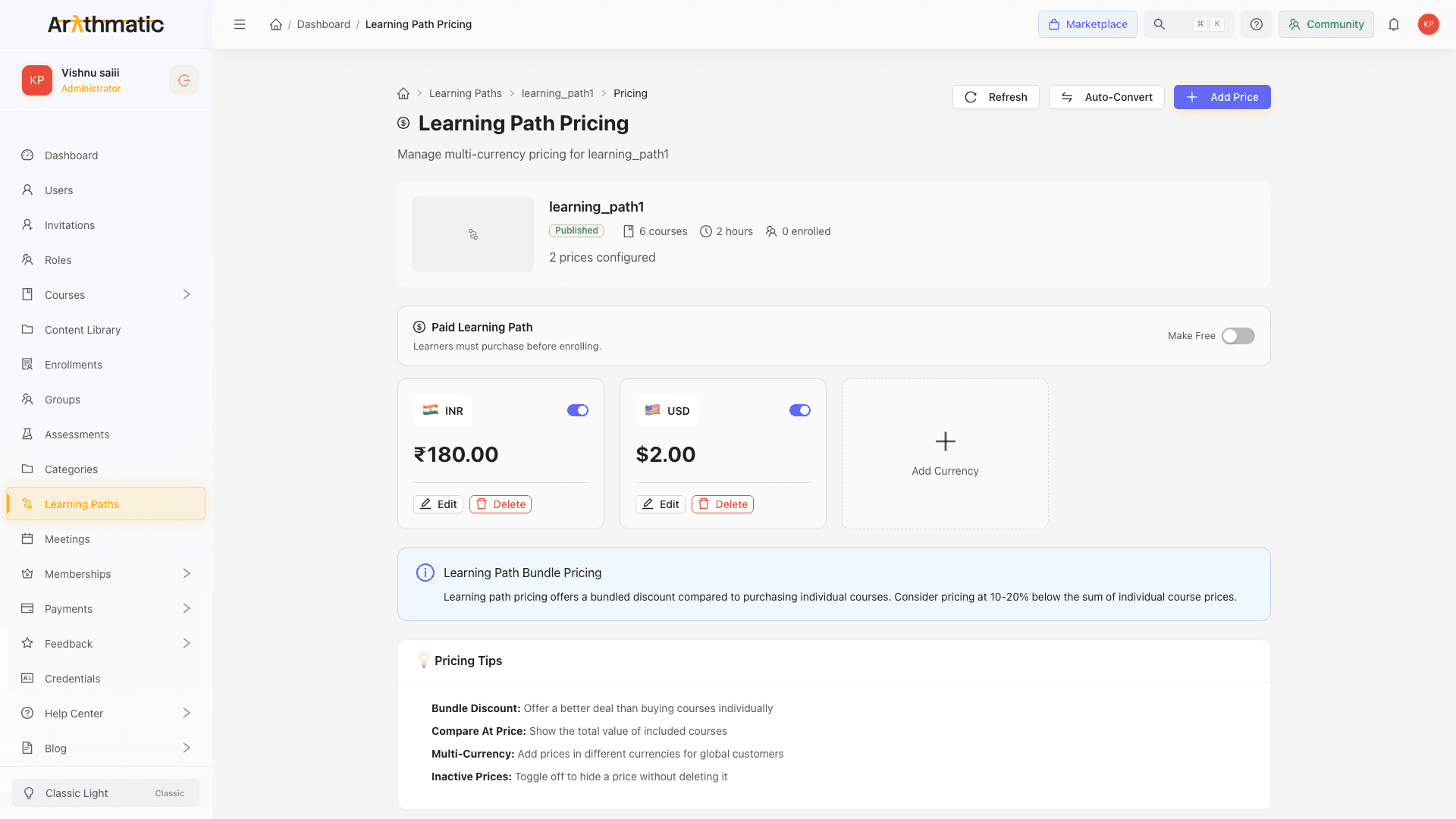
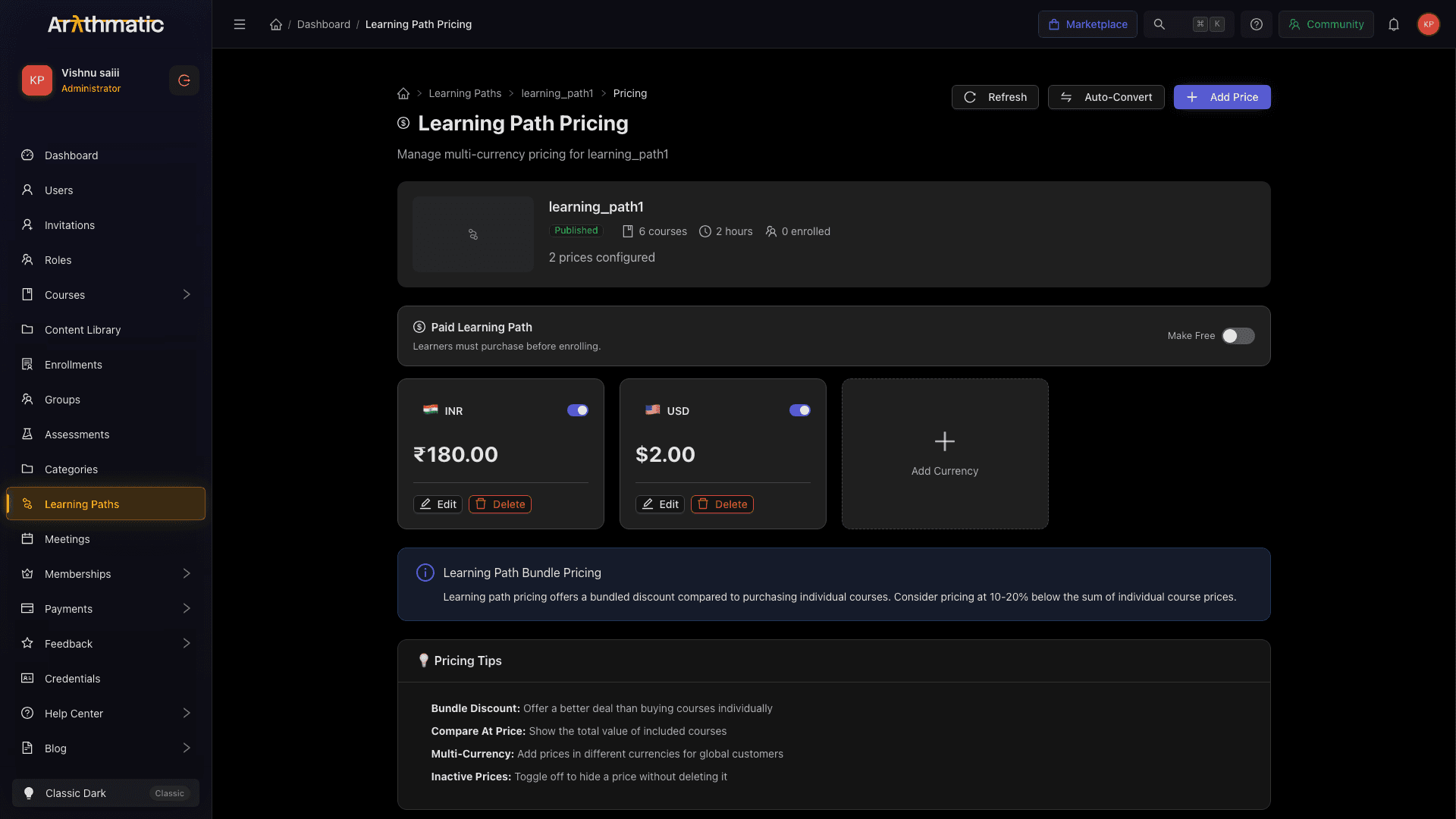
Learning paths have a dedicated Pricing page where you set path-level bundle prices. This is separate from the individual course prices within the path — a path-level price lets learners buy the entire journey at a bundled rate, typically 10–20% below the sum of individual course prices.
Opening the Pricing page
From the learning path detail page, click Pricing in the top-right action area, or navigate directly to:
/dashboard/learning-paths/<id>/pricingYou can also reach it via the breadcrumb: Learning Paths → [Path Title] → Pricing.
Free vs. Paid
The Free / Paid toggle appears at the top of the page:
| State | What happens |
|---|---|
| Free (Make Free toggled on) | Learners enroll at no cost. Existing price records are retained but not shown to learners. |
| Paid (Make Free toggled off) | Learners must purchase the path. At least one active price must be configured. |
If a learning path is set to Paid but has no active prices configured, a warning banner appears:
"This learning path is set to Paid but has no active prices. Learners will not be able to enroll."
Add at least one price or switch to Free to resolve this.
Pricing warning on the detail page
If any paid courses in the path have no matching path-level price, a pricing warning banner also appears on the learning path detail page itself. This banner reminds you that learners will be able to enroll at no charge until you set path-level pricing.
Adding a price
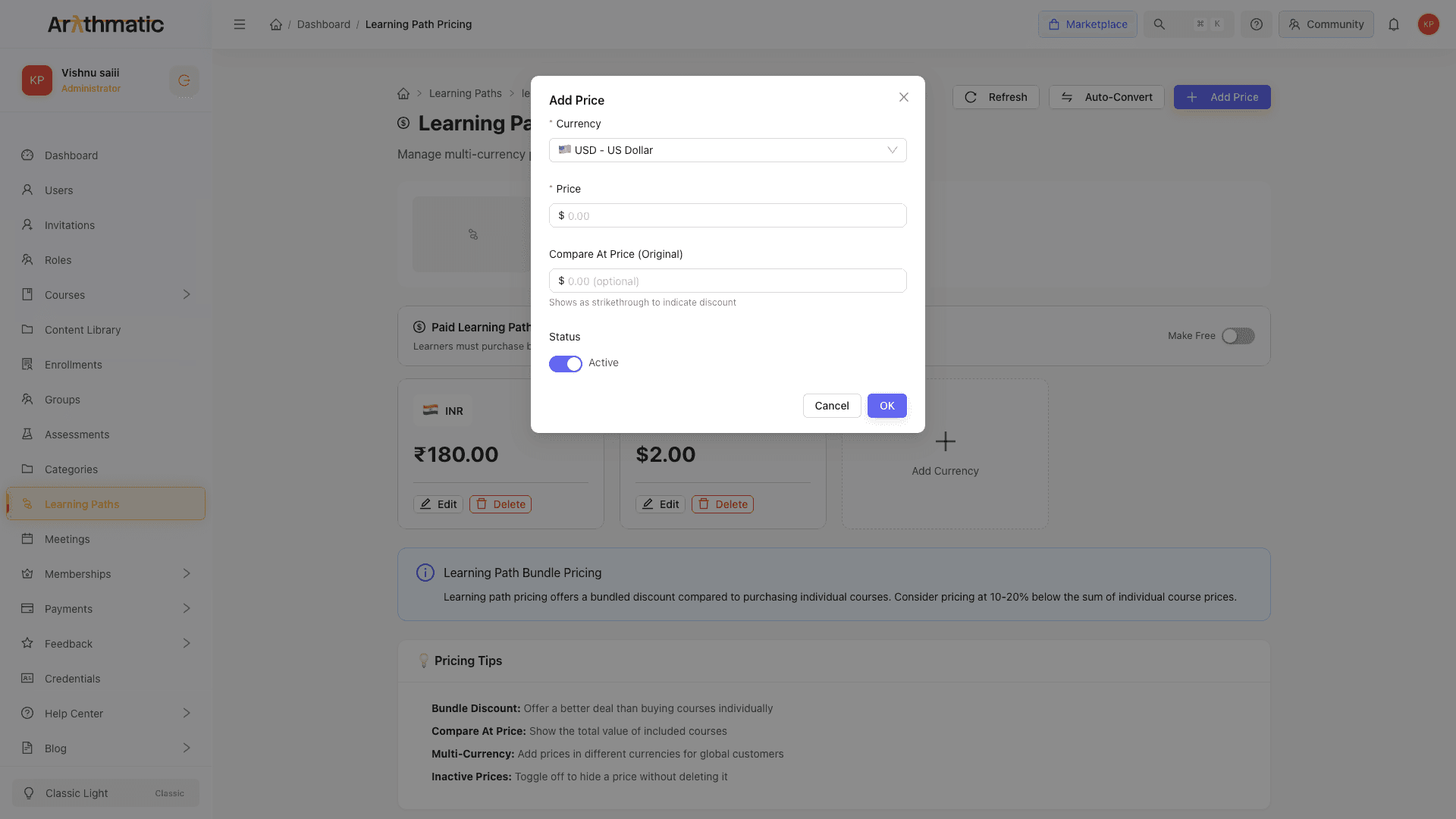
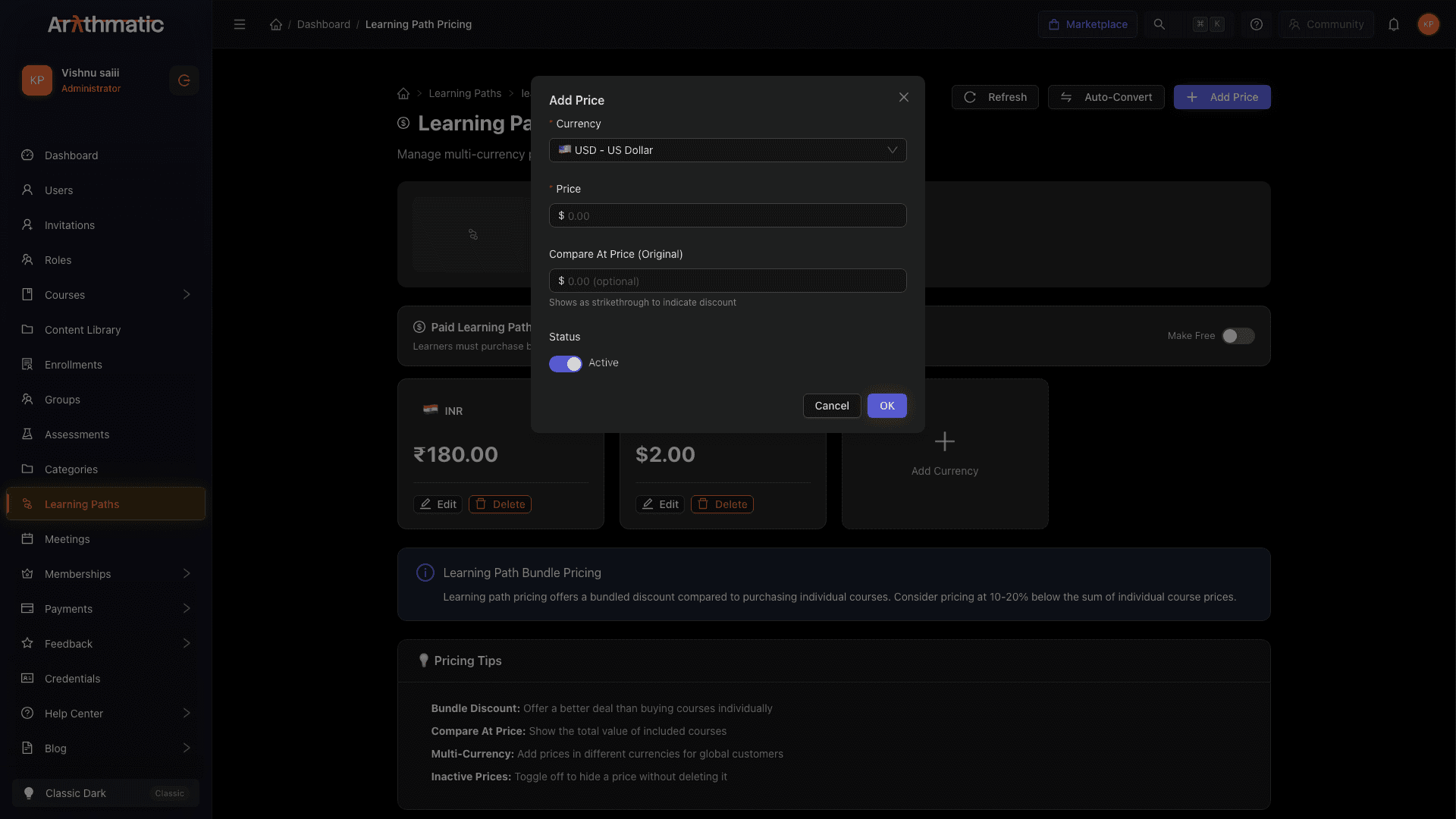
- Click + Add Price (top-right).
- In the Add Price modal, fill in:
| Field | Notes |
|---|---|
| Currency | Choose from USD, EUR, GBP, INR, AUD, CAD, JPY, SGD, AED. One price per currency. |
| Price | The amount learners pay. Must be greater than 0. |
| Compare At Price | Optional. The original or total value; shown as a strikethrough to communicate the bundle discount. |
| Status | Active (visible to learners) or Inactive (hidden). |
Then click OK to save.
The new price appears as a card in the prices grid.
Managing price cards
Each currency has its own card showing:
- Currency flag and code
- Active/Inactive toggle (affects visibility immediately)
- Current price and strikethrough Compare At price
- Discount percentage badge (auto-calculated when Compare At is set)
- Edit and Delete buttons
You can edit a price at any time. Deleting a price is permanent.
Auto-Convert
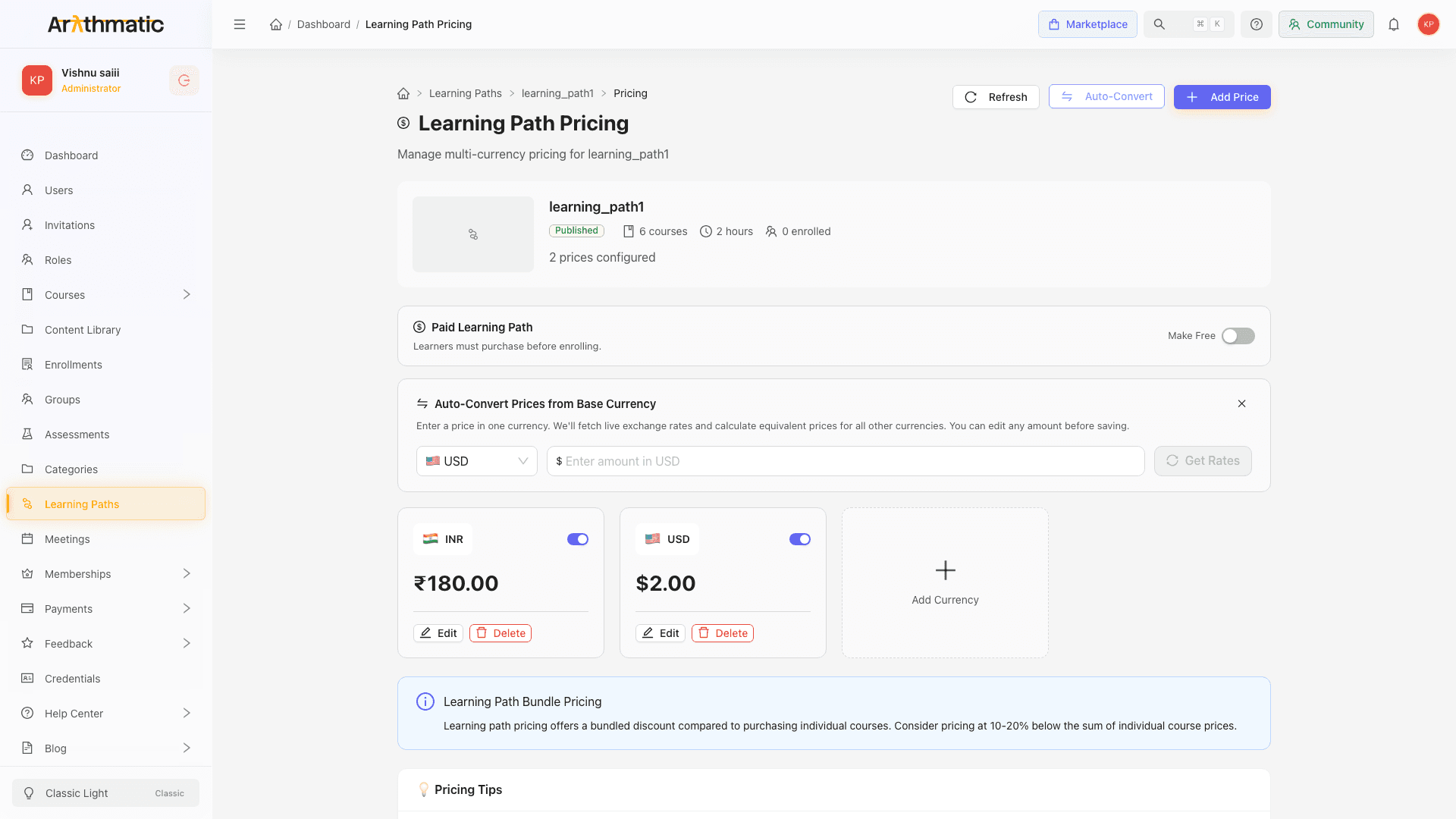
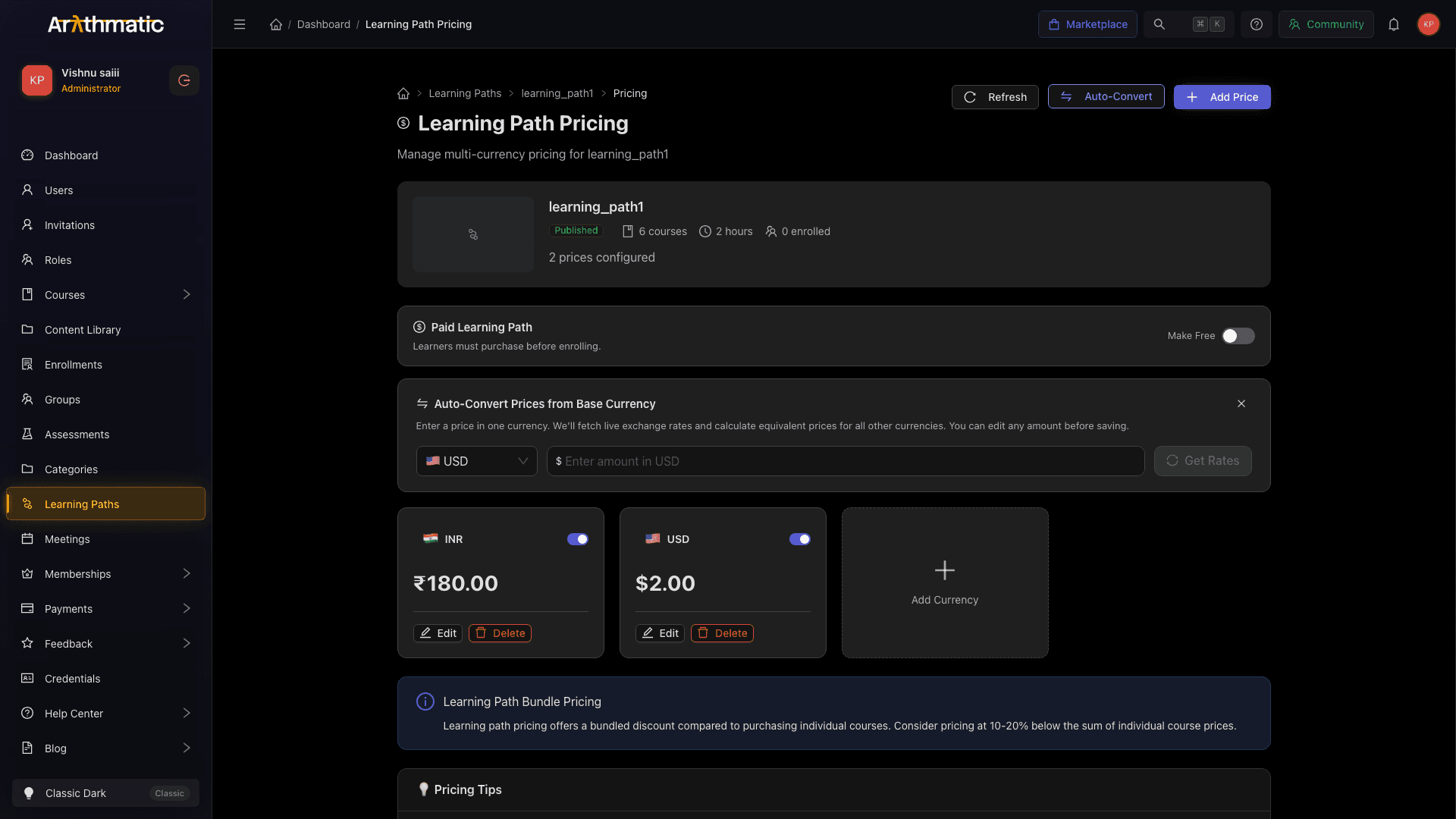
Auto-Convert is an inline slide-down panel (not a modal — only the Add Price dialog is a true modal). To populate all currencies quickly from one base price:
- Click Auto-Convert (top-right) to expand the panel.
- Select a base currency and enter a base price.
- Click Get Rates.
- Arythmatic fetches live exchange rates (via open.er-api.com) and shows converted amounts for every other currency, pre-rounded to psychological pricing (e.g. $149.99).
- You can edit any row before saving.
- Click Save All 8 Currencies to create or update every other currency at once (the button shows the count of currencies being saved).
The rate date is shown below the input field. Amounts are rounded to psychological pricing (.99), which you can override in any row.
Course Price Reference
Below the price cards, if any paid courses in the path have their own prices configured, a Course Price Reference panel shows:
- The sum of individual course prices per currency
- A tag indicating whether all paid courses have a price in that currency (All paid courses) or only some — the partial tag shows the count, e.g. 2/3 paid courses
- A Use as starting point button that pre-fills the Add Price modal with the sum price at an 85% discount (15% bundle discount applied automatically)
Use this panel to anchor your bundle price against the à la carte total.
Common bundle pricing strategy: set the Compare At Price to the sum of individual course prices, and set the Price 10–20% below that. This makes the bundle value immediately clear to learners.
Related
- Create a Learning Path — initial setup
- Path Builder — add courses; the builder shows a pricing warning if path pricing is missing
- Course Pricing — pricing individual courses within the path
