

Membership Plans
Create and manage membership plans that grant learners free or discounted access to courses and learning paths over a fixed validity period.
Membership Plans
A membership plan is a recurring or one-time offer that gives learners a benefit — free enrollment, a percentage discount, or a fixed amount off — across a chosen set of courses and learning paths for a defined validity period. Admins use membership plans to sell all-access passes, tiered bundles, or time-boxed subscriptions instead of pricing each course individually. This page covers creating a plan, defining what it grants, how plans appear to learners, and managing plans after they go live.
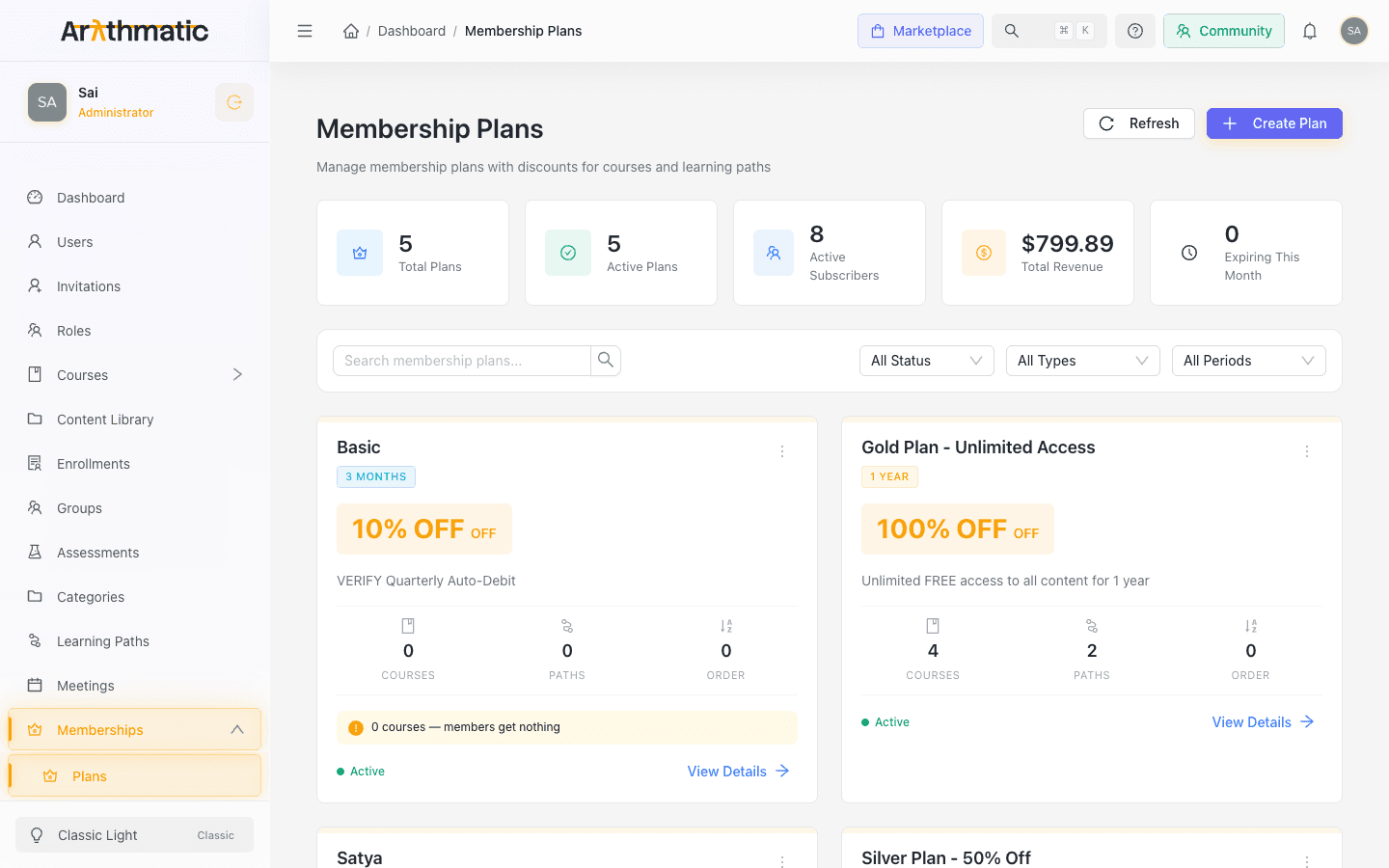
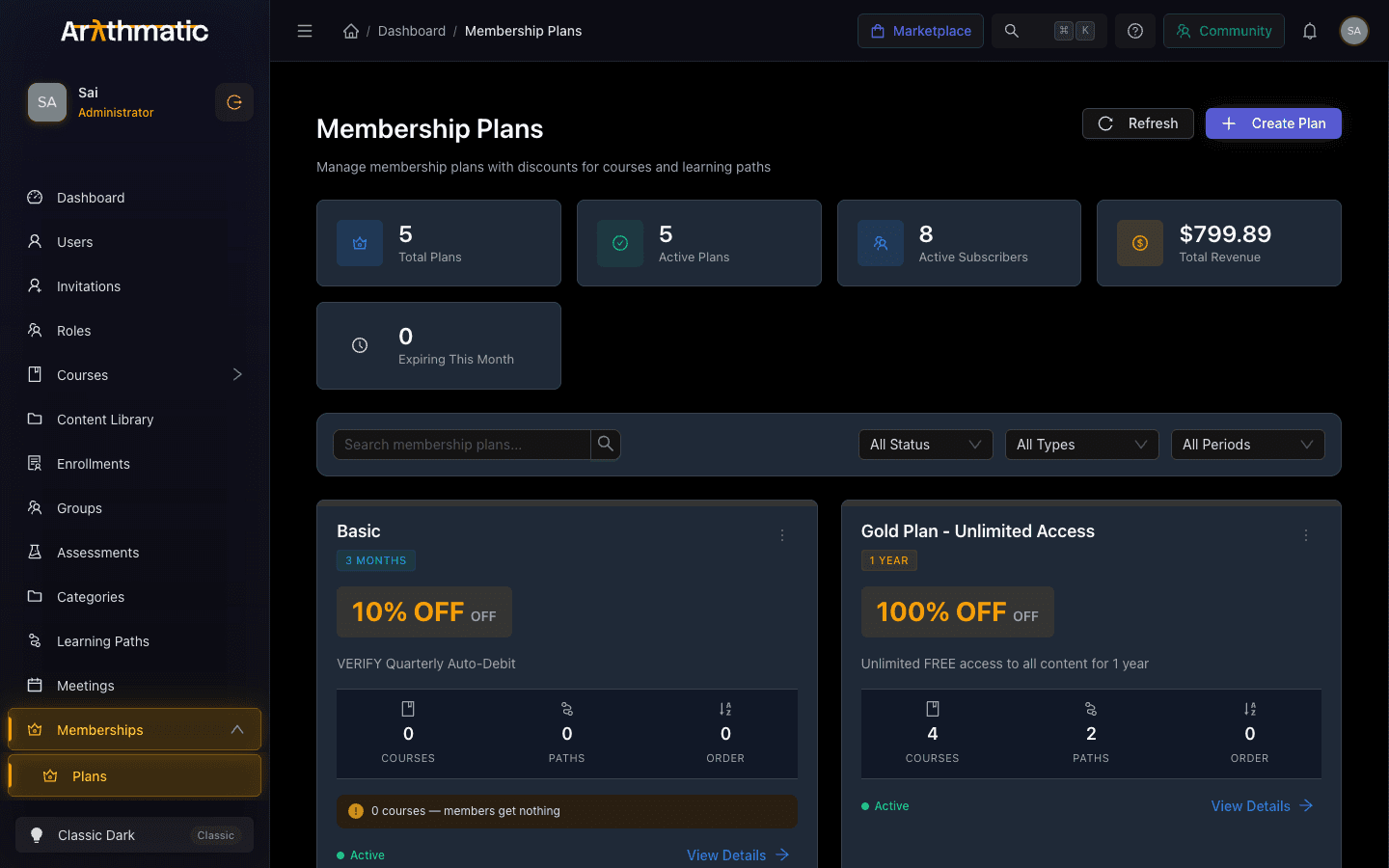
The Membership Plans page
Open Membership Plans from the sidebar. The page opens with a row of summary statistics — Total Plans, Active Plans, Active Subscribers, Total Revenue (broken down by currency when more than one is in use), and Expiring This Month — followed by filters and a grid of plan cards.
Use the search box and the Status, Discount Type, and Validity filters to narrow the grid. Each plan card shows the discount, a validity badge, the number of included Courses and Paths, the display order, and an active/inactive status dot. A card for a plan with no attached content shows a warning — 0 courses — members get nothing — a useful signal that the plan still needs content assigned.
Creating a plan
Click Create Plan to open the plan wizard. The wizard walks through several steps; use Next and Back, or click a completed step to jump back to it.
Step 1 — Basics
| Field | Notes |
|---|---|
| Plan Name | Required, 3–100 characters (e.g. Gold Membership, Premium Access). |
| Short Description | Optional tagline shown on the plan card. |
| Full Description | Required, at least 10 characters. The detailed explanation of what the membership includes. |
| Plan Color | Pick a preset color used for the card accent and badges. |
| Display Order | Lower numbers appear first when plans are listed. |
| Featured Plan | Toggle on to highlight the plan with a Featured / Most Popular badge. |
| Active | Toggle on to make the plan available for purchase. |
Step 2 — Discount
Choose one Discount Type:
| Type | What members get |
|---|---|
| Free Access | Free enrollment in all included courses. No discount value is entered. |
| Percentage Off | A percentage discount (0–100%) on included courses. |
| Fixed Amount Off | A fixed amount off each included course enrollment. |
For percentage or fixed types, enter the Discount Percentage / Discount Amount. Fixed-amount discounts are entered in USD, independent of the currencies you set on the plan's price rows. A live Discount Preview shows the badge and description learners will see.
Only Free Access enrolls members in one click. Percentage and Fixed Amount plans still send members to a paid checkout. With a discount-type plan, a covered course is offered at the discounted price and the member must complete payment for each course — the membership does not auto-enroll them for free. Free Access is the only discount type where coverage grants a zero-cost enrollment (and even then, only when the discounted price reaches zero). Choose a discount plan when you want members to pay less, and Free Access when you want instant, no-checkout enrollment.
Then set:
- Validity Period — how long a membership lasts: 3 Months, 6 Months, 1 Year, 2 Years, or Lifetime (marked Best Value).
- Max Enrollments — leave empty for unlimited, or cap how many enrollments a member can use.
Reaching Max Enrollments reverts covered courses to full price — it does not block the member. Once a member has spent all their enrollment slots, the plan stops covering further courses: coverage is reported as blocked, the course shows at its normal (undiscounted) price, and the member is routed through the standard paid checkout. There is no error or disabled button — the member simply pays full price for any course beyond the cap. Set this deliberately: a low cap silently converts an "all-access" plan into a limited pass after N enrollments.
Step 3 — Features
Build a bullet list of member benefits (for example Priority support, Certificate of completion). Use Add Feature to add rows, or click a Quick Add suggestion. These features are displayed on the plan card and detail view. You can also enter optional Terms & Conditions text for the plan.
Step 4 — Pricing
Set the price members pay in one or more currencies:
| Field | Notes |
|---|---|
| Recurring billing (auto-renew) | When on, Stripe automatically re-charges the member every validity period. When off, members pay once for the period with no renewal. |
| Currency / Price | Add one price row per currency, from USD, EUR, GBP, INR, AUD, and CAD. Each currency can appear only once. |
| Active | Toggle a currency row off to hide that price without removing it. |
Use Add Currency for additional currency rows. The Pricing Summary previews each active price alongside the billing interval derived from the validity period.
Lifetime plans are always one-time payments — the recurring toggle is disabled for them. Any price row left at 0 is dropped on save, so enter a real amount in every currency you intend to offer.
Step 5 — Content
This is where you define what the membership actually grants:
- Included Courses — the courses members get free or discounted access to.
- Included Learning Paths — the learning paths members get free or discounted access to.
Both are multi-select and searchable. A plan with no courses or paths grants nothing, which is why the plan card flags empty plans. The content step appears in create mode; when editing an existing plan, manage attached content from the plan details drawer.
Step 6 — Review
The final step shows a live preview card exactly as learners will see it, plus a summary table covering status, featured state, discount, validity, billing (one-time vs. recurring), max enrollments, feature count, and currencies. Click Create Plan to publish, or Back to make changes.
How plans are presented to learners
Learners see published, Active plans as cards displaying the plan name, short description, the discount badge (for example FREE Enrollment, 20% OFF, or $15 OFF), the primary price with its billing interval, the validity period, and the feature list. A Featured plan carries a highlight badge to draw attention. Inactive plans are hidden from learners even though they remain visible to admins in a dimmed state.
Membership upsells on the catalog
Attaching a course or learning path to an active plan does more than grant coverage to members — it advertises the plan across your storefront. For any course included in an active plan, Arythmatic sets a workspace-wide available via membership flag and, for a visitor who is not already covered (including anonymous, not-logged-in visitors), computes an upsell: it finds the cheapest plan that covers that course and surfaces the plan name, its price, and the resulting discounted course price and savings. This is what drives "join for $X and get this course free / for $Y" prompts on the catalog and course-detail pages. Adding a course to a plan is therefore a merchandising decision, not just an access one — the course starts promoting membership publicly.
Memberships and coupons do not combine
Membership benefits apply only when no coupon code is entered. If a member types a coupon code at checkout, Arythmatic takes the coupon path and skips membership coverage — the member pays the coupon-discounted full price and forfeits their membership's free or discounted access for that purchase. Keep this in mind when running a coupon promotion on courses that a plan already covers.
When a learner holds more than one covering plan
If a learner has multiple active memberships that all cover the same course and no single best plan can be auto-resolved, enrollment returns a selection step (requires_selection) instead of enrolling immediately. The learner is shown a ranked list of their applicable memberships — each with its final price, savings, and enrollments remaining — and must choose which plan to spend a slot on. Only one membership is charged per enrollment, so the choice determines which plan's enrollment quota is consumed.
Managing and editing plans
Each plan card has an actions menu (⋯) with:
- Edit — reopen the wizard to change any detail.
- Activate / Deactivate — flip availability without deleting the plan.
- Duplicate — clone the plan as a starting point for a new one.
- Delete — permanently remove the plan (confirmation required; this cannot be undone).
View Details opens a drawer with the full plan configuration, subscriber information, and the same edit, duplicate, activate/deactivate, and delete actions.
Duplicate an existing plan to spin up seasonal or tiered variants quickly — clone your best plan, adjust the discount or validity, and rename it, rather than rebuilding from scratch.
Deactivating a plan removes it from the learner storefront but does not end active memberships. Existing subscribers keep their access until their membership expires or, for recurring plans, until billing stops.
Related
- Subscriptions — managing member subscriptions and recurring billing
- Course Pricing — set individual course prices that a membership discounts
- Learning Path Pricing — bundle pricing for learning paths included in a plan
Promotions & Campaigns
Create promotional banners, pop-ups, videos, and campaigns, then target, schedule, and activate them across your storefront and learner experience.
Subscriptions
View, filter, and manage learner subscriptions to membership plans, including assigning, extending, suspending, and cancelling memberships.
