

Payment Intents
Monitor incomplete payment attempts, diagnose failed or pending checkouts, and cancel stuck intents from the Payment Intents screen.
Payment Intents
A payment intent is a record of a payment your platform attempted to collect — created the moment a learner starts checkout, before any money changes hands. The Payment Intents screen lets Admins watch these in-progress attempts, spot checkouts that stalled or failed, and understand why a purchase did not complete. This is an advanced page: most day-to-day revenue reporting happens on Transactions, but Payment Intents is where you go to debug the checkouts that never turned into a sale.
Payment intents vs. transactions
The distinction matters when you are debugging:
| Payment Intent | Transaction | |
|---|---|---|
| When it is created | As soon as a learner begins checkout | Only after a payment actually succeeds |
| What it represents | An attempt — which may still be open, may have failed, or may have been cancelled | A completed payment that moved money |
| Why you look at it | To diagnose why a purchase did not complete | To reconcile revenue and issue refunds |
Every successful transaction has a payment intent behind it, but not every payment intent becomes a transaction. When a learner reaches the payment page but abandons it, is declined by their bank, or closes the tab mid-3-D-Secure, the intent is what remains — the transaction never gets created.
Opening the screen
- Go to Payments in the sidebar.
- Open Payment Intents.
- The Settings button (top-right) links to your payments settings if you need to review gateway configuration.
Reading the stat cards
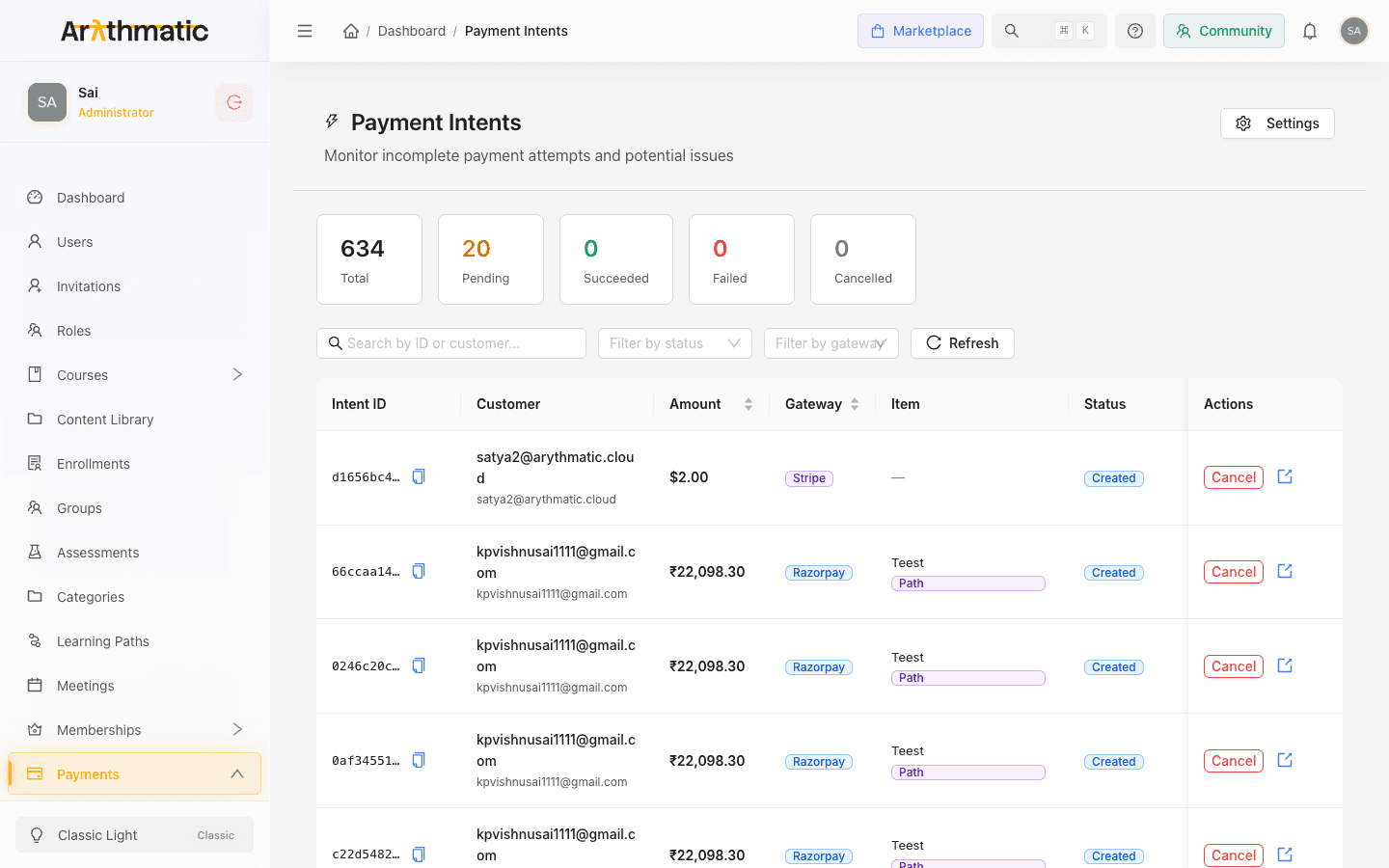
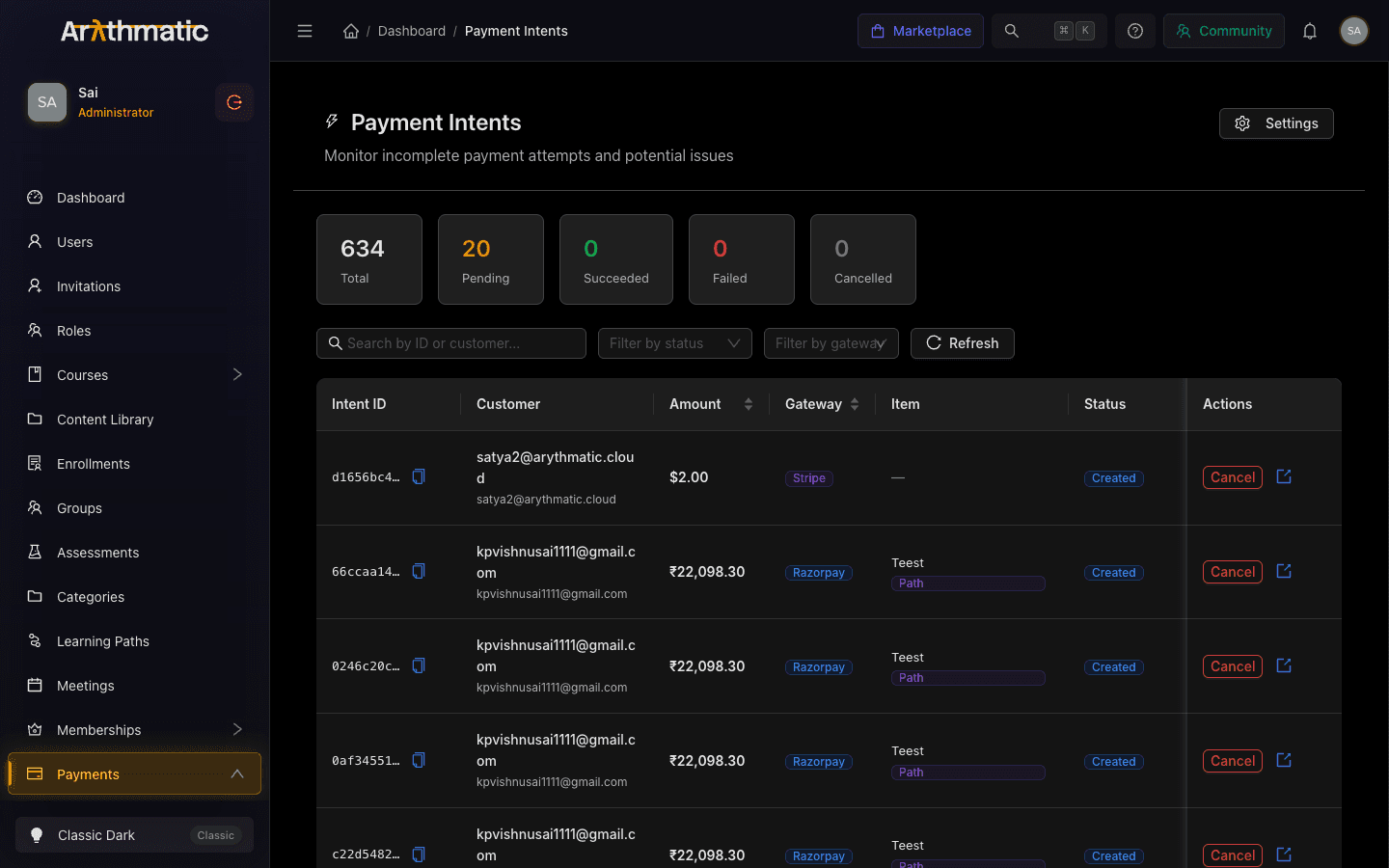
The row of cards at the top summarizes the intents currently loaded:
| Card | Meaning |
|---|---|
| Total | The total number of payment intents matching your current filters. |
| Pending | Attempts still in progress — those with a Created, Processing, or Requires Action status. |
| Succeeded | Attempts that completed successfully and produced a transaction. |
| Failed | Attempts the gateway rejected (for example, a declined card). |
| Cancelled | Attempts that were cancelled — manually or because they expired. |
The Cancelled stat card and the Cancelled status filter are not currently reliable: a spelling mismatch between the stored status value and the label the screen matches on means genuinely cancelled attempts may not be counted or returned here, and a cancelled row may show its raw status text. Treat the Cancelled figures as indicative until this is corrected; confirm a specific attempt's real state in the Stripe or Razorpay dashboard.
Understanding intent statuses
Each intent moves through a lifecycle. The Status column shows where it currently sits:
| Status | What it means | Typical admin action |
|---|---|---|
| Created | The intent was opened but the learner has not yet completed payment. | Wait, or cancel if it is clearly abandoned. |
| Processing | The gateway is confirming the payment. | Wait — this usually resolves on its own. |
| Requires Action | The learner must finish an extra step (such as bank authentication / 3-D Secure). | Reach out to the learner directly, or cancel the attempt if it is clearly abandoned. |
| Succeeded | Payment completed; a transaction now exists. | None — the sale went through. |
| Failed | The payment was rejected. | Hover the error icon to read the reason. |
| Cancelled | The attempt was cancelled and cannot complete. | None — the learner can start a fresh checkout. |
When an intent has Failed, an error icon appears next to its status. Hover over it to read the exact gateway error message (for example, a card decline reason). This is usually the fastest way to understand why a learner's payment did not go through.
Finding a specific attempt
The filter row above the table helps you narrow the list:
- Search by ID or customer — type an intent ID, or the customer's name or email, to filter the rows currently loaded.
- Filter by status — restrict the table to one status (Created, Processing, Requires Action, Succeeded, Failed, or Cancelled).
- Filter by gateway — show only Stripe or Razorpay intents.
- Refresh — reload the latest data from the server.
The table columns cover the Intent ID (truncated, with a copy button for the full value), the Customer name and email, the Amount and currency, the Gateway, the purchased Item (a Course or a Path), the Status, and the Created date and time.
Acting on a stuck intent
Each row offers actions depending on its status:
- Cancel — available on Created, Processing, and Requires Action intents. Confirm the prompt to cancel an attempt that is clearly stuck or abandoned. Cancelling does not charge the learner; they can start a new checkout at any time.
- View in gateway — the export icon opens the intent directly in the Stripe or Razorpay dashboard, so you can inspect the raw payment record on the provider side.
A Remind control appears on Requires Action intents, but it is not yet functional — there is currently no in-app way to send an authentication reminder from this screen. To move a stalled Requires Action attempt along, contact the learner outside the platform, or cancel it once it is clearly abandoned.
Cancelling a payment intent only closes that attempt. It never refunds money — a cancelled intent never charged the learner in the first place. To reverse an actual charge, issue a refund from the completed transaction instead. See Transactions.
When to use this screen
Reach for Payment Intents when:
- A learner reports they "paid" but were not enrolled — check for a Failed or still-Pending intent under their email.
- You see abandoned or stuck attempts piling up and want to cancel them.
- You need the gateway's own record of a payment to raise a support ticket with Stripe or Razorpay.
For everyday revenue, refunds, and reconciliation, use Transactions instead — Payment Intents is a diagnostic tool for the checkouts that did not complete cleanly.
Related
- Transactions — completed payments, revenue, and refunds
- Payment Settings — configure your Stripe and Razorpay gateways
- Course Pricing — set the prices that these payments collect
