

Issuer Profile
Set the organization identity — name, logo, website, signatories, LinkedIn org, and share message — that Arythmatic injects into every certificate and its social sharing.
Issuer Profile
The Issuer Profile is your organization's identity for credentials. It is a single, shared record per workspace — there is only ever one — and the values you set here are injected into every certificate your tenant issues, plus the message learners post when they share a credential. Set it up once, and every course, learning-path, and assessment certificate inherits the same branded signature block, logo, and share wording.
You will find it under Credentials → Issuer Profile.
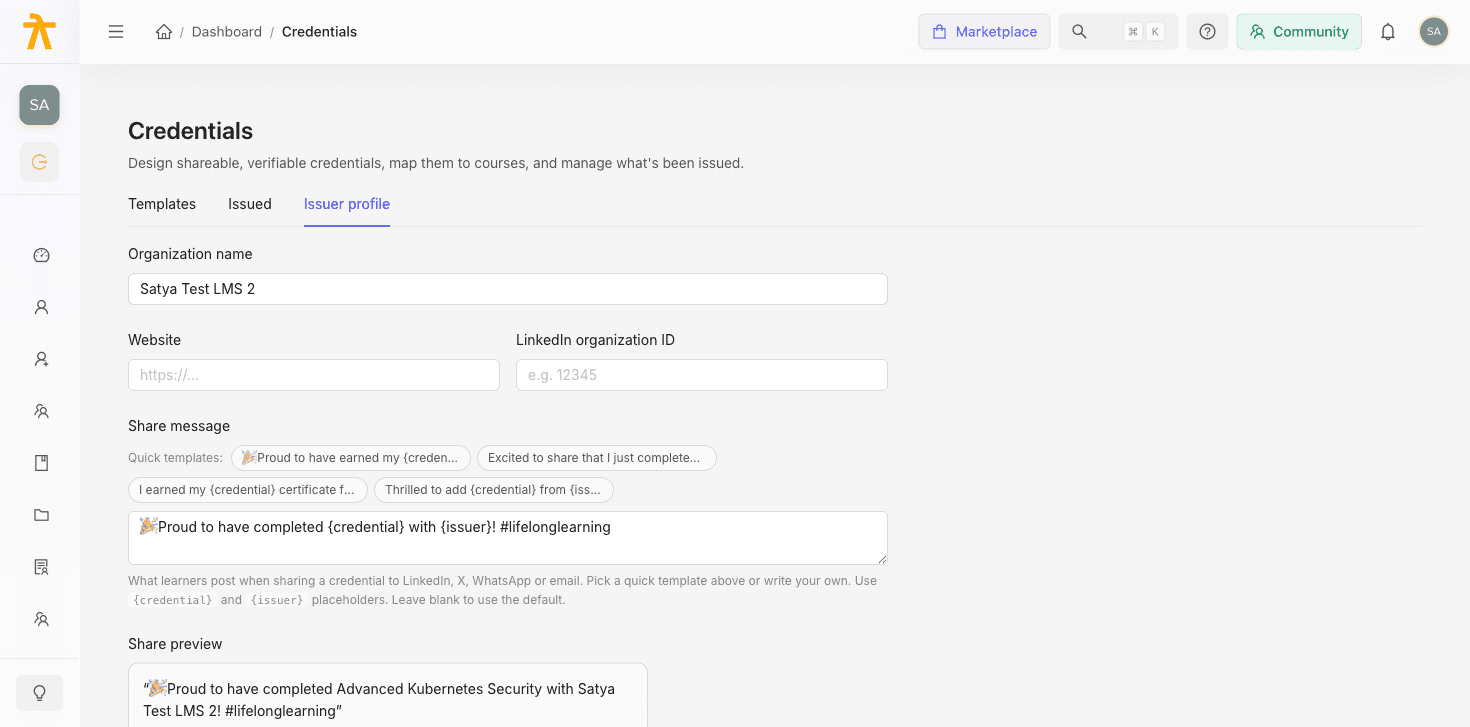
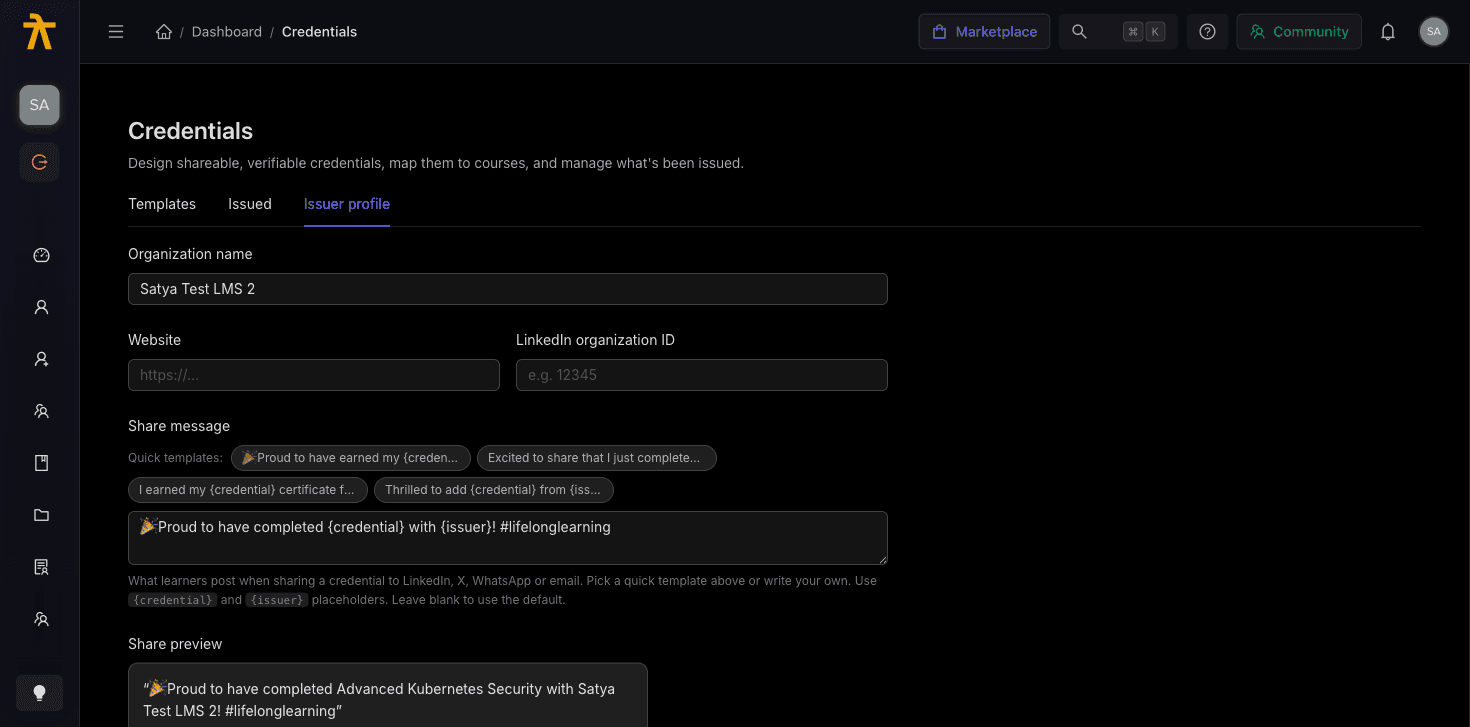
The Issuer Profile is one record for the whole workspace, not per-course. To give a single course a different certificate design, map a template to that course instead — the issuer identity (org name, logo, signatories) still comes from here.
Before you start
The Issuer Profile is part of Credentials v2. If that module is not enabled for your workspace yet, the tab shows an info notice — "Credentials v2 is not enabled for this tenant yet" — and the form is unavailable. Contact your Arythmatic administrator to enable it.
When you first open the tab, Arythmatic creates the profile automatically and pre-fills the Organization name with your workspace name so certificates are never blank on day one.
Fields
Organization name
The name printed on the certificate and used as the issuer in the learner's share message (the {issuer} placeholder). This is the single most important field: if you leave it blank, certificates and share text fall back to your raw workspace name, which is often not how you want the credential branded.
- Type your public-facing organization name into Organization name (for example, Arythmatic Academy).
- Click Save profile.
Website
An optional public URL for your organization. Enter a full address including https://.
LinkedIn organization ID
Your organization's numeric LinkedIn company ID (for example, 12345). This field powers the learner-facing LinkedIn Add to profile action: when it is set, a learner sharing a credential can attach it directly to the Licenses & certifications section of their LinkedIn profile, linked to your organization page. Leave it blank and the LinkedIn add-to-profile shortcut is not offered.
The LinkedIn organization ID is the numeric ID from your LinkedIn Company Page URL, not the vanity slug. You can find it in your page's admin settings or the page URL.
Logo
The logo shown at the top of the certificate.
- Under Logo, click Upload logo (or Replace logo if one already exists).
- Choose an image. The upload is saved immediately — you do not need to click Save profile for it to survive a refresh.
- To go back to no override, click Remove.
You do not have to upload anything. If you leave the logo empty, credentials use your tenant branding logo by default — Arythmatic resolves the logo in this order:
| Priority | Source |
|---|---|
| 1 | The logo you upload here (explicit override) |
| 2 | Your active theme's header logo |
| 3 | Your workspace's stored logo URL, as a last resort |
So an unset logo does not mean a logo-less certificate — it means "use my brand's logo." Upload one here only when you want a certificate-specific logo that differs from your theme.
The logo preview is shown on a white background in both light and dark mode on purpose. Certificates render onto a white canvas, so previewing on white is representative — and keeps transparent or dark logos visible while you set them.
Signatories
Signatories are the signature blocks that appear on the certificate — each one is a name, a title, and an optional signature image. The list is ordered, and you can add as many rows as you need.
To add a signatory:
- Click Add signatory.
- Enter the person's Name and Title.
- Optionally click Upload signature to add a scanned signature image. Like the logo, an uploaded signature is saved immediately.
- Use Clear to remove just the signature image, or the trash icon to delete the whole row.
A signatory's signature only appears on a certificate when the row has a name. If you upload a signature image but leave the name empty, the signature will not render — the inline hint flags this. Fully empty rows (no name, no title, no signature) are dropped when you save.
Order matters. The first signatory in the list is the one wired into the standard certificate tokens (signatory_name, signatory_title, and signature_image), so put your primary signer at the top. Additional signatories are stored on the profile and can be placed on the certificate by a template that references them.
Share message
The Share message is the default text a learner posts when they share a credential to LinkedIn, X, WhatsApp, or email. It is a template with two placeholders:
{credential}— the name of the course, path, or assessment the learner earned.{issuer}— your Organization name from above.
Choosing a message
You can pick a ready-made template or write your own:
- Click any of the Quick templates chips to drop that wording into the field. The active template is highlighted.
- Or type a custom message directly into the text area, using
{credential}and{issuer}wherever you want the values substituted. - Watch the Share preview below — it fills the placeholders with sample values so you can see exactly what a learner would post.
- Click Save profile.
If you leave the field blank, learners fall back to a sensible default message, so the share text is never empty.
The quick templates offered are:
| # | Template |
|---|---|
| 1 | 🎉 Proud to have earned my {credential} from {issuer}! #certified #learning |
| 2 | Excited to share that I just completed {credential} with {issuer}! 🚀 |
| 3 | I earned my {credential} certificate from {issuer}. On to the next challenge! 💪 |
| 4 | Thrilled to add {credential} from {issuer} to my achievements. #lifelonglearning |
How the profile reaches a certificate
When Arythmatic renders a certificate, it reads the Issuer Profile and populates the template tokens:
| Token | Comes from |
|---|---|
issuer_org_name | Organization name (falls back to workspace name if blank) |
logo | Uploaded logo, or your brand logo by default |
signatory_name | First signatory's Name |
signatory_title | First signatory's Title |
signature_image | First signatory's uploaded signature |
Because the profile is shared, editing it here changes the identity on future certificate renders across every source — courses, learning paths, and assessments alike. Set it up before you start issuing so your first credentials carry the right branding.
Changing the Issuer Profile does not automatically re-render certificates that are already issued. New completions pick up the change immediately; already-issued credentials keep the identity they were rendered with unless they are re-rendered or reissued.
Saving
Most fields require you to click Save profile to persist. The two exceptions are the logo and signature uploads — those are saved the moment the file finishes uploading, so a refresh never loses an upload you just made. When in doubt, click Save profile to commit the text fields (organization name, website, LinkedIn ID, share message, and signatory names/titles).
Related
Verifying & Sharing Credentials
Every certificate you issue is publicly verifiable with no login, and learners can share it to LinkedIn and beyond from their credential wallet.
Communications
Reach learners automatically with event-driven workflows, reusable email templates, scheduled campaigns, and managed deliverability.
