

Landing Page Content
Edit the text, cards, testimonials, FAQ, and pricing shown on your academy's public landing page from the Page Content section.
Landing Page Content
The Page Content section in Settings controls the copy that visitors see on your public landing page before they sign in: the hero banner, feature cards, learning-paths block, mid-page call-to-action, testimonials, FAQ, and the membership-plans section. Every field edits in place with a live preview alongside the editor, so you can see the result before saving. Changes are stored with your active theme and go live once you click Save Changes.
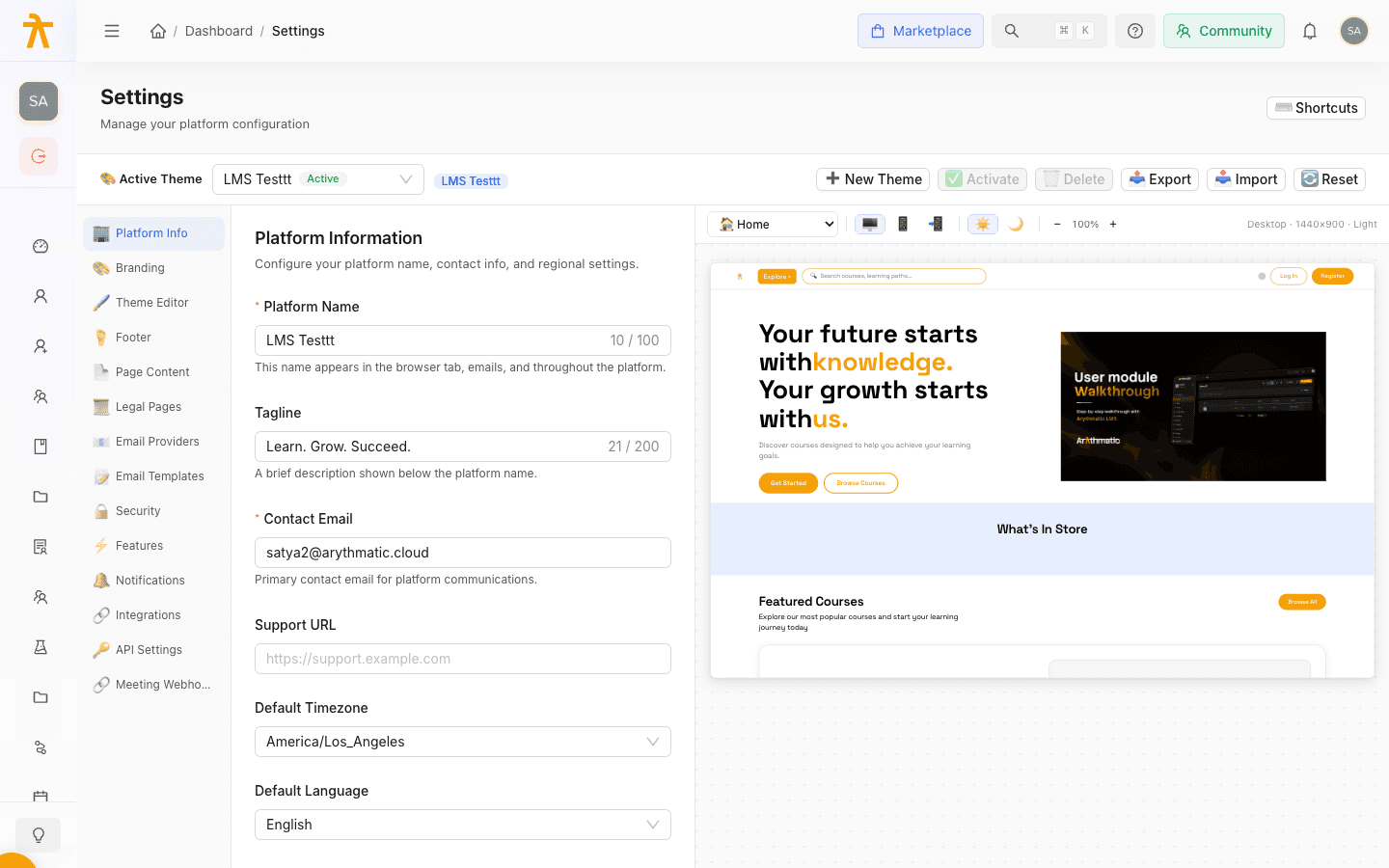
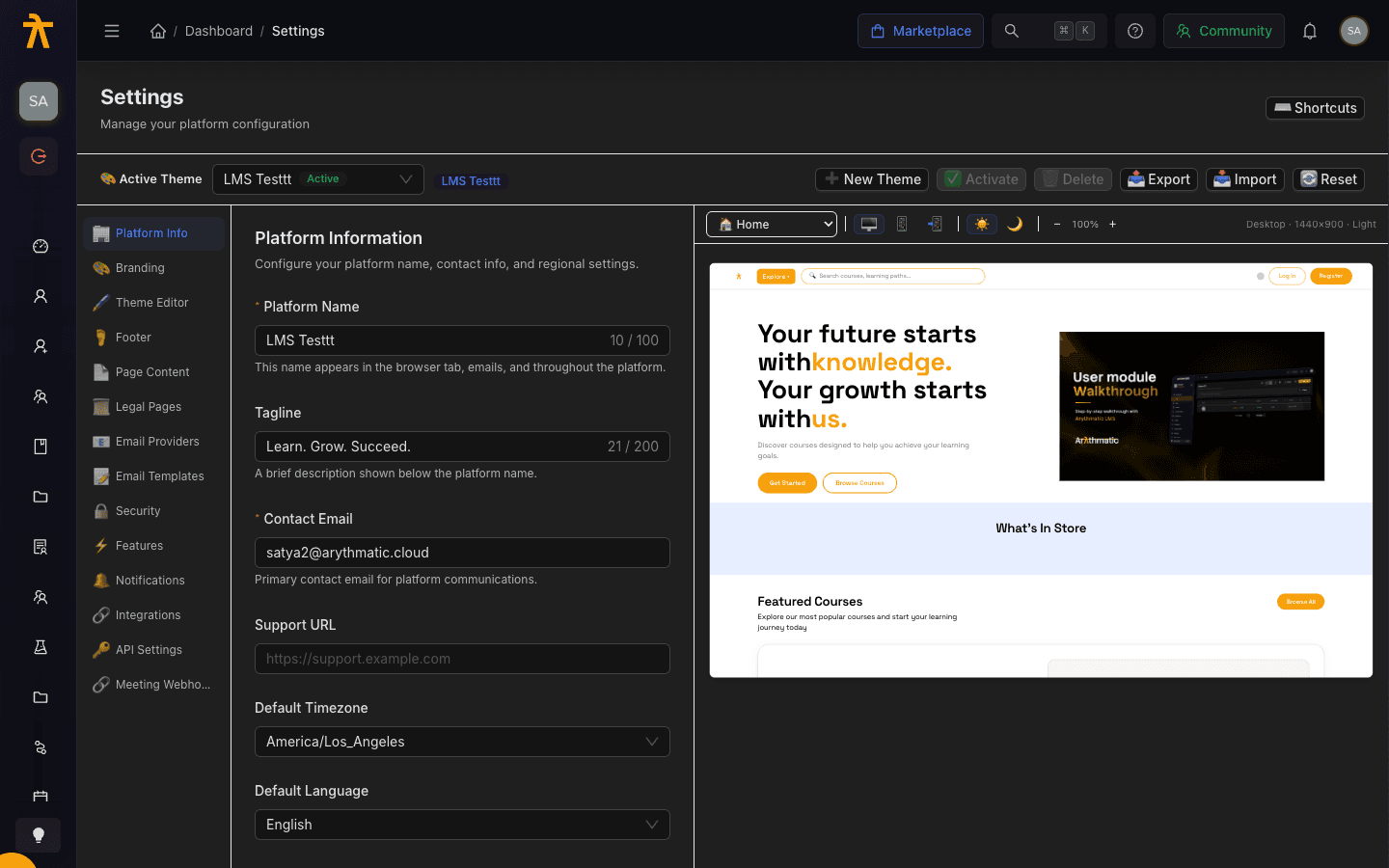
Opening the editor
- Go to Settings in the admin sidebar.
- Open the Page Content section (the document icon).
- Scroll to the section you want to change. As you type, the preview updates on every keystroke.
- Click Save Changes to publish. Save Changes stays disabled until you have unsaved edits, and Reset discards them.
Hero section
The Hero Section is the banner at the very top of the page. The heading is built from two lines, each with a plain part and a highlighted part (the highlight is styled in your brand accent color).
| Field | Purpose |
|---|---|
| Title Line 1 / Line 1 Highlight | First heading line and its accented words |
| Title Line 2 / Line 2 Highlight | Second heading line and its accented words |
| Description | Short supporting sentence under the heading |
| Primary Button Text / Primary Button Link | Main call-to-action button and its destination (for example /signup) |
| Secondary Button Text / Secondary Button Link | Secondary button and its destination (for example /courses) |
What's In Store
What's In Store is a grid of feature cards below the hero. Set a Section Title and optional Subtitle, then use + Add Card to add entries. Each card has an Icon name, a Title, and a Description. Remove a card with the red ✕ in its header.
BookOpen, not an image URL. Use the same name as the icon set used elsewhere in the platform so it renders correctly.Learning Paths
The Learning Paths block is a header that introduces your curated paths on the landing page. It has a Title, a Description, and a button defined by Button Text and Button Link (for example /learning-paths). This section sets the intro copy only; the paths themselves are managed in the content area. See Learning Paths.
Call to Action
The Call to Action is a mid-page banner encouraging visitors to sign up. Fill in the Title, Description, Button Text, and an optional Image URL for the accompanying artwork.
Testimonials
The Testimonials section shows quotes from your learners. Set the Section Title and Subtitle, then use + Add Testimonial for each entry.
| Field | Purpose |
|---|---|
| Quote | The testimonial text |
| Author | The person's name |
| Role | Their role or descriptor (for example Student) |
| Image URL | Optional avatar image |
FAQ
The FAQ section answers common pre-signup questions. Set the Section Title, then add entries with + Add Question. Each entry has a Question and an Answer. Reorder or trim as needed; remove an entry with its ✕ button.
Membership Plans
The Membership Plans section renders the pricing cards shown on the membership page. Set a Section Title, then use + Add Plan for each tier.
| Field | Purpose |
|---|---|
| Name | Plan name (for example Monthly) |
| Price | Displayed price (for example ₹2500) |
| Period | Billing period label (for example /Month) |
| Duration Label | Combined label, such as ₹2500/Month |
| Recommended | Toggle to highlight this plan as the recommended choice |
| Features (one per line) | One benefit per line; each line becomes a bullet |
Saving and resetting
Edits are tracked as you work: Save Changes enables only when there are unsaved changes, and Reset restores the last saved state. Because page content is stored with your active theme, saving here updates the same theme record used elsewhere in branding.
This landing-page content lives on the theme record alongside your colors, logos, footer, and legal pages. Activating a different theme in the Theme Editor, or using Reset to default, replaces this landing copy with whatever that theme stored — so switching themes to change colors can silently revert your hero, cards, testimonials, and other public copy.
Related
Theme Editor
Design your workspace theme with brand, background, and text colors, typography, and a live device preview, then save and activate it.
Footer & Legal Pages
Configure your site footer's about block, social and quick links, office locations, and publish your Terms, Privacy, and Refund policy pages.
