

Footer & Legal Pages
Configure your site footer's about block, social and quick links, office locations, and publish your Terms, Privacy, and Refund policy pages.
Footer & Legal Pages
The footer is the last thing every visitor sees, and your legal pages are what auditors, buyers, and compliance teams look for first. Arythmatic gives you a single place to compose the footer's about block, social icons, quick links, and office addresses, alongside the long-form Terms, Privacy, and Refund content that anchors your public site. Everything you enter here previews live and publishes to your learner-facing pages. This page walks through each field so you can fill them in confidently.
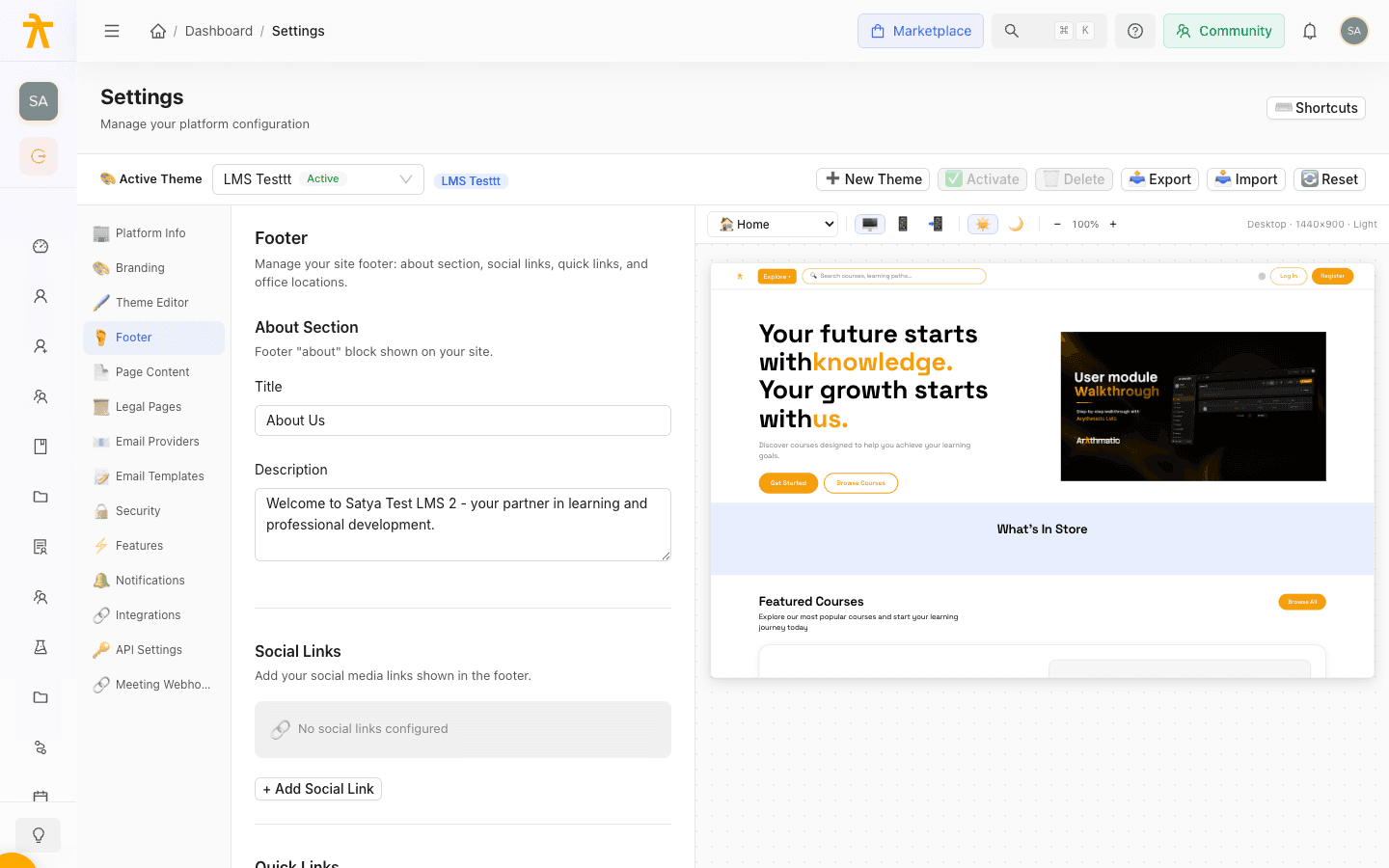
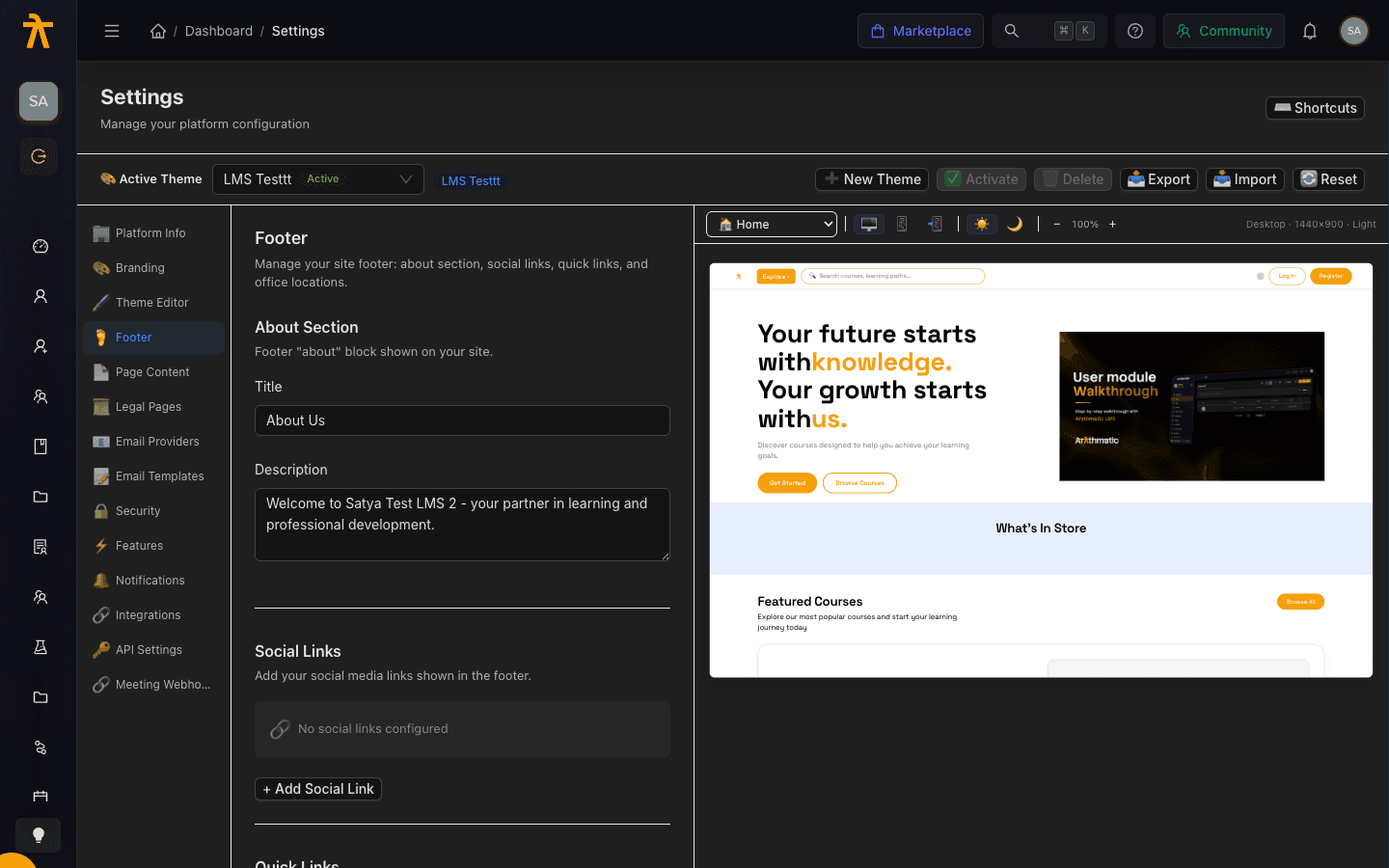
Footer settings
The footer editor is organized into four stacked sections. Edit any of them, then click Save Changes at the bottom. The button stays disabled until you have unsaved edits, and Reset rolls every field back to the last saved state.
About section
The About Section is the introductory block shown in your footer. It has two fields:
| Field | Purpose |
|---|---|
| Title | The heading for the about block (for example, your brand name). |
| Description | A short paragraph describing your organization or platform. |
Social links
Under Social Links, add each social profile you want surfaced in the footer. If none are configured, the section shows a No social links configured placeholder. Click + Add Social Link to add a row, and each row exposes four fields:
| Field | Purpose |
|---|---|
| Platform | The network name, such as LinkedIn or X. |
| URL | The full link, starting with https://. |
| Icon class | The icon identifier used to render the badge. |
| Color | A hex value (for example, #000000); the swatch dot previews it. |
Use the red ✕ button on a row to remove that link.
Quick links
Quick Links are the small navigation menu in the footer. Set a Section Title (it defaults to Quick Links), then click + Add Link to add entries. Each entry has:
| Field | Purpose |
|---|---|
| Label | The text shown to visitors. |
| URL | A relative path like /path or a full https:// address. |
Quick links accept relative paths, so you can point them at your own hosted pages, such as your Terms or Privacy page, or link out to your catalog or a marketing site.
Offices
The Offices section lists physical locations in the footer. When empty, it shows a No offices configured placeholder. Click + Add Office to add a location; each one opens as an expandable panel headed by its title. Fill in the fields:
| Field | Purpose |
|---|---|
| Title | A label for the location, such as Headquarters. |
| Company | The legal or operating company name at that address. |
| Address | The full mailing address. |
| A contact email for that office. | |
| Phone | A contact phone number. |
Use Remove Office inside a panel to delete that location.
Legal pages
Switch to the legal editor to publish your policy pages. Each policy is a large text area that accepts HTML or Markdown, and a live character count appears once you start typing so you can track length. The editor covers three policies:
- Terms of Service — the agreement governing use of your platform.
- Privacy Policy — how you collect, use, and protect learner data.
- Refund Policy — the conditions under which purchases can be refunded.
As with the footer, Save Changes stays disabled until you make an edit, and Reset restores the last saved content.
Legal content is published exactly as written. Have your Terms, Privacy, and Refund text reviewed by qualified counsel before saving, especially if you sell courses or subscriptions where a Refund Policy is legally expected in your market.
Your footer and these legal pages are stored on the same theme record as your colors and logos. Activating a different theme in the Theme Editor, or using Reset to default, swaps or wipes this footer and Terms/Privacy/Refund content along with the colors — so a color change made by switching themes can silently revert your published legal pages.
Platform info
Beyond the footer and legal text, the platform info form holds the identity and defaults for your workspace. The two required fields are Platform Name and Contact Email; the rest are optional but shape the experience across the product.
| Field | Purpose |
|---|---|
| Platform Name | Appears in the browser tab, emails, and throughout the platform (required, up to 100 characters). |
| Tagline | A brief description shown below the platform name (up to 200 characters). |
| Contact Email | Primary email for platform communications (required, must be a valid address). |
| Support URL | A link to your help or support destination. |
| Default Timezone | The workspace default timezone, searchable from a preset list. |
| Default Language | The default interface language (English, Spanish, French, German, Japanese, Chinese, or Hindi). |
| Date Format | Choose MM/DD/YYYY, DD/MM/YYYY, or YYYY-MM-DD. This selection is not currently saved and resets to MM/DD/YYYY on reload. |
| Default Currency | Choose a display currency such as USD, EUR, GBP, or INR. This selection is not currently saved and resets to USD on reload; it does not set the currency learners are charged. |
Date Format and Default Currency are display-only selections that the platform info form does not currently persist — both reset to their defaults on reload, and Default Currency does not change what learners pay at checkout. Set purchase pricing and currency in your monetization settings instead.
Access to these branding settings is controlled by workspace roles, so only users with the right permissions can edit and publish them.
