

Points & Multipliers
Configure how learners earn points for each action and run point multipliers to boost engagement during campaigns or promotional periods.
Points & Multipliers
Points are the currency of your gamification program. On the Gamification page, the Configuration tab controls the base points awarded for every learner action, while the Multipliers tab lets you temporarily boost those points for specific courses or content during a campaign. Together they let you tune what your learners are rewarded for and when.
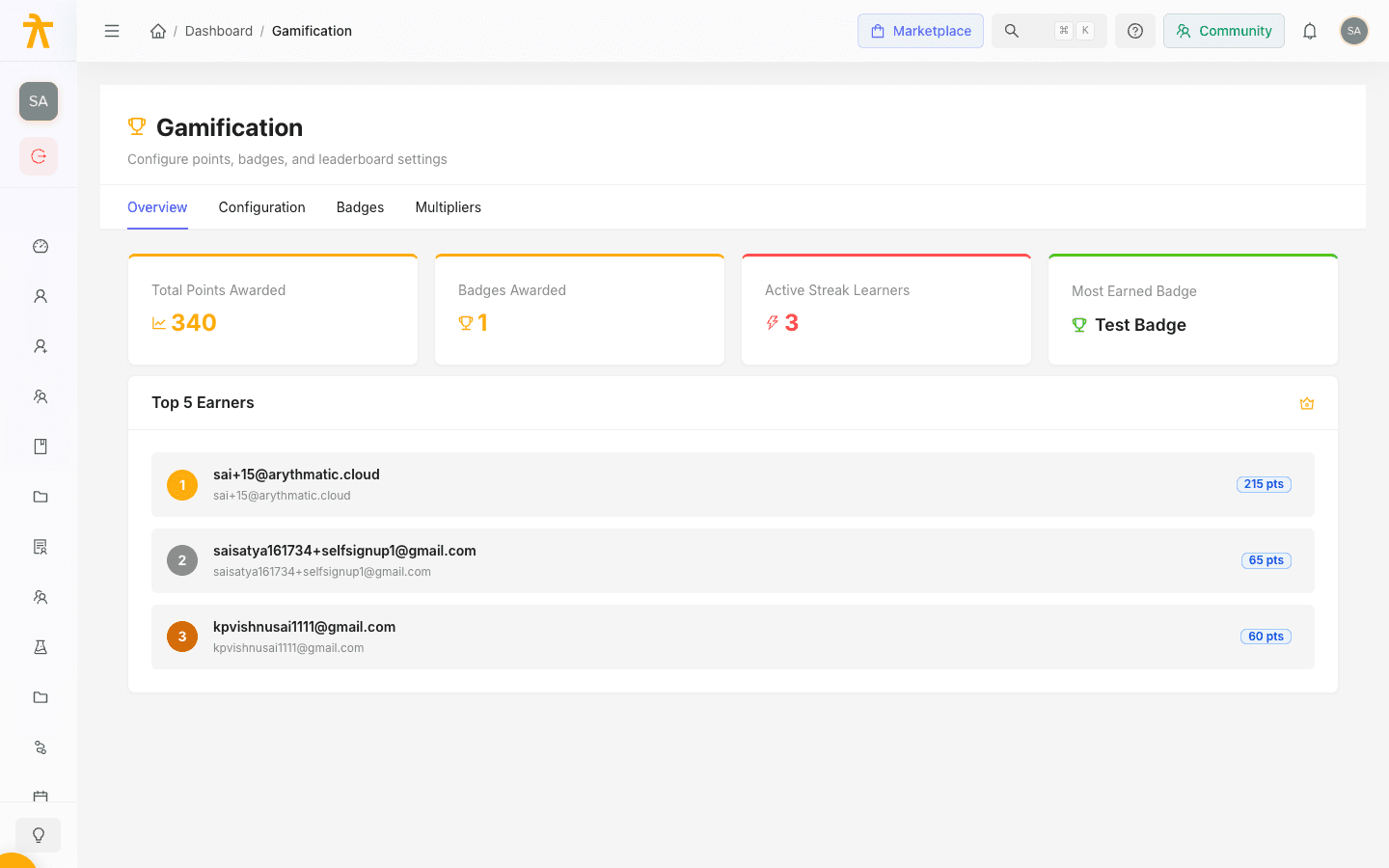
Both tabs live under Gamification in your admin dashboard. To reach them, open Gamification and select the Configuration or Multipliers tab.
Configuration tab: how points are earned
The Configuration tab has two sections: Global Settings and Action Points.
Global settings
| Setting | What it controls |
|---|---|
| Gamification Enabled | Turns the entire gamification system On or Off for your organization. |
| Streak Grace Period | The number of hours a learner can miss before their daily streak resets. Set between 0 and 72 hours. |
The Streak Grace Period is applied in whole days: the engine converts your hours setting to hours // 24 with a one-day minimum. So 12 or 36 hours both grant one day of grace, and 48 hours grants two — any value below 24 hours still yields a full day. A streak survives when the gap since the learner's last activity is within the grace window, otherwise it resets to 1.
Action points
The Action Points table lists each rewardable action. For every row you can set the Points awarded and toggle whether that action is Enabled.
| Action | Rewards a learner for |
|---|---|
| Content Completed | Finishing an individual content item. |
| Course Completed | Completing a full course. |
| Learning Path Completed | Completing an entire learning path. |
| Quiz Passed | Passing a quiz. |
| Assessment Passed | Passing an assessment. |
| Daily Streak | Maintaining a daily learning streak. |
Points are awarded once per item. Re-finishing the same content item, re-passing the same quiz, or re-completing the same course or learning path does not pay out again — only distinct items add to a learner's total. This is why a learner's total can stop growing even while they keep reviewing old material.
Daily Streak points are granted only when a learner's streak reaches a milestone day — 1, 7, 14, or 30 days — not on every active day. A learner active on day 3 or day 10 earns no streak points that day. These milestone days are built in and cannot be changed from the Configuration tab.
To configure points:
- Open the Configuration tab.
- Confirm Gamification Enabled is On.
- Set the Streak Grace Period if you want streaks to tolerate a gap.
- In the Action Points table, enter the Points value for each action (0 to 10,000).
- Toggle the Enabled switch off for any action you do not want to reward.
- Click Save Configuration.
Multipliers tab: boost points for campaigns
A point multiplier temporarily increases the points earned for a specific course or content item over a date range. Use them to drive a push on a priority course, run a limited-time promotion, or reward early adopters.
Each multiplier row in the table shows its Type, Target, Multiplier, Valid From, Valid Until, and Learner scope.
Add a multiplier
- Open the Multipliers tab and click Add Multiplier.
- Choose a Target Type — Course or Content.
- In the target field, search for and select the Course or Content Item to boost.
- Enter a Multiplier value (from 0.1 to 10, in steps of 0.1) — for example,
2.0doubles the points. - Set Valid From and Valid Until to define the active window.
- Optionally use Restrict to Learner to search for a single learner by name or email. Leave it blank to apply the multiplier to all learners.
- Click Create Multiplier.
To change or remove an existing multiplier, use the edit and delete actions at the end of its table row. Deleting requires a confirmation.
Fields reference
| Field | Notes |
|---|---|
| Target Type | Course or Content — determines what the multiplier applies to. |
| Course / Content Item | The specific target, chosen from a searchable list. |
| Multiplier | A factor between 0.1 and 10; the table displays it as × value. |
| Valid From / Valid Until | Start and end dates for the boost. Both are required. |
| Restrict to Learner | Optional. Limits the multiplier to one learner; blank applies it to all learners. |
