

Badges
Create, configure, and award achievement badges that recognize learner milestones in your academy.
Badges
Badges are visual awards that recognize learners for reaching milestones — earning enough points, completing a set number of courses, or maintaining a learning streak. You manage them from the Badges tab of the Gamification page, alongside points and multipliers. Each badge you define is awarded automatically when a learner meets its criteria, so once configured they require no manual hand-out.
Where badges live
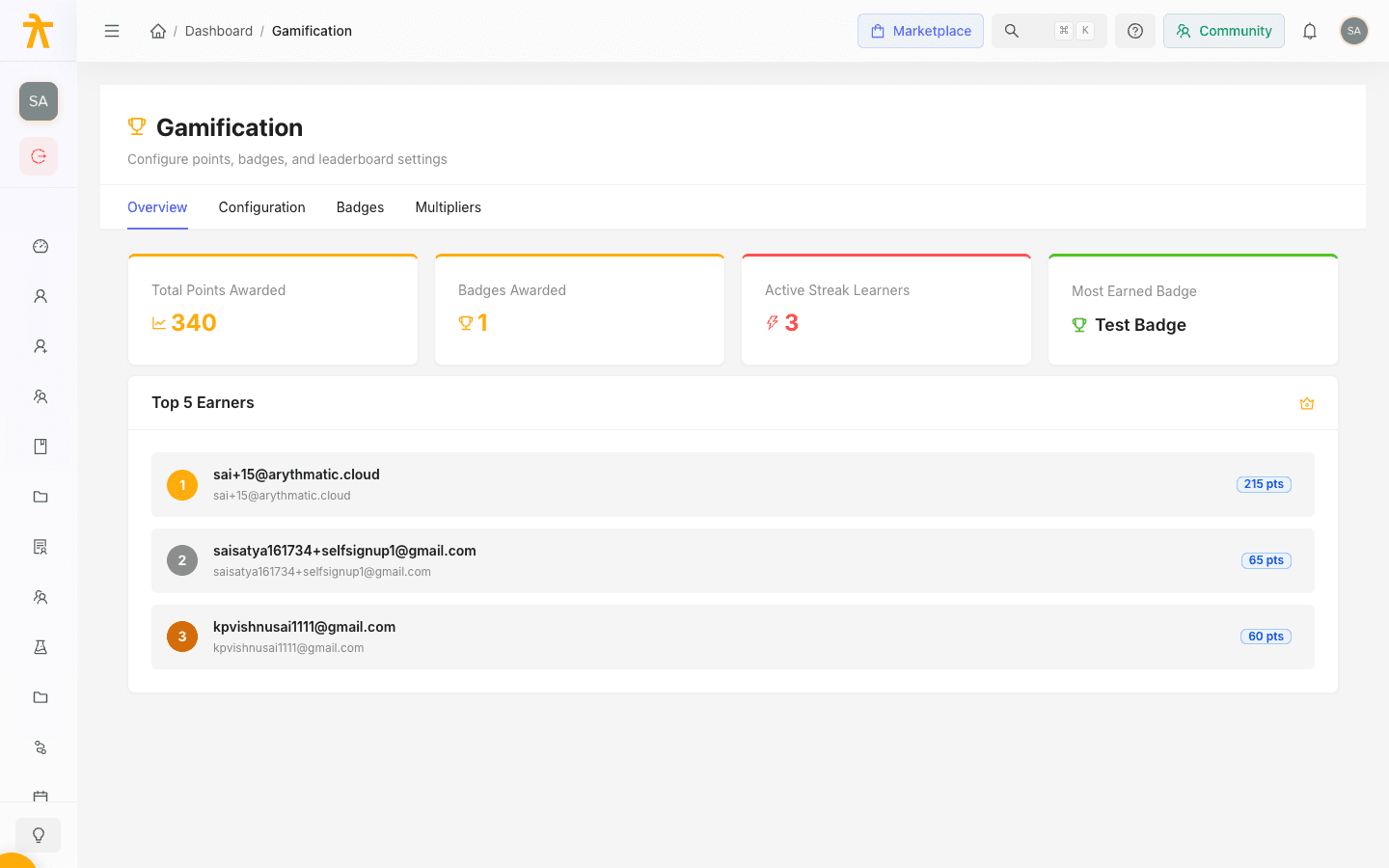
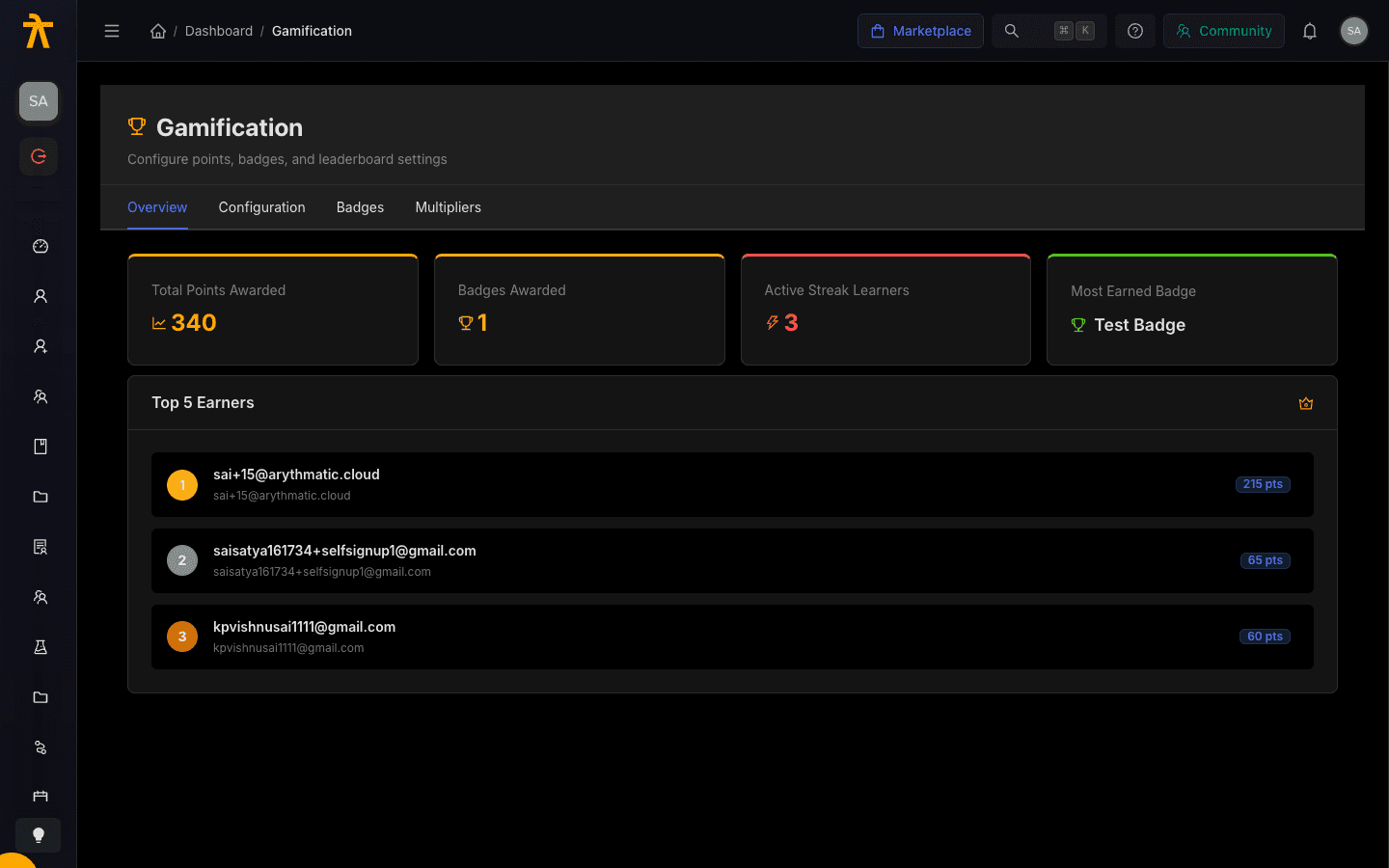
Badges sit inside the Gamification page, which is organized into four tabs: Overview, Configuration, Badges, and Multipliers. Open the Badges tab to see a table of every badge you have created. Each row shows the display order number, the badge name and description, the Trigger that awards it, and a Status tag of Active or Inactive.
Because badges are tied to points and completion activity, review your point rules on the Configuration tab first so the thresholds you set here line up with how learners actually earn points. See Points and multipliers.
Create a badge
- On the Badges tab, select Create Badge. If you have no badges yet, use the Create your first badge button in the empty table.
- In the Create Badge dialog, enter a Name (for example, First Steps).
- Write a Description explaining when the badge is awarded. Both Name and Description are required.
- Choose a Trigger Type — either Points Threshold or Achievement (see the table below).
- Set the Display Order, a number that controls where the badge appears relative to others. Lower numbers come first.
- Fill in the trigger-specific fields that appear for your chosen trigger type.
- Leave Active set to Yes to make the badge earnable immediately, or set it to No to save it as a draft.
- Select Save.
Trigger types
The Trigger Type you pick decides how a learner earns the badge and which extra fields appear in the form.
| Trigger type | What it does | Fields to complete |
|---|---|---|
| Points Threshold | Awards the badge when a learner accumulates a set number of points. | Threshold Points — the minimum points required (at least 1). |
| Achievement | Awards the badge when a learner reaches a count-based milestone. | Criteria Type and Criteria Value — the target and the number to reach. |
For Achievement badges, the Criteria Type determines what activity is counted:
| Criteria type | Awarded for |
|---|---|
| Content Count | Completing a number of individual content items. |
| Course Count | Completing a number of courses. |
| Learning Path Count | Completing a number of learning paths. |
| Quiz Pass Count | Passing a number of quizzes. |
| Assessment Pass Count | Passing a number of assessments. |
| Streak Days | Maintaining an unbroken learning streak for a number of days. |
Set the Criteria Value to the count the learner must reach — for example, Course Count with a value of 10 awards the badge after the learner completes ten courses.
Achievement badges advance by counting point-earning events, so their progress depends on the matching action being enabled with points above 0 on the Configuration tab. If you disable or zero out Quiz Passed, for example, Quiz Pass Count badges stop advancing even though learners keep passing quizzes.
Streak Days badges track the learner's consecutive-day streak count, which grows on every active day. That count is separate from Daily Streak points, which are only paid out on milestone days (1, 7, 14, and 30).
Changing the Trigger Type on an existing badge clears the trigger-specific fields (threshold points, criteria type, and criteria value). Re-enter those values before saving so the badge remains earnable.
How learners receive badges
Badges are granted automatically. Whenever a learner earns points or completes an activity, Arythmatic checks their totals against every Active badge and awards any whose criteria are now met — there is no manual approval step. Setting a badge to Inactive takes it out of that check, so newly qualifying learners stop receiving it while existing holders keep what they already earned.
Because awarding is automatic, keep descriptions clear and thresholds realistic. A badge with an unreachable threshold will simply never be awarded, and one with a very low threshold will be handed out to nearly everyone.
Saving a badge can award it retroactively. When you create a new active badge — or edit an existing one's trigger type, threshold points, criteria, or Active state — Arythmatic re-evaluates every learner in your workspace and immediately grants the badge to anyone whose existing totals already meet its criteria. A brand-new Complete 10 courses badge is handed at once to everyone who has already completed ten courses, with the usual award notifications. Weigh this before adding or re-configuring badges on an established academy.
Edit a badge
- On the Badges tab, find the badge in the table.
- Select the edit (pencil) icon in the Actions column.
- Update any field in the Edit Badge dialog — including switching the trigger type or toggling Active.
- Select Save.
Edits apply to future awarding. Learners who already hold the badge are not affected by a change to its criteria.
Delete a badge
- Select the delete (trash) icon in the Actions column.
- In the confirmation prompt, choose Delete.
Deleting a badge deactivates it rather than permanently removing it — it has the same effect as setting Active to No. The badge stays in the table marked Inactive and stops being awarded, but you can bring it back at any time by editing it and switching Active back to Yes. Existing holders keep the badge either way.
