

Gamification Overview
Understand the Gamification hub, its tabbed layout, and how points, badges, and multipliers keep learners motivated.
Gamification Overview
Gamification rewards learners with points, badges, and streaks as they progress through your content, then surfaces those rewards on leaderboards and profiles. The Gamification page is the single hub where you turn the system on, tune how points are earned, and see how learners are engaging. This page explains the Overview tab and how the hub is organized; badges and multipliers each have their own dedicated pages.
How the hub is organized
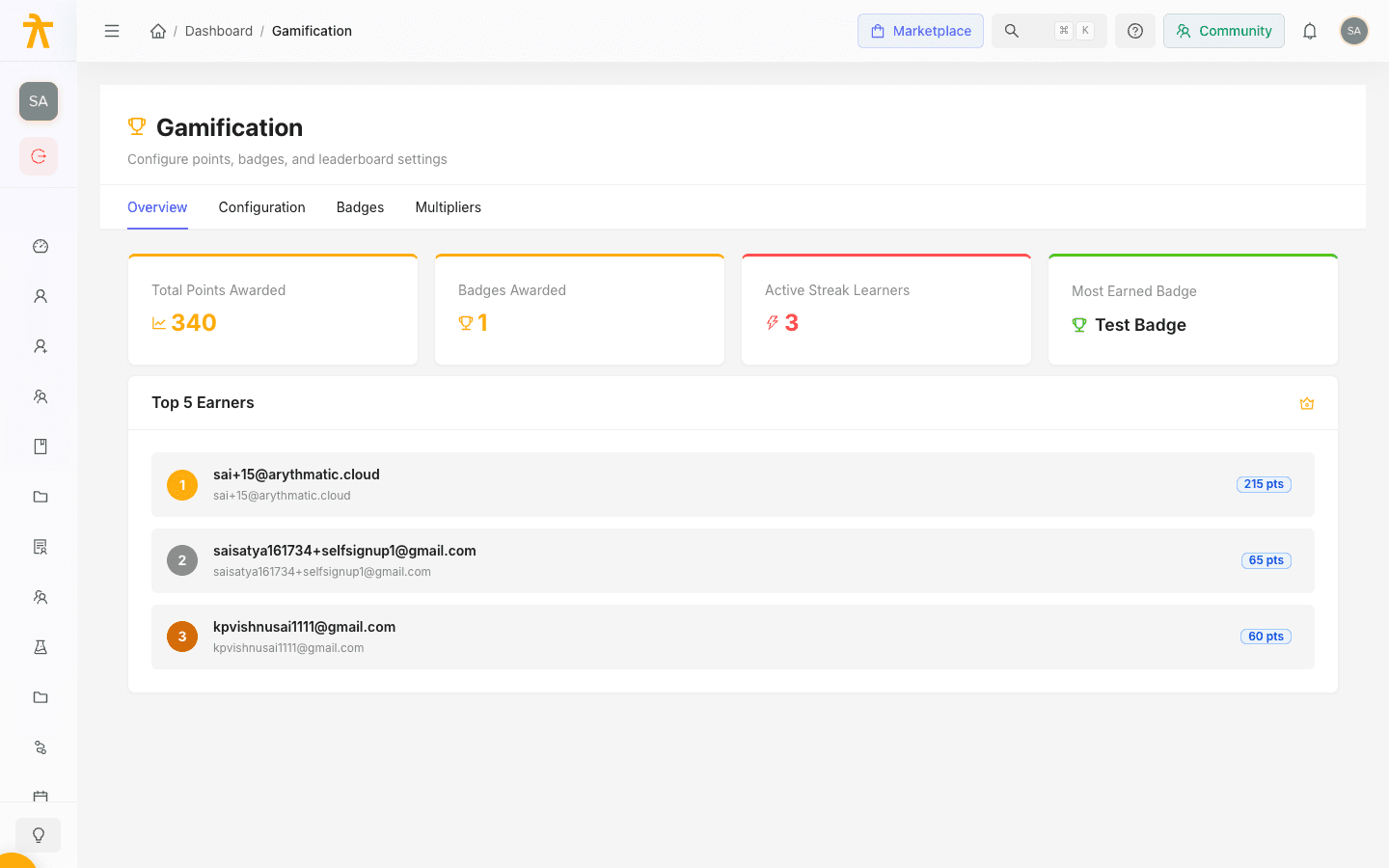
The Gamification page is a tabbed workspace titled Gamification with the subtitle Configure points, badges, and leaderboard settings. Each tab loads its data the first time you open it, so the page stays fast even when you only need one section:
| Tab | What it does |
|---|---|
| Overview | Read-only engagement stats: points awarded, badges earned, active streaks, and the top earners. |
| Configuration | Global switches plus the per-action points table (see Points & Multipliers). |
| Badges | Create, edit, and delete badges learners can earn (see Badges). |
| Multipliers | Time- or target-boosted point multipliers (see Points & Multipliers). |
Access to the Gamification hub is governed by your workspace roles. If a teammate cannot see or edit these tabs, review Roles & permissions.
The Overview tab
The Overview tab is where you check the health of your gamification program at a glance. It presents four summary cards followed by a leaderboard of your most active learners. All figures are read-only; you change behavior on the Configuration, Badges, and Multipliers tabs.
Summary statistic cards
| Card | Meaning |
|---|---|
| Total Points Awarded | The cumulative points learners have earned across every enabled action. |
| Badges Awarded | The total number of badges granted to learners. |
| Active Streak Learners | How many learners currently hold an active daily streak. |
| Most Earned Badge | The single badge learners have earned most often (shows a dash when none have been awarded). |
Top 5 Earners
Below the cards, the Top 5 Earners card lists your highest-scoring learners (it can show up to 10 rows despite its title). Each row shows a ranked position (with gold, silver, and bronze styling for the top three), the learner's name and email, and their total points. Until any points have been awarded, this list reads No earners yet.
The Top 5 Earners card is an admin snapshot. Learners see a fuller leaderboard on their own dashboards, and it can be scoped to a single group or cohort so teams compete on their own board rather than the whole workspace. Ranking uses dense ranking, so learners tied on points share the same rank with no gaps in the numbering.
Use the Overview tab as a quick pulse check. A flat Total Points Awarded figure or an empty earners list usually means gamification is disabled or that no point-earning actions are enabled yet — both are fixed on the Configuration tab.
How points reach learners
Points are the engine behind every stat on this page. On the Configuration tab you decide, per action, how many points an event is worth and whether it counts at all. The point-earning actions include:
- Content Completed — a learner finishes an individual content item.
- Course Completed — a learner completes a whole course.
- Learning Path Completed — a learner finishes a full learning path.
- Quiz Passed — a learner passes a quiz.
- Assessment Passed — a learner passes an assessment.
- Daily Streak — a learner keeps an unbroken daily activity streak.
Two global settings frame all of this: Gamification Enabled, the master switch that turns the entire system on or off, and Streak Grace Period, the number of hours a learner can miss before their daily streak resets.
When Gamification Enabled is switched off, learners stop earning points and badges and the Overview stats stop growing. Turn it back on before troubleshooting a stalled leaderboard.
Once points are configured, they accumulate automatically as learners work through your courses and learning paths. Learners see their totals and earned badges on their own dashboards and leaderboards, while you monitor the aggregate picture here on the Overview tab. To amplify engagement during a campaign or launch window, layer point multipliers on top of the base values — see Points & Multipliers.
