

Automated Workflows
Trigger an email automatically when a platform event fires, choosing the delay, template, and recipient before you activate.
Automated Workflows
Workflows let you send an email automatically when something happens in your platform — a learner is graded, a course goes live, a payment succeeds. Each workflow listens for a single Trigger Event, optionally waits, then sends an email template to the recipient you choose. For recurring sends on a fixed schedule (like a weekly digest), use Scheduled Campaigns instead — workflows react to events, schedules run on a clock.
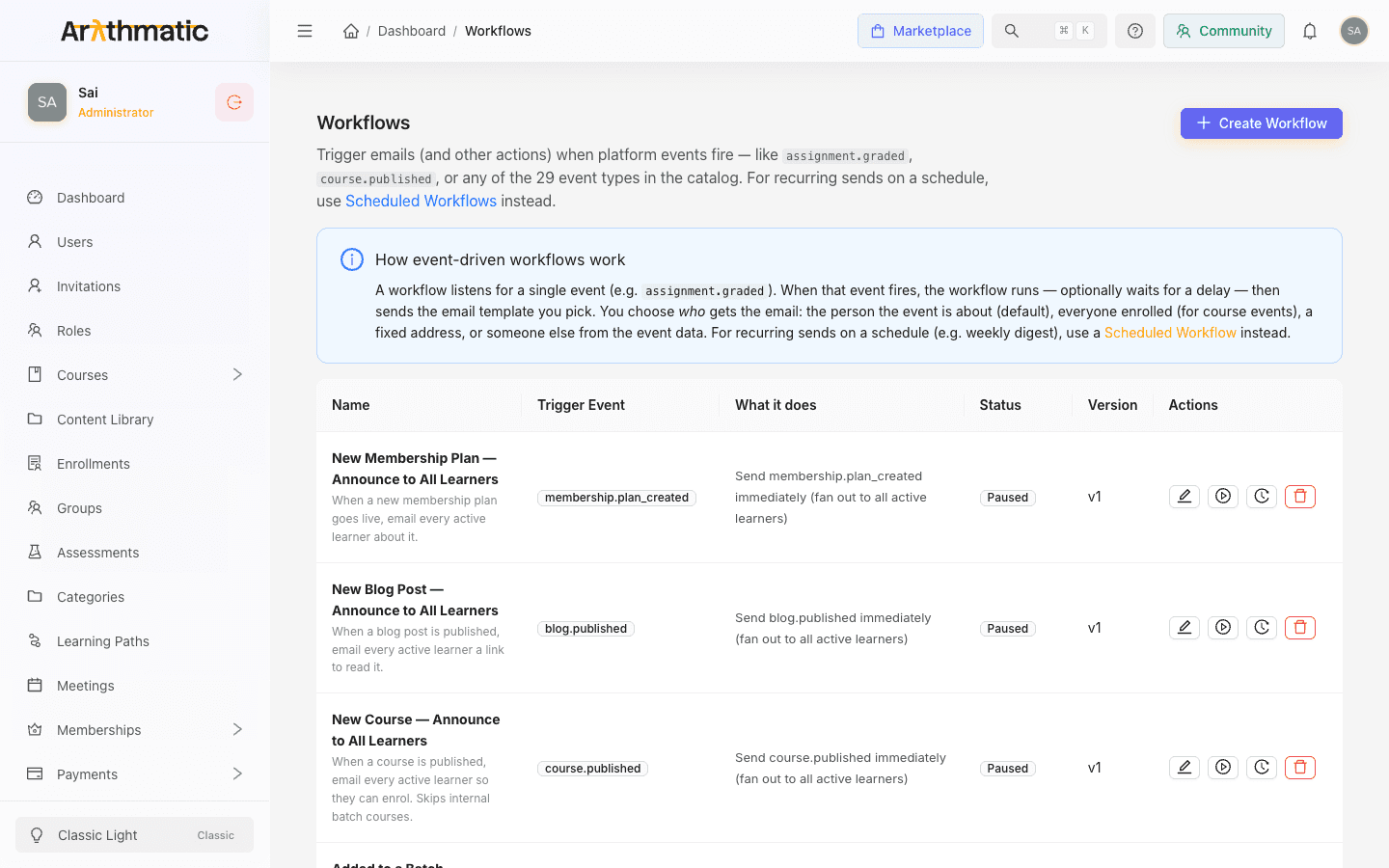
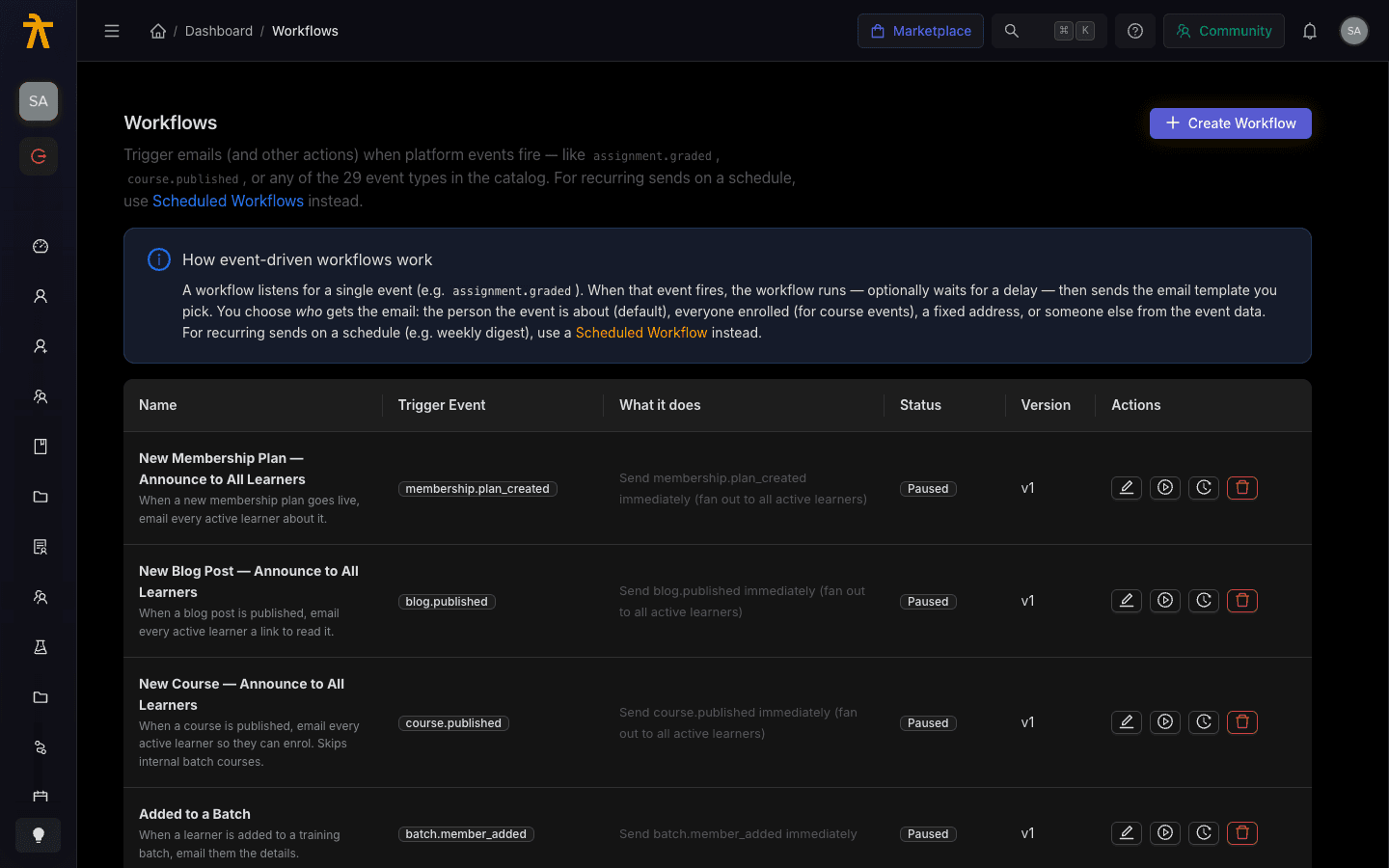
How event-driven workflows work
A workflow watches for one event (for example assignment.graded). When that event fires, the workflow runs once: it optionally waits for a delay, then sends the email template you picked to the recipient you configured. The event catalog holds around 32 event types grouped by category (course, enrollment, payment, user, and more), all pulled live from the backend.
Each fire of the trigger runs the workflow exactly once. Choosing Everyone enrolled or All active learners fans that single run out into one personalized email per person. A workflow also runs at most once per event — if a run already exists for that event, a duplicate isn't started.
Each workflow has a concurrency ceiling (100 running or waiting executions by default). If an event fires while the workflow is already at that ceiling, the event is skipped — the workflow does not run for it, and no execution appears (only a warning is logged). A long delay holds executions in the waiting state, so a high-volume trigger paired with a long wait can pile up against the cap and silently drop sends. For high-volume events, prefer a short or no delay, or split the work so waiting runs clear faster.
Create a workflow
- Click Create Workflow in the top right.
- Give it a Name (required) and an optional Description explaining what it does and when it fires.
- Pick a Trigger Event (required). The searchable dropdown groups events by category — start typing to filter, e.g.
course.published. - Choose Wait before sending: Send immediately, 1 minute, 1 hour, 1 day, or Custom (enter any number of seconds).
- Pick the Email Template to send (required). Templates whose trigger event matches your chosen event are listed first. No template yet? Follow the link to Email Templates to create one.
- Choose Who should receive this email? (see the table below).
- Leave Activate workflow immediately on save checked to go live on the next matching event, or uncheck it to save as a draft.
- Click OK to save.
Recipient options
| Option | Who receives the email |
|---|---|
| The person this event is about (default) | One email per fire, to the subject of the event — the learner who completed the course, the buyer whose payment succeeded. |
| Everyone enrolled | One personalized email per enrollee. Only works on course-linked events like course.published, course.updated, course_content.created, course_content.updated, meeting.scheduled, and assessment.created. |
| All active learners | One personalized email to every active learner in your tenant. Works on any trigger — ideal for announcing a new course. |
| A specific email address | Every fire goes to one fixed mailbox you type in, such as billing@yourcompany.com. |
| Someone else from the event (advanced) | Points into the event data with a variable path (e.g. the instructor who graded an assignment). Click a suggested tag to insert it. |
For the advanced Someone else from the event option, the path you enter must exist in the event's payload — a path that isn't present causes the workflow to fail at send time. The safest choice is to click one of the suggested tags, which are flat payload keys known to be present; a dotted path only resolves when that specific event carries a nested payload. If you are unsure which fields a trigger carries, confirm with a developer before activating.
If you pick Everyone enrolled on a trigger that has no course attached, the form shows a warning explaining there is no enrollee list to send to — switch to a different recipient option or change the trigger.
On a course.published workflow using All active learners to announce new courses, batch (training-batch) courses are deliberately not announced. Batch courses are hidden, auto-generated rows created per training batch; the fan-out detects them and skips the send (the run still succeeds, with nothing sent) so learners aren't blasted about internal batch containers. If a batch course publish didn't notify everyone, this is why.
Activating an All active learners workflow while your tenant is still on the shared platform sending domain is blocked, because bulk mail from a shared address hurts deliverability. Verify your own sender in Email Setup first, or choose Activate anyway in the confirmation dialog to override.
Edit a workflow
Click the Edit (pencil) icon on any row to reopen the form with its current values. Change the name, trigger, delay, template, or recipient and save.
The form builds a simple linear flow (trigger → optional delay → send email). If a workflow was authored with a multi-step graph the form can't represent, an Advanced graph banner appears — saving through the form would overwrite the existing steps with a single send. Cancel and edit that workflow through the Workflows API to preserve its nodes.
Activate or deactivate
Use the Activate / Deactivate (play / pause) icon on each row to toggle a workflow on or off without deleting it. A paused workflow ignores its trigger event until you reactivate it. The Status column shows Paused, draft, published, or archived, and the Version column increments each time a workflow is published.
View executions
Click the View executions (history) icon to open the executions drawer for that workflow. Each entry shows:
- A status tag — completed, failed, waiting, or in progress.
- The time the run started.
- The Path of nodes the run passed through.
- Any error message, if the run failed.
If nothing appears, the workflow simply hasn't fired yet — it will run the next time its trigger event occurs. The drawer loads the most recent runs so you can confirm an automation is firing and reaching your learners.
Emails from workflows still respect Email Suppressions. If a recipient has bounced or unsubscribed, the send is skipped for that address even when the workflow runs successfully.
Delete a workflow
Click the Delete (trash) icon and confirm in the popup. Deleting removes the workflow and stops it from firing; if you only want to pause it temporarily, deactivate it instead.
