

Template Marketplace
Browse ready-made quiz templates, unlock access for your organization, and manage the templates you own.
Template Marketplace
The Template Marketplace is a library of professionally designed quiz templates you can browse and apply when building content. Instead of authoring a quiz from a blank slate, you pick a template, unlock access for your organization, and import it into a course quiz. This page covers how to browse and search the catalog, how the access and checkout flow works, and how to review the templates your organization already owns.
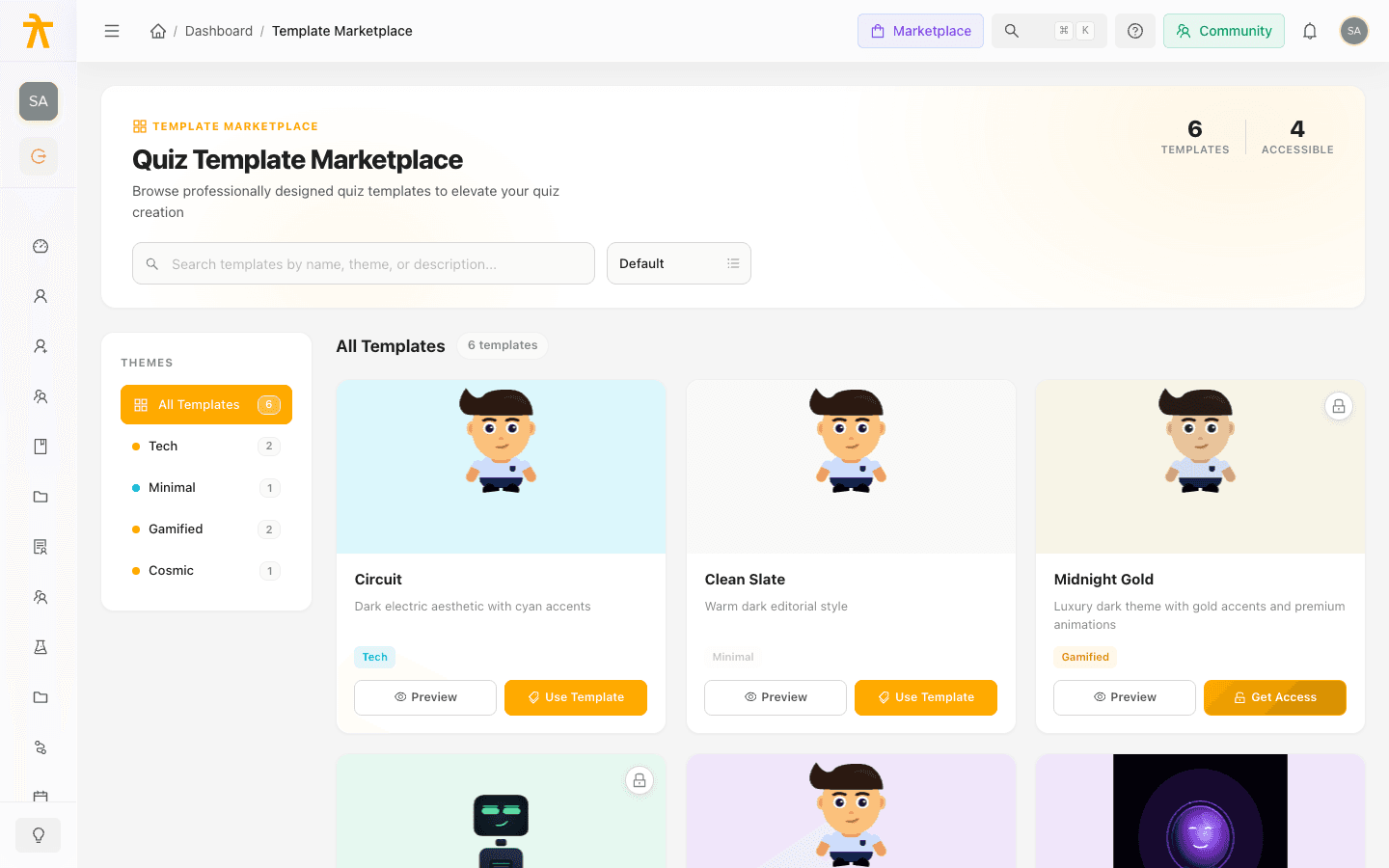
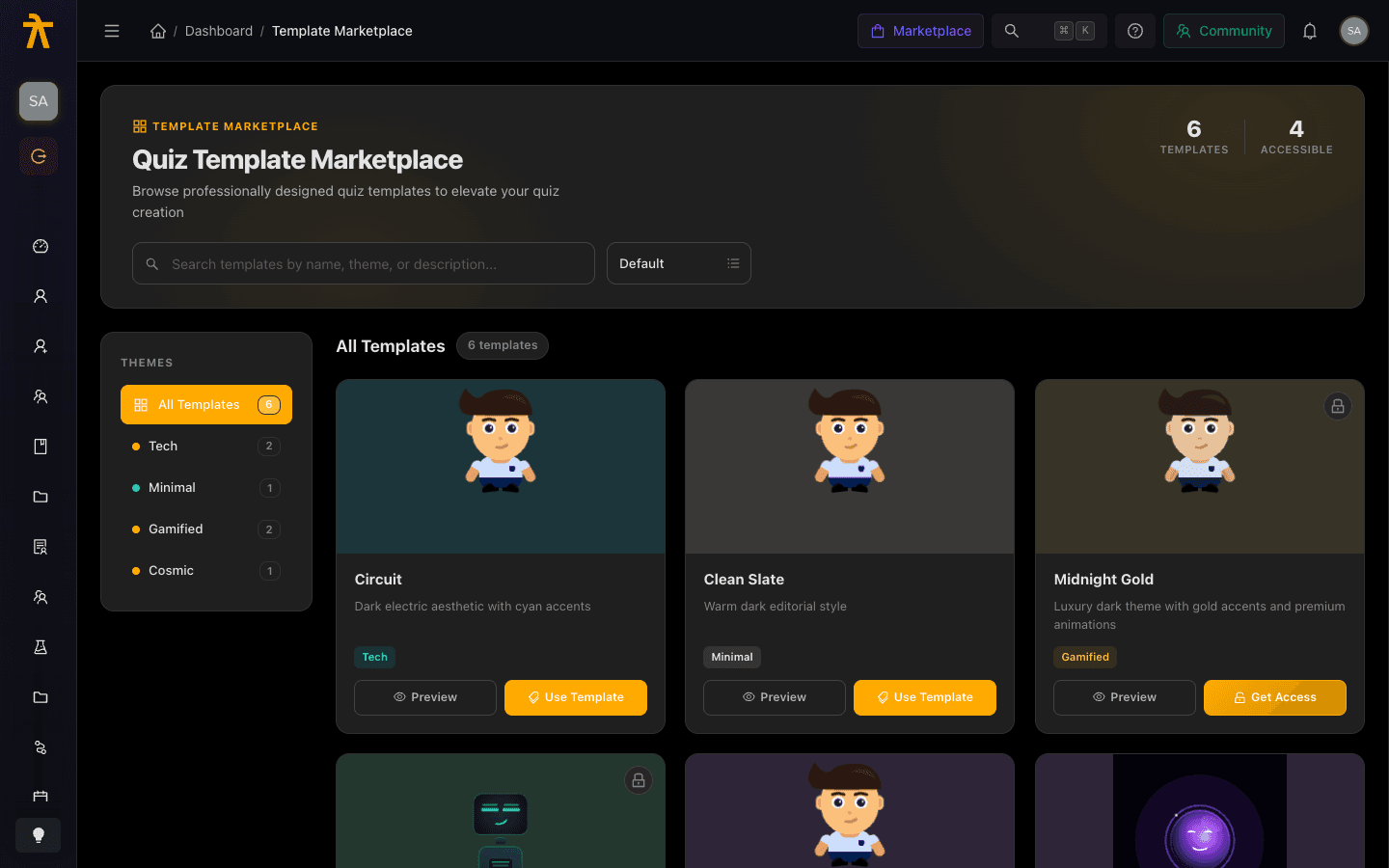
Browsing the catalog
Open the Marketplace from the dashboard to see every quiz template available to your organization. The hero at the top shows two counts: the total number of Templates and how many are already Accessible to you. Below the hero, a filter sidebar and the main grid help you narrow the list.
- Search — Type in the search box to match templates by name, theme, or description.
- Sort — Use the sort menu to order results by Default, Name A-Z, Name Z-A, or Accessible First (so templates you can already use rise to the top).
- Theme filter — Pick a theme in the left filter bar to show only templates in that theme. Each theme lists its own count.
When a search or theme filter is active, the section heading switches to Search Results or the theme name, and a Clear filters button appears to reset the view. If nothing matches, a No templates found state offers a Clear all filters shortcut.
Previewing and using a template
Each card represents one template. From a card you can:
- Preview — Opens a drawer with the full template details so you can inspect it before committing.
- Use template — Available when your organization already has access. This confirms the template is selected and points you to the next step.
- Get access — Shown when the template is locked, and starts the unlock flow described below.
When you choose Use template, a Template Ready confirmation appears. It explains that the template is now selected and that you should go to your course curriculum, create a new Quiz, and pick the template in the Import Template step. Use Go to Courses to jump straight to your courses, or Stay Here to keep browsing.
Templates are applied when you add a quiz to a course. After selecting a template here, open the course, add a Quiz activity, and choose the template in the Import Template step. See Building Content for authoring your curriculum.
Unlocking access
Locked templates are marked as premium. Choosing Get access starts a checkout so your organization can unlock the template. Two paths are possible depending on your account:
- Direct template checkout — Begins a hosted checkout for that specific template. After a successful payment you are returned to the Marketplace, the purchase is confirmed, and access is granted.
- Plan upgrade — On the access page, a Premium Template panel lists what you unlock (full template access, all premium templates, custom design tokens, animations, and future templates) alongside a recommended plan. You can toggle between Monthly and Annually billing (annual shows the discount), then Unlock by upgrading, or Open Billing Portal to manage an existing subscription.
The access page also offers Compare all plans, which takes you to billing pricing, and a Back to Marketplace link to return without changing anything.
Access is granted at the organization level, not per user. If your organization already owns a template, starting checkout again returns a message that access already exists rather than charging you a second time.
Managing access
The access-management view is where you confirm what your organization can already use and resolve the unlock path when a template is still locked. It surfaces the current subscription state and, when a purchase or upgrade is needed, presents the recommended plan and its included limits.
| Panel | What it shows |
|---|---|
| What you unlock | The premium benefits tied to unlocking, such as full and future template access. |
| Recommended upgrade | The suggested plan name, tagline, and price for the selected billing period. |
| Plan perks | Included limits such as users, courses, and storage, plus features like advanced analytics, payment gateway, and white labeling when the plan provides them. |
| Manage subscription | Shown when your plan already covers premium templates; opens the billing portal to manage access. |
Only admins with billing permissions should complete an upgrade or open the billing portal. Review who can purchase in Roles & Permissions.
Related
Meetings Licensing & Staff Seats
Enable Meetings for your workspace, understand why host licences follow the Admin and Instructor roles automatically, and buy an extra staff seat when every slot on your plan is taken.
Monetization
Connect a payment gateway, sell courses and memberships, run discounts and campaigns, and track revenue across your workspace.
