

Enrolling Learners
Enroll learners individually or in bulk, then track status, progress, and certificates across courses, batches, and learning paths.
Enrolling Learners
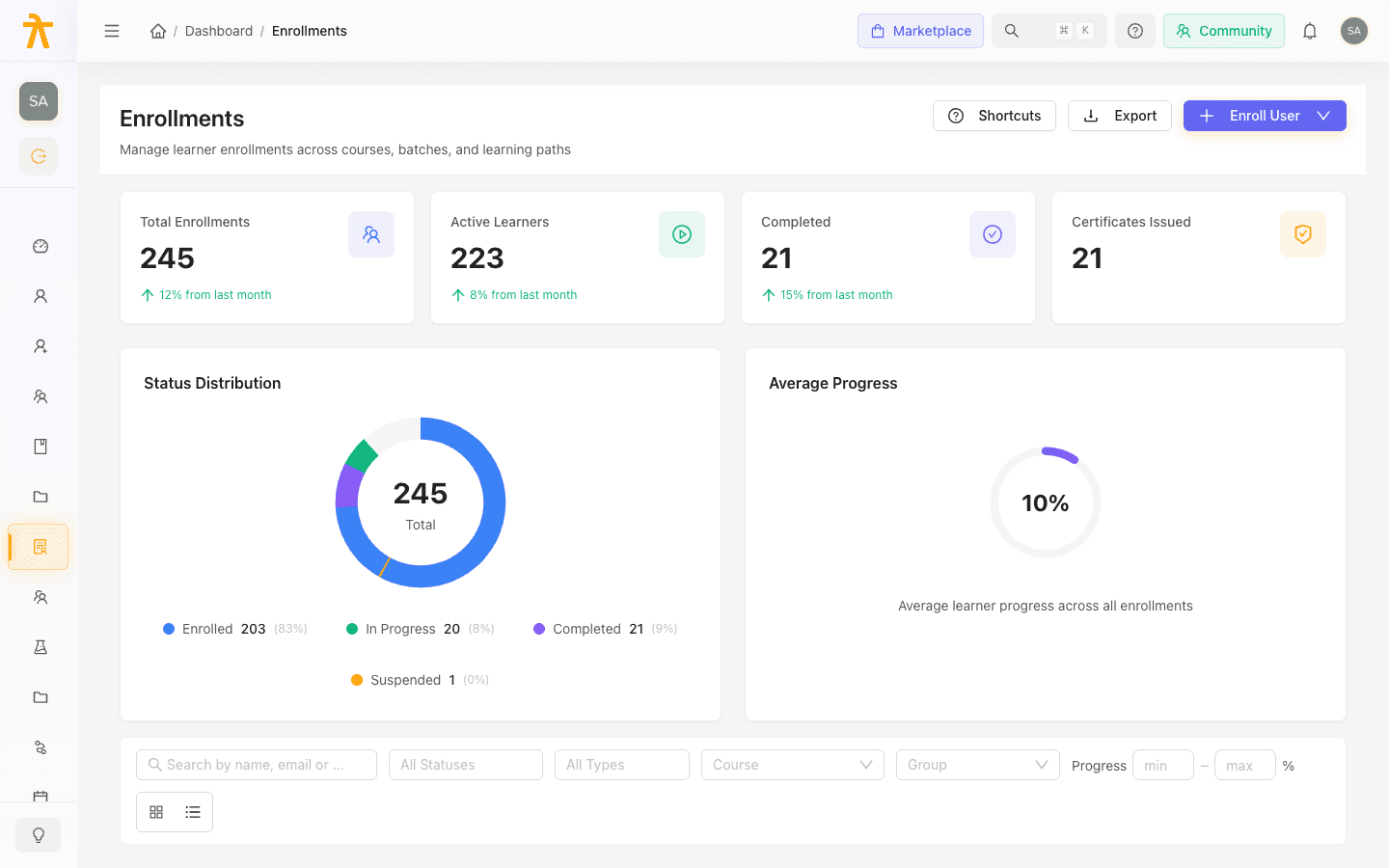
The Enrollments workspace is where admins put learners into your content and keep tabs on how they are doing. From here you can enroll a single user, run a guided bulk enrollment, filter the roster by type and status, review live stats, and suspend or remove learners in bulk. Instructors see the same roster in read-only mode, so they can follow progress without changing enrollments.
Enroll a single user
- On the Enrollments page, open the Enroll User menu and choose Enroll Single User.
- Under Select User, search by name or email and pick the learner.
- Choose an Enrollment Type — Course, Batch, or Learning Path.
- In the target field (Select Course, Select Batch, or Select Learning Path), search for and select the item to enroll into.
- Pick an Enrollment Source (for example Admin Manual, Cash Payment, Complimentary, Scholarship, or Corporate).
- Optionally add a Payment Reference, Amount Paid, and internal Admin Notes.
- Leave Send email notification to user checked if the learner should be told, then confirm.
If you open the enroll form from inside a specific course, batch, or learning path, the target is pre-filled and locked, and the type selector is hidden — you only choose the user and the source.
The form checks for duplicates as you go. If the user already has an active enrollment in the selected target, it blocks the submit so you don't create a second one.
Only active (Enrolled or In Progress) duplicates are blocked. Re-enrolling a learner whose enrollment is Dropped or Suspended does not create a second record — it reactivates the existing one (status back to Enrolled, enrollment date reset to now) and keeps their prior progress. For a batch, this also re-increments the batch's enrollment count.
Bulk-enroll many learners
Use Enroll User → Bulk Enrollment for a guided, multi-step flow:
- Users — search and add every learner you want to enroll; selected users appear as removable pills.
- Target — pick a target type card (Course, Batch, or Learning Path), then search for the specific target.
- Options — set the shared Enrollment Source and any payment details applied to all learners.
- Review — check the user list and the target, then choose Start Enrollment.
- Processing — a progress bar tracks each enrollment. Don't close the window until it finishes.
Each bulk run enrolls up to 100 learners at a time. For a larger cohort, split it into several runs.
Enrollment types, groups, and batches
Keep these concepts distinct:
| Concept | What it means |
|---|---|
| Course | A single self-paced course a learner is enrolled into directly. |
| Batch | A scheduled, cohort-based run of a course with start and end dates. See Batches. |
| Learning Path | An ordered set of courses completed as one program. |
| Group | An audience segment (for example a department or team) you can filter enrollments by — not a target you enroll into directly. |
In the filter bar, the Type filter uses Self-Paced, Batch, and Learning Path to describe how a learner is enrolled, while the Enroll User dialog uses Course, Batch, and Learning Path as the thing you enroll into.
Enrolling into a Learning Path does not create one record. It creates a master path enrollment plus a separate enrollment for every course in the path, so the learner appears in each member course's roster and counts toward each course's stats. Removing the learner from the path cascades — it drops (or, with a hard delete, deletes) all of those per-course enrollments together with the master record.
Filter and search the roster
The filter bar narrows the list without leaving the page:
- Search by learner name, email, or employee ID.
- Status (multi-select): Enrolled, In Progress, Completed, Suspended, Dropped.
- Type: Self-Paced, Batch, or Learning Path.
- Course and Group dropdowns to scope to one course or one audience segment.
- Progress range to find learners within a completion band.
Switch between the table and card views, sort by column, and page through results (10, 20, 50, or 100 per page). Use Export to download the current, filtered roster.
Read the stats
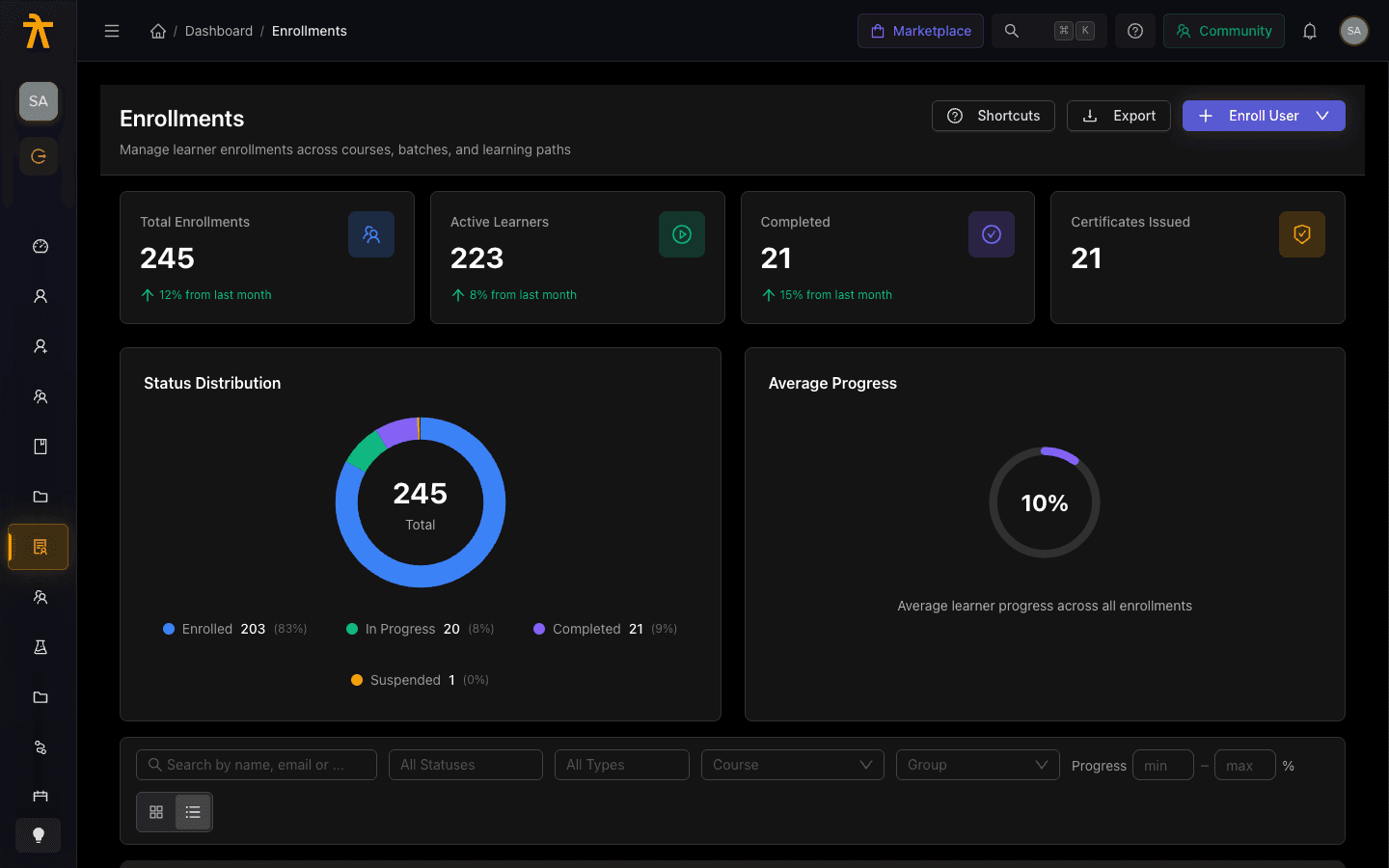
Four stat cards summarize the roster at a glance — Total Enrollments, Active Learners, Completed, and Certificates Issued. Average Progress is shown separately as a gauge chart. On a course or learning path enrollment page, the same cards are scoped to that item, and learning paths add a per-course Course Progress Breakdown.
Per-user status and actions
Each row shows the learner, Status tag, Progress bar, enrolled and completed dates, and (for courses) a certificate indicator. Open the row menu or the detail slide-over to act on one enrollment:
- Suspend — revoke access temporarily (available while Enrolled or In Progress).
- Reactivate — restore a Suspended or Dropped learner.
- Mark Complete — close out an In Progress enrollment.
- Remove — take the learner off the target (uses a confirmation dialog). Removal records a reason (Admin Request, User Request, Refund Issued, Policy Violation, Duplicate Enrollment, Expired, Transfer, or Other).
Remove has two modes. The default (soft) sets the enrollment status to Dropped — reversible later via Reactivate, and the learner's progress is retained. A hard delete permanently removes the enrollment row and every progress record for it, with no undo — all learning progress is lost. Reach for the reversible Dropped variant unless you truly need to erase the record.
Bulk suspend and remove
Select multiple rows to reveal the bulk actions bar showing how many are selected. From there you can Suspend the selection at once or Remove learners. Suspended learners lose access but can be reactivated later, so bulk suspend is the reversible option; use Clear Selection to reset.
Only admins can enroll, suspend, remove, or reactivate. Instructors get a read-only roster — the write actions and the bulk bar are hidden for them. See Roles and Permissions.
