

Navigating the Dashboard
A tour of the Arythmatic manage dashboard — what each section does and where to find it.
Navigating the Dashboard
The manage dashboard is where Admins and Instructors do their work. This page orients you to the main areas so you can find what you need quickly.
The Layout
When you log in, you land on the Dashboard — a summary view with at-a-glance stats for your workspace (total learners, active courses, recent enrollments, and revenue if applicable). The layout has three main areas:
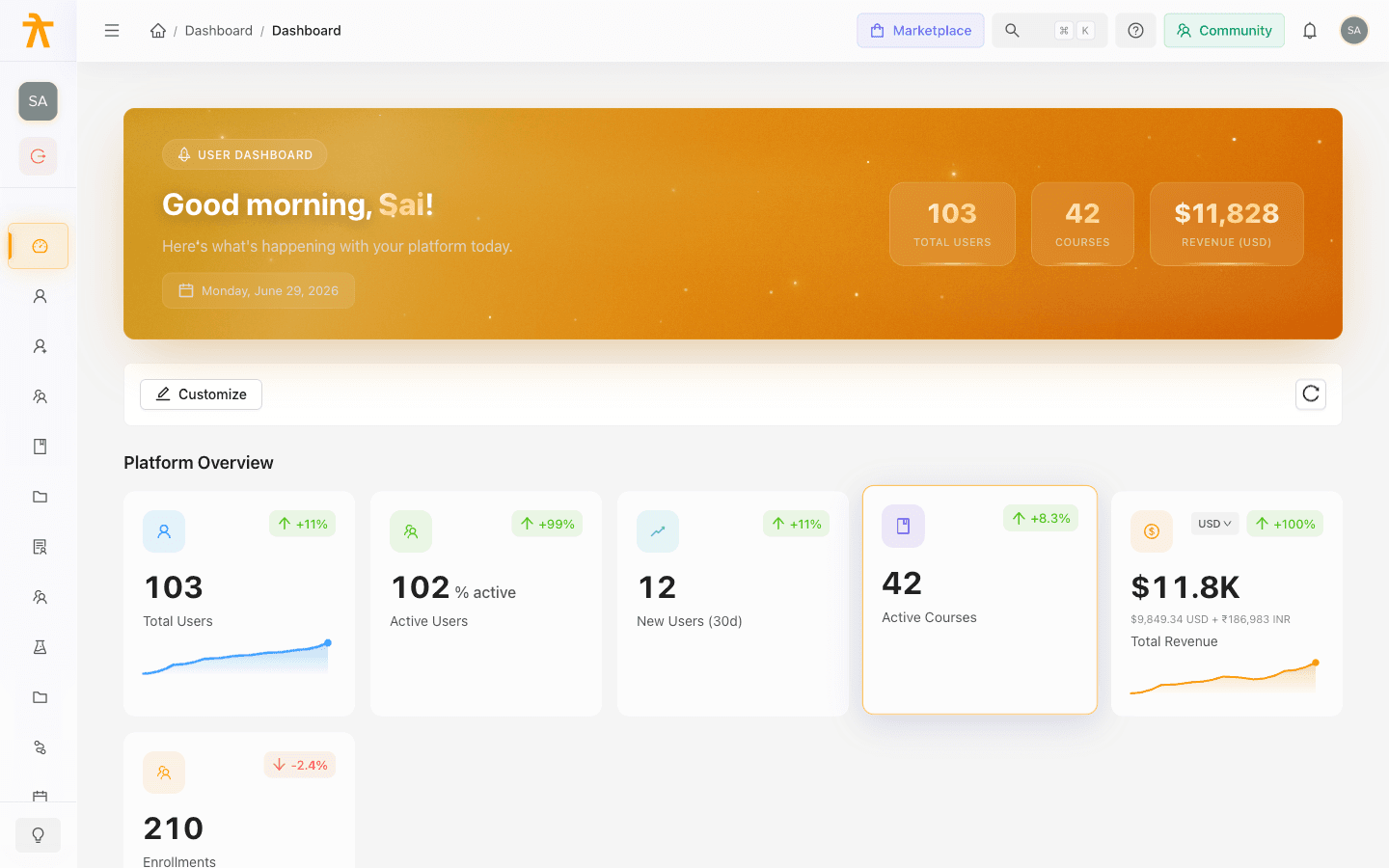
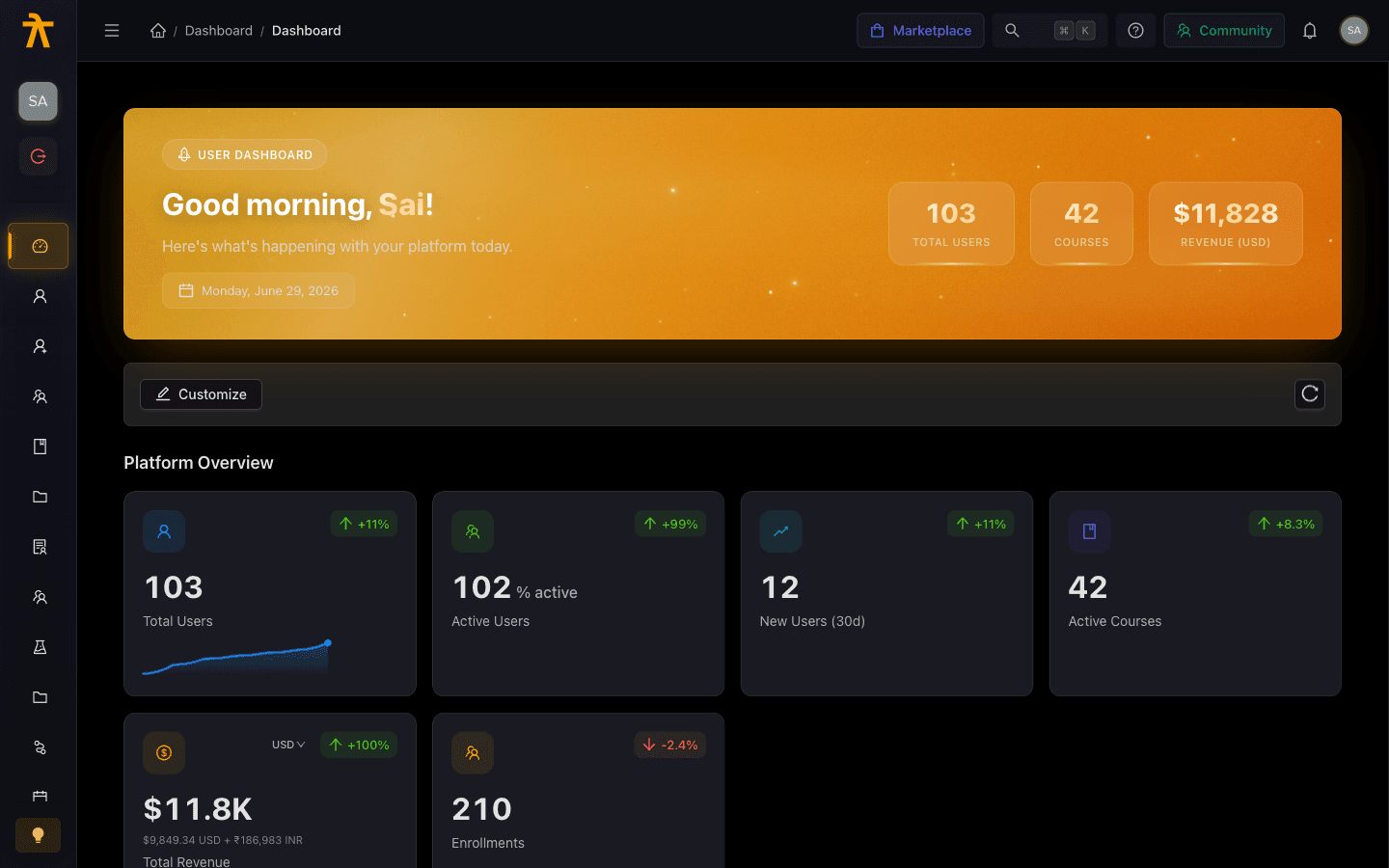
- Left sidebar — your workspace logo, the Role Switcher, and primary navigation to every section of the platform.
- Top header — the sidebar toggle, breadcrumbs, search, notifications, and your profile menu.
- Main content area — the page you are currently viewing.
If you hold more than one role (for example, Admin and Instructor), use the Role Switcher in the left sidebar to change your active context. The sidebar menu adjusts to show only the sections relevant to your active role.
Sidebar Sections
Dashboard
The home view. Admins see workspace-wide metrics: total learners, active enrollments, course count, revenue, and recent activity. Instructors see their own course stats: active students, completion rates, and upcoming meetings.
Courses
Create, edit, and manage your course catalog.
- All Courses — list of every course in your workspace with status (draft, published), enrollment count, and rating.
- Create Course — launches the creation wizard (Basic Information → Course Details → Pricing → Settings → Review).
- Curriculum editor — once a course is created, click into it to add sections and lessons (video, audio, text/article, document, external URL, quiz, assignment). Adding sections and lessons happens here, after the wizard, not as a step inside it.
- Batches — instructor-led cohorts attached to a course. Create a batch to run the same course on a fixed schedule with a specific group of learners.
Learning Paths
Build multi-course journeys.
- Create a learning path, add courses in sequence, and set completion criteria.
- Learning paths can be free or paid, and support the same catalog visibility options as courses.
- Progress tracking shows how far each learner has advanced through the path.
Assessments
Standalone assessments that you can assign across multiple courses.
- Build question banks organized into sections.
- Set time limits, attempt limits, passing scores, and randomization.
- Assign an assessment to one or more courses, learning paths, or batches.
- Review attempt results and analytics per assessment.
Content Library
A central repository of reusable media assets — videos, documents, and images — that you can add to any course. Upload once and reuse across your curriculum.
Categories
Organize your catalog into a browsable category tree. Assign courses and learning paths to categories so learners can filter and explore the catalog.
Meetings
Schedule and manage live, synchronous sessions (Zoom, Teams, or Meet). Meetings can stand alone or be attached to a course or batch.
Users
Search, filter, and view everyone in your workspace by role. This is where you view and manage individual user accounts.
Invitations
Send email invitations to new users and track their status (pending, accepted, expired, revoked). This is a separate top-level item — there is no "Invite Users" child under Users.
Roles
View the built-in roles, create custom roles, and manage what each role can do. Role assignment for an individual user happens on that user's record under Users.
Groups
Cohorts of learners. Assign courses to a group and all group members gain access automatically. Groups are a top-level, tenant-wide item for Admins — there is no "Schools & Groups" parent menu, and regular Admins do not see a separate "Schools" nav item. The school-scoped My School area appears only for users who have the Group Admin capability (redirected automatically when they log in).
Enrollments
View and manage all enrollment records.
- Filter by course, learning path, learner, or status (enrolled, in progress, completed).
- Manually enroll individual learners or bulk-enroll via CSV.
- Track progress and completion from this view.
Payments
Revenue tracking and configuration (Admin only).
- Transactions — a full log of purchases with payment status, amount, currency, and learner details.
- Analytics — revenue and payment analytics.
- Payment Intents — in-progress and pending payment records.
- Refunds — initiate and track refund requests.
- Settings — connect and configure your payment gateways. Arythmatic supports Stripe and Razorpay.
- Promotions and Coupons — discount campaigns and coupon codes.
Memberships
Recurring subscription plans that bundle access to your catalog (Admin only). Learners on an active membership gain access to the courses and learning paths the plan covers.
Analytics
Data and reporting for your learning program (Admin only).
- Course-level analytics: enrollment funnel, completion rate, drop-off points, time-on-content.
- Learner engagement: activity heatmaps, geo distribution, device breakdown.
- Export data for external reporting.
Gamification
Configure the engagement layer for your learners — badges, points and multipliers, and leaderboards. Gamification is a single top-level link (no sub-items); the badge, points, and leaderboard controls live on the Gamification page itself.
Credentials
Build and manage completion certificates and credentials.
- Use the built-in visual overlay editor — a custom drag-and-drop editor for placing text and fields over a certificate background — to design credential templates with your branding, learner name placeholders, and course/path names. (There is also an HTML code editor for advanced templates.)
- Assign a credential template to a course or learning path; it issues automatically on completion.
Blog
A built-in CMS for publishing articles alongside your learning content.
- Create posts with the rich text editor, assign categories and tags, and optimize SEO metadata.
- Blog content is visible to learners on the public-facing site.
Feedback
Collect and review feedback from your learners. Use this section to see submissions and track sentiment about your courses and platform.
Automation
Connect Arythmatic events to automated actions (Admin only).
- Workflows — automated rules that react to platform events.
- Scheduled Workflows — workflows that run on a schedule.
- Email Suppressions — manage unsubscribe and bounce lists. (This lives under Automation, not Settings.)
Settings
Workspace configuration (Admin only). Settings opens to its own internal navigation with these sections:
- Platform Info — workspace name and general platform configuration.
- Branding — logo, colors, and brand assets.
- Theme Editor — light/dark theme and visual styling.
- Footer — footer links and content.
- Page Content — editable marketing/landing page content.
- Legal Pages — legal pages (terms, privacy, etc.).
- Email — email provider and sender configuration.
- Security — security and session settings.
- Features — feature toggles for your workspace.
- Notifications — automated notification preferences.
- Integrations — third-party integrations.
- API Settings — API keys and settings.
Billing
Manage your Arythmatic subscription plan (Admin only).
- View your current plan, usage, and billing cycle.
- Upgrade, downgrade, or cancel your subscription.
- If your trial has expired or your subscription is inactive, a billing wall appears until the plan is resolved.
Audit Log
A compliance and security audit trail (Admin only).
- Searchable log of all significant actions taken in the workspace (user changes, content changes, settings changes).
- Filter by user, action type, and date range.
Finding Things Quickly
- Use the ⌘K command palette (or the search icon in the header) to jump to any section of the dashboard and to trigger quick actions (such as Create New Course or Create New User). It navigates by section and action name — it is not a global search for individual courses or learners.
- The breadcrumb trail at the top of each page shows your location and lets you navigate up quickly.
- The Notifications bell (header) alerts you to enrollment events, payment activity, and system messages.
Keyboard shortcuts
Beyond the command palette, a searchable Keyboard Shortcuts modal lists the accelerators available across the dashboard (⌘ on Mac, Ctrl elsewhere):
- General — Save changes (⌘S), Undo (⌘Z), Redo (⌘Shift+Z), and Escape to close a modal or cancel.
- Theme Editor — Export theme (⌘E), Import theme (⌘I), Toggle preview mode (⌘P), Toggle dark/light mode (⌘D), and Reset theme to defaults (⌘R).
- Settings navigation — jump straight to a Settings section: Platform Info (⌘1), Branding (⌘2), Theme Editor (⌘3), Email Settings (⌘4), and Security (⌘5).
First-Time Setup Checklist
A step-by-step checklist for new Admins to configure their Arythmatic workspace, invite their team, and launch their first learning program.
Your Account
Manage your own account in Arythmatic — edit your profile, set personal preferences for theme, language and notifications, and review the devices where you're signed in.
